Skip to content
  • There are no suggestions because the search field is empty.

Connecting a Calendar

ACCOUNT SETUP
Connect your calendar to SCALIS for bi-directional syncing, then customize scheduler links and event defaults for a smooth interview experience.
4 sections6 min read
 
Connecting Your Calendar
 
1
Step 1
Open Calendar Settings

Connect your calendar account to SCALIS to manage interviews, event scheduling, and calendar sync.
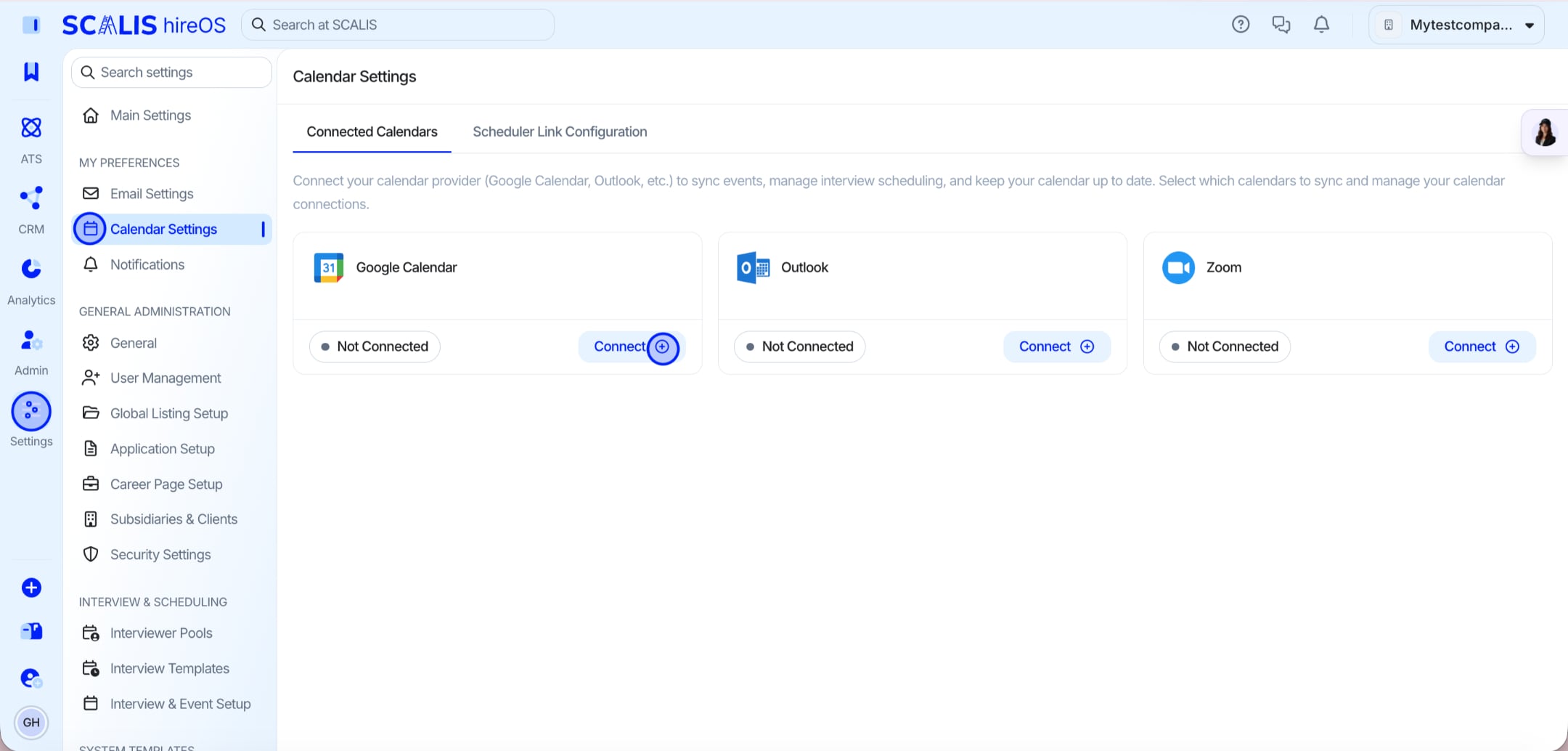
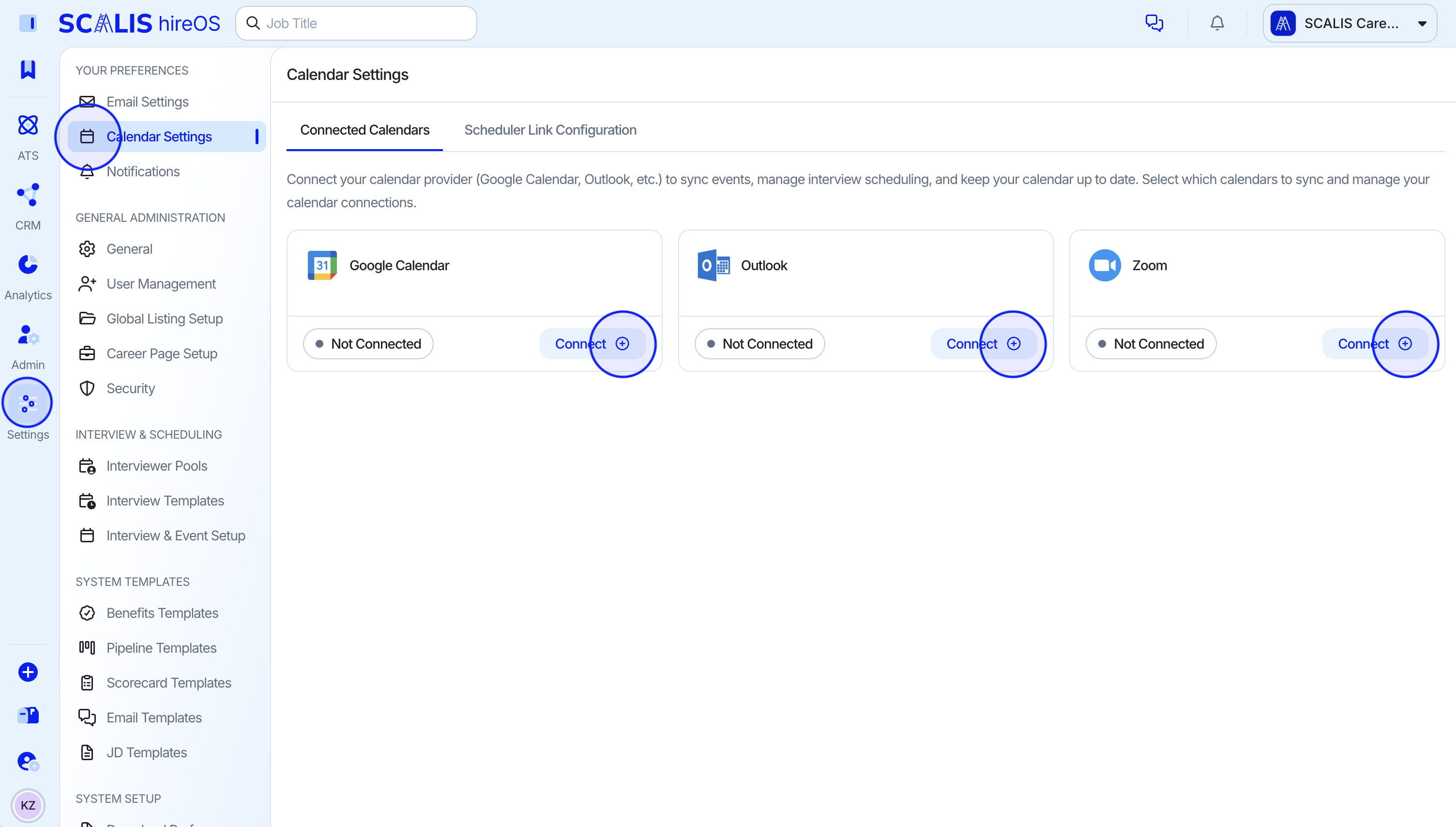
 
Navigate to Settings on the left-hand side.
 
Click Calendar Settings in the navigation bar that slides out.
SCALIS Calendar page with the settings gear icon highlighted
Calendar Settings from the Calendar page
 
2
Step 2
Connect your calendar provider
 
Click the Connect button and select your calendar provider to sync your calendar.
Connect button and calendar provider options in SCALIS
Selecting a calendar provider to connect
3
Step 3
Accept and connect
 
Read the terms of use, then click Accept and Connect to proceed.
 
Log in and accept the requested permissions.
💡 Note: You're done. SCALIS can now surface real-time availability for self-scheduling and interviewer coordination, and it keeps SCALIS events separate from non-SCALIS events for a clear, organized view.
⚠️ Warning: If your organization enforces additional security settings, ask your IT team to add SCALIS to their allow list so the calendar connection can complete.
Shared Calendars
4
Step 4
Manage shared calendars

If your calendar provider supports shared calendars (like Google), every shared calendar you have access to appears here once connected. These can be used to check availability and schedule interviews, based on the visibility and permissions set by the calendar owner.
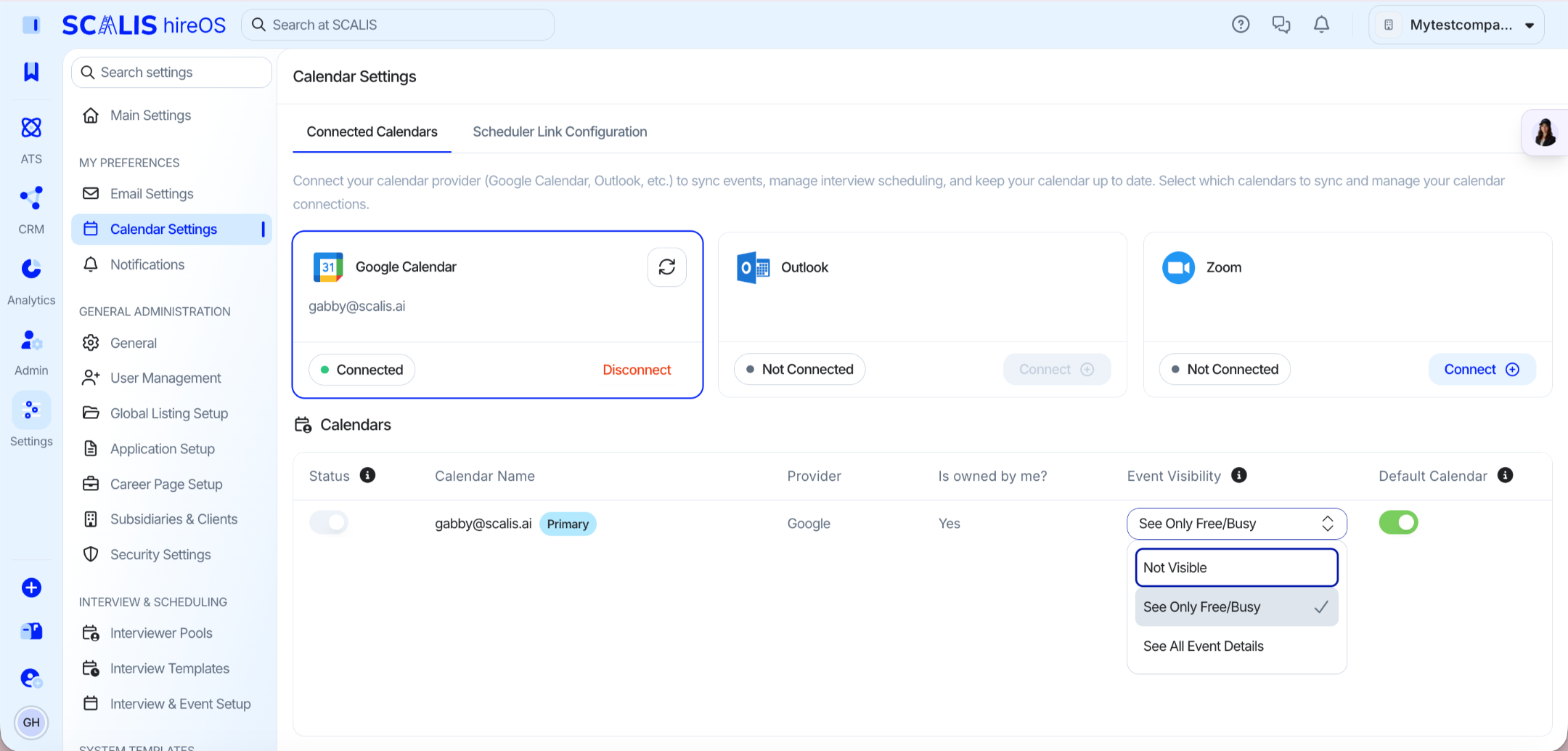
 
Calendar Status: Enable or disable a calendar. Disabled calendars do not appear in booking dropdowns for you or others.
 
Event Visibility: Control how your calendar events appear to others. Visibility settings apply to others, not to calendar owners or those with shared access.
 
Default Calendar: Set the default calendar used for creating new events.
Shared calendars list with status, event visibility, and default calendar controls
Shared calendar status, visibility, and default settings
 
5
Step 5
Open Calendar Settings from Company Settings

These are individual settings that control how candidates book time through your scheduler link.
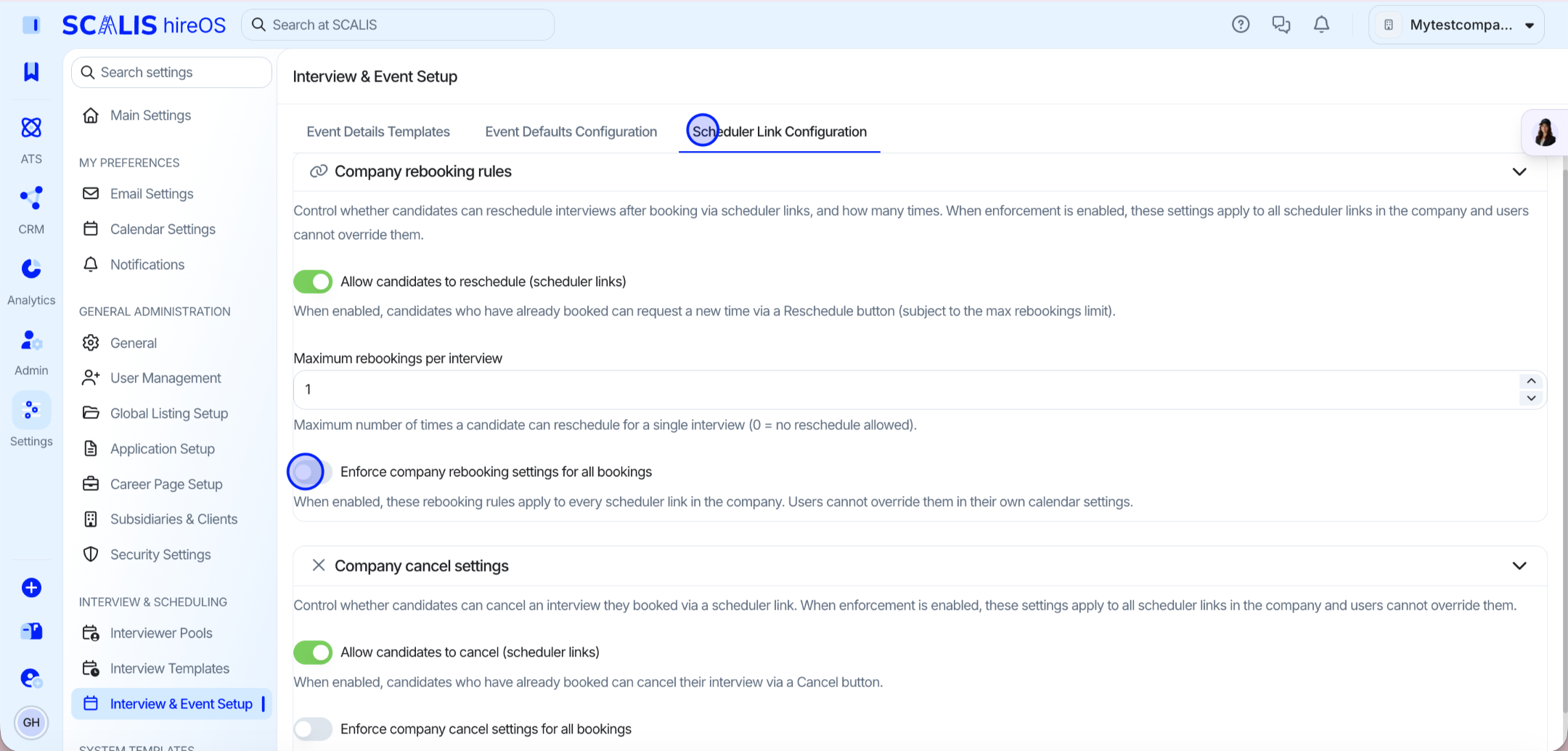
 
Navigate to Calendar Settings from your Company Settings.
Company Settings with Calendar Settings highlighted in SCALIS
Calendar Settings within Company Settings
 
6
Step 6
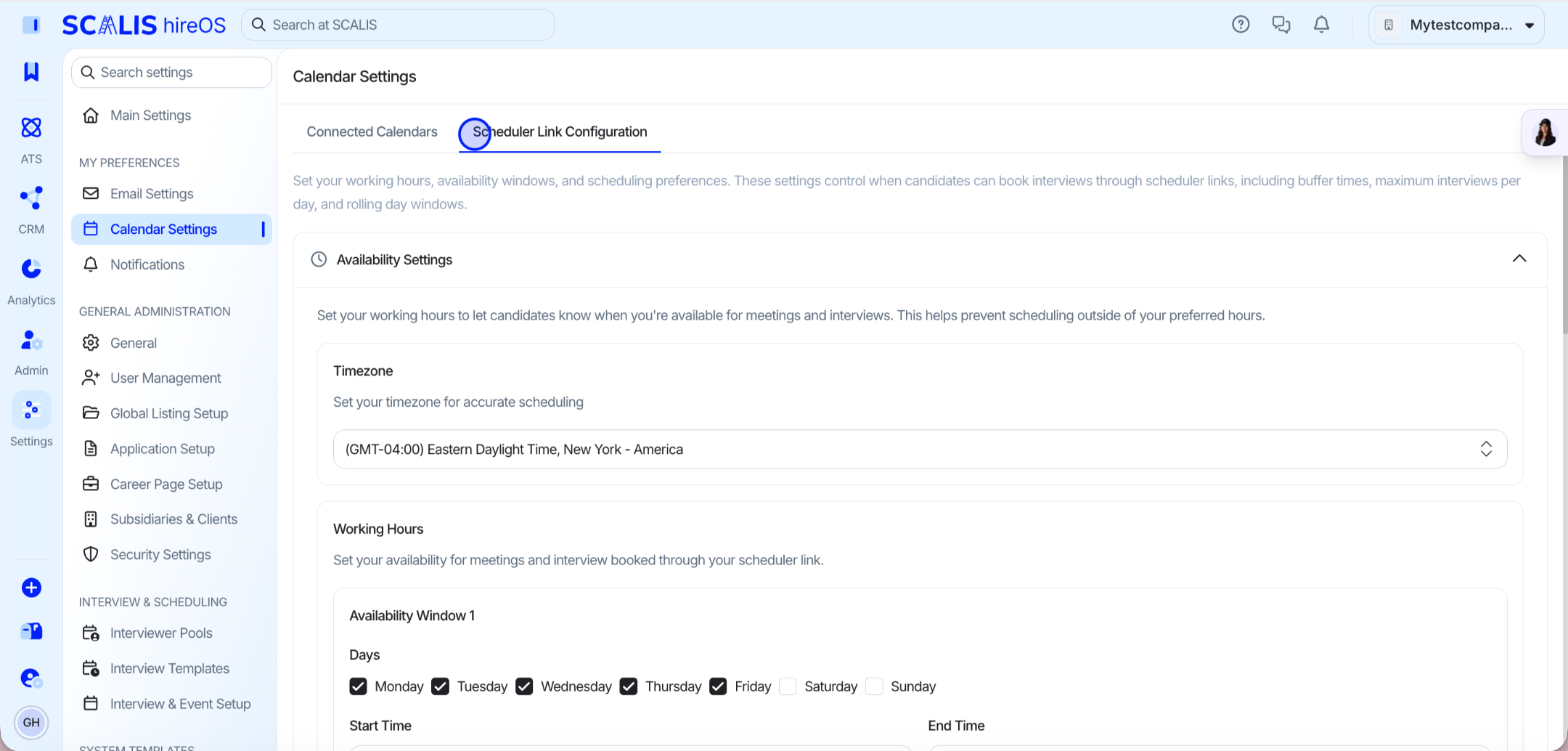
Open the Scheduler Link Configuration tab
 
Click the Scheduler Link Configuration tab and customize the settings to your liking.
Scheduler Link Configuration tab open in SCALIS Calendar Settings
The Scheduler Link Configuration tab
7
Step 7
Review the available settings
 
Working Hours: Set your availability for meetings and interviews booked through your scheduler link.
 
Minimum Scheduling Notice (hours): The earliest time a candidate can select, measured from the time of submission.
 
Example: if set to 2 hours, a candidate submitting at 1:00 PM cannot book anything earlier than 3:00 PM.
 
Rolling Days of Availability: How many days out a candidate can schedule via the link. This window begins after the minimum scheduling notice passes.
 
Example: if set to 7, candidates can schedule within a 7-day rolling window from today.
 
Max Interviews per Day: The maximum number of interviews per day that can be booked into an individual recruiter or interviewer's calendar.
 
Example: if set to 2, SCALIS stops showing that user as available after two bookings are confirmed for the same day.
 
Buffer Time (before/after, minutes): Add time before or after each interview to allow for prep and prevent back-to-back bookings. Must be 0 to 120 minutes in increments of 5. Set to 0 to disable.
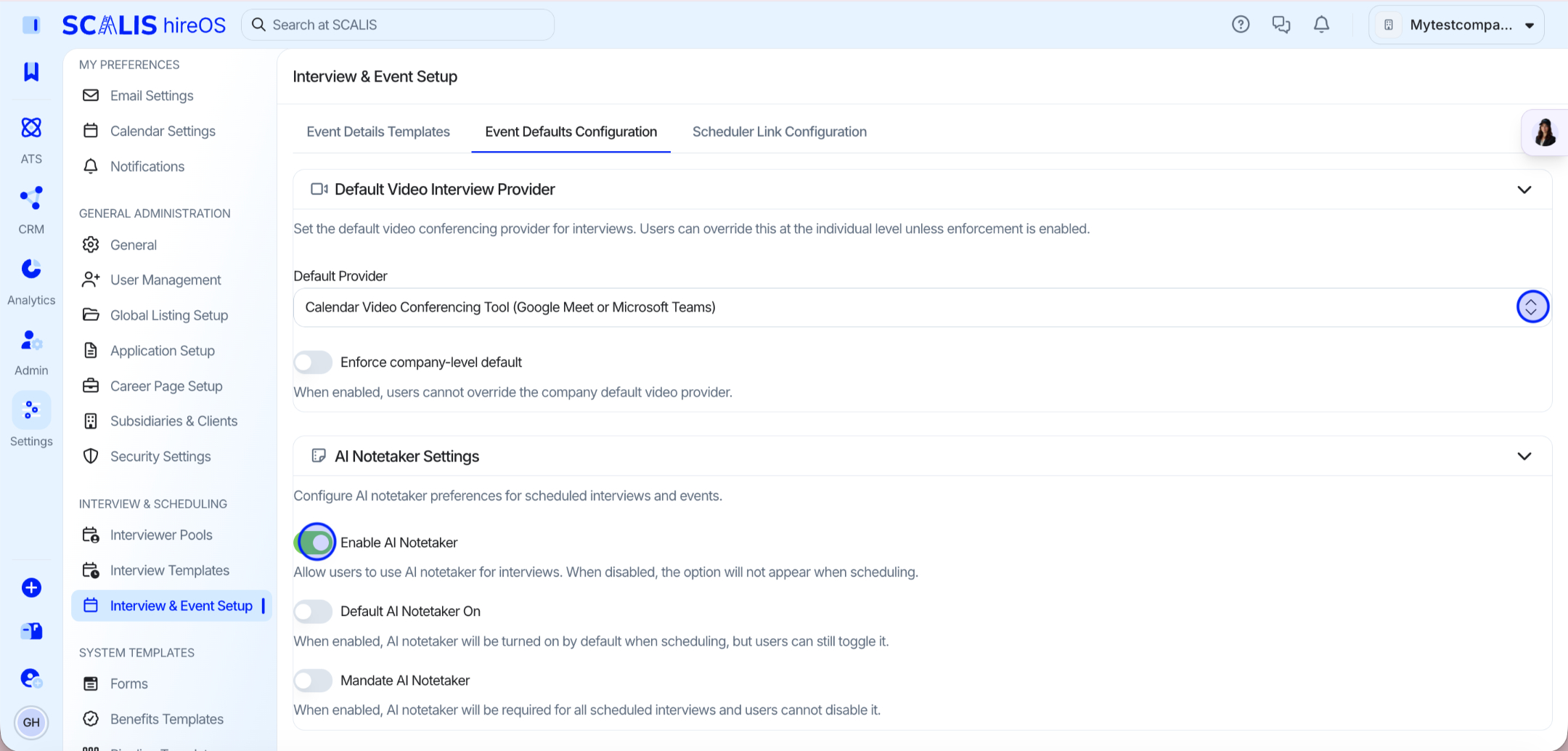
Event Defaults Configuration
 
1
Step 1
Open Interview & Event Setup

Manage company-wide defaults for how interviews and events are scheduled, including the default video conferencing provider and AI Notetaker preferences.
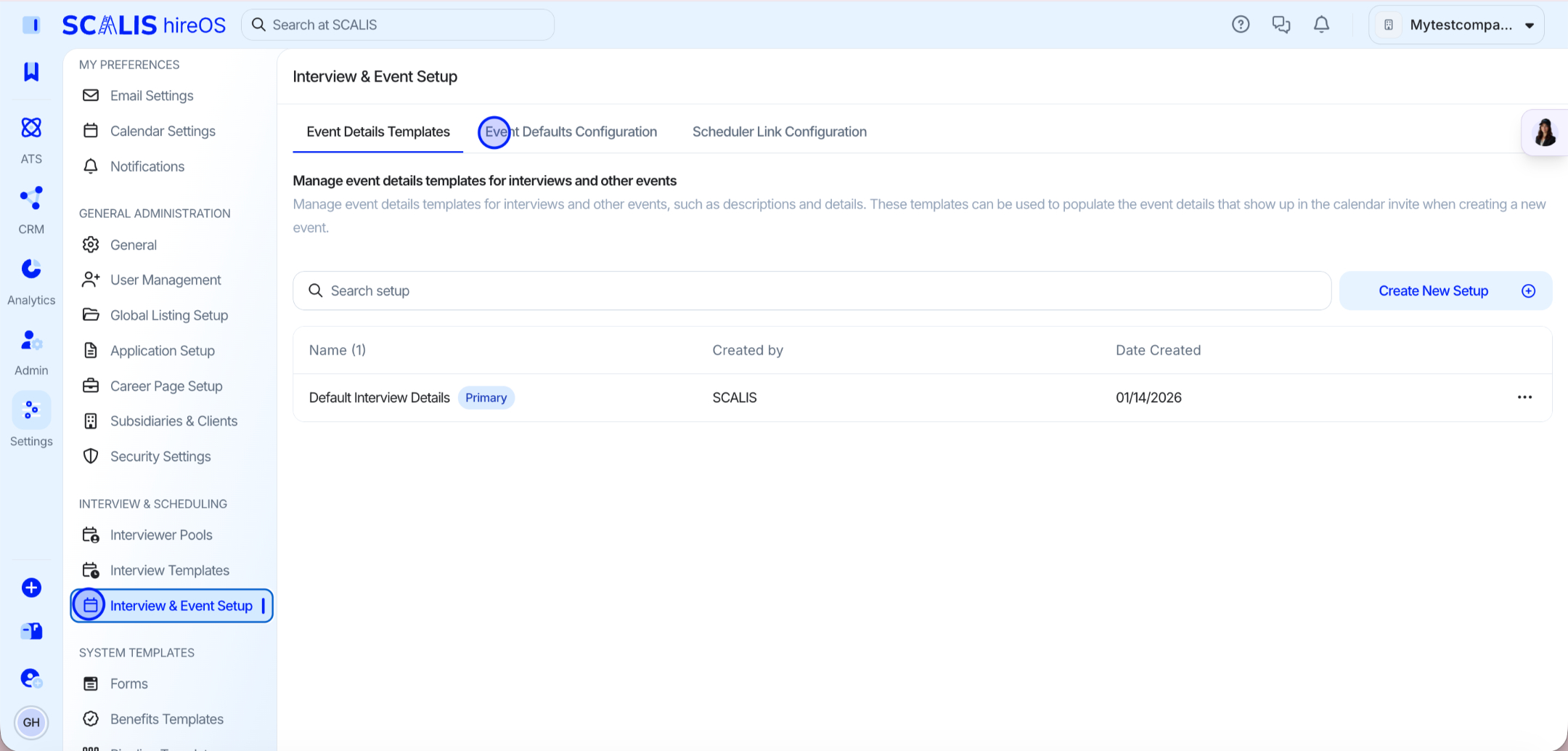
 
Navigate to Interview & Event Setup from your Company Settings.
Interview and Event Setup page in SCALIS Company Settings
Interview & Event Setup in Company Settings
 
2
Step 2
Open the Event Defaults Configuration tab
 
Click the Event Defaults Configuration tab.
Event Defaults Configuration tab open in SCALIS
The Event Defaults Configuration tab
 
3
Step 3
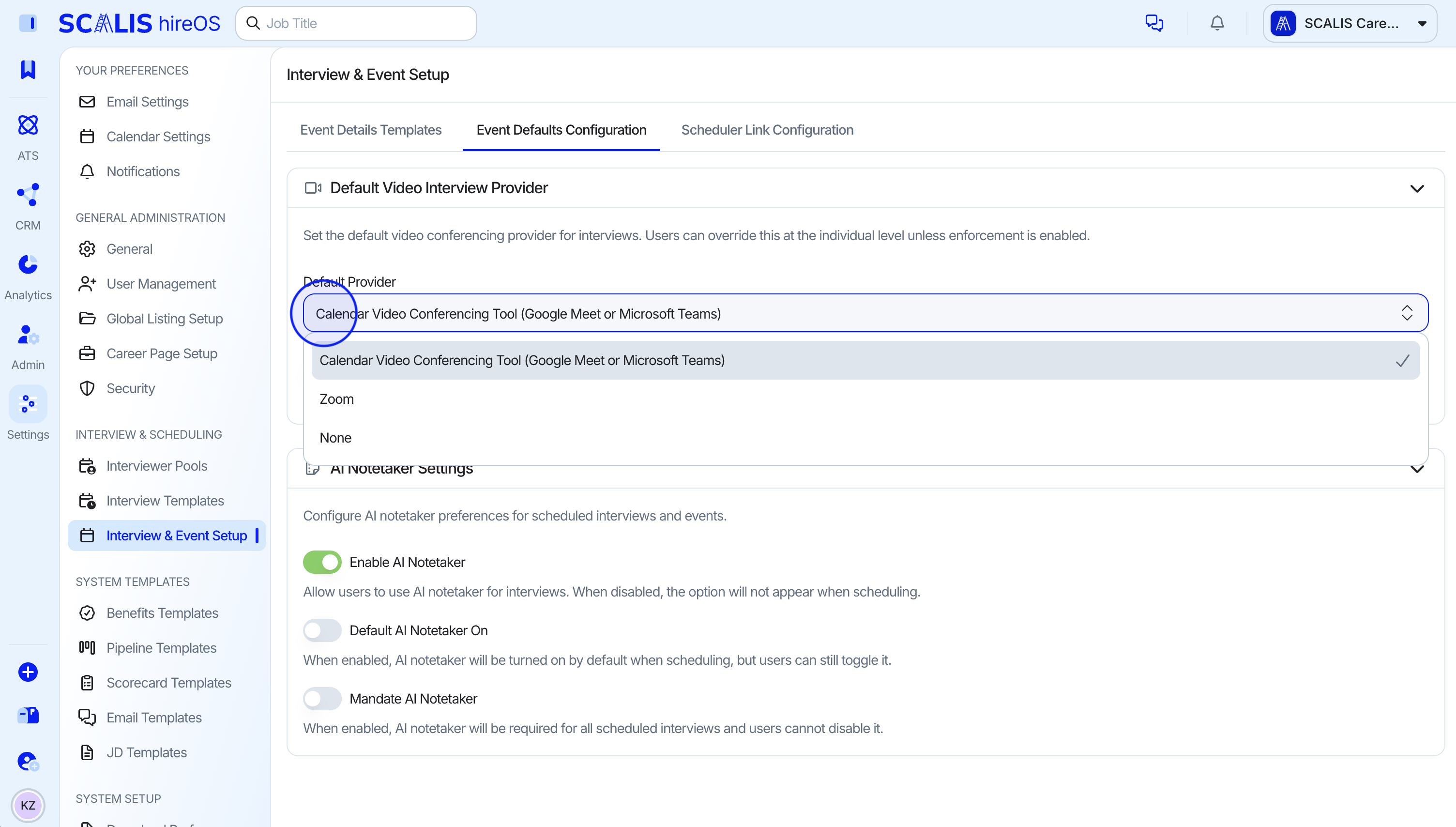
Set the default video interview provider
 
Default Video Interview Provider: Set the default video conferencing provider for interviews.
 
Users can override this at the individual level unless enforcement is enabled.
Default video interview provider dropdown in SCALIS
Choosing the default video interview provider
Final Step
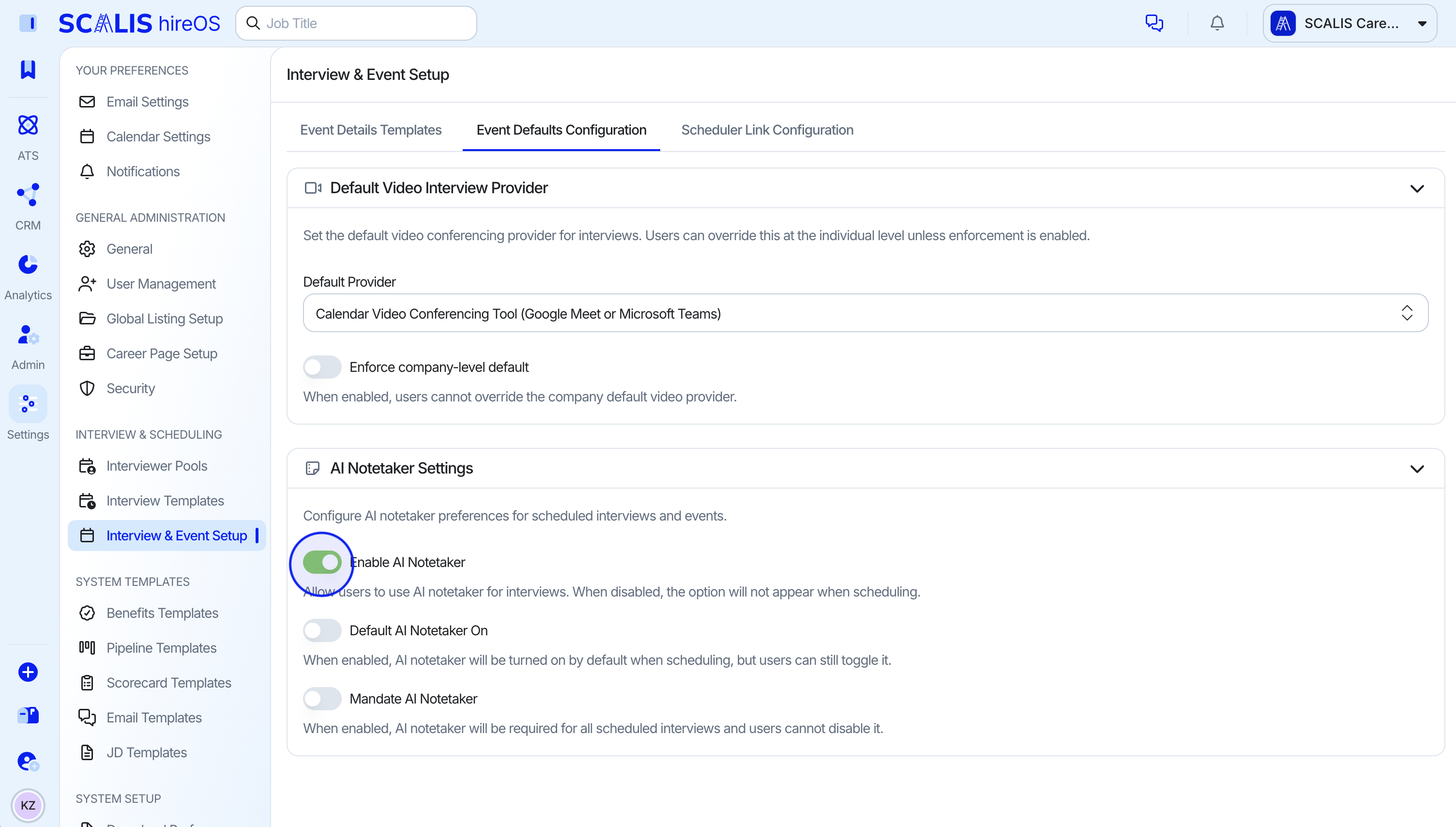
Configure AI Notetaker settings
 
AI Notetaker Settings: Configure AI Notetaker preferences for scheduled interviews and events.
AI Notetaker settings in SCALIS Event Defaults
AI Notetaker preferences for interviews and events

That's it. Your calendar is connected and your scheduling defaults are set. If you run into anything, reach out to your SCALIS CSM or browse the rest of the Knowledge Base.