Skip to content
  • There are no suggestions because the search field is empty.

Creating Custom Fields

CANDIDATE MANAGEMENT
Understand the different types of custom fields and how to create them to streamline your hiring process.
4 field types4 steps4 min read
What Are Custom Fields?

Custom Fields let you create fields on the Offer, Job, Application, and Profile level to capture specific information within the system. They help keep data consistent, improve reporting, and let you track details beyond SCALIS's default fields.

Offer Fields
Creating Offer Custom Fields

Offer fields capture information related to an employment offer. You can use these during offer creation and approval, and they typically hold sensitive or compensation-related data.

Common Uses
 
Base salary or hourly rate
 
Bonus and commission structuring
 
Offer expiration date
 
Date selection
💡 Note: You can set the conditions under which a field appears, based on Department, Employment Type, Pay Type, or Office location.
Profile Fields
Creating Profile Custom Fields

Profile fields store information specific to a candidate across all of their applications. This creates a centralized view of the candidate that carries across multiple roles, so hiring teams understand a candidate holistically and avoid re-collecting the same information more than once.

Common Uses
 
Willingness to relocate
 
Preferred working location
 
"Do Not Contact" flag
 
Skills or certifications
 
Available start date
Application Fields
Creating Application Custom Fields

Application fields capture internal, role-specific information that the hiring team tracks for a candidate's application. These are tied to a specific job application and aren't visible to candidates.

Common Uses
 
Hiring assessment links
 
Work authorization status
 
Custom questionnaires
 
Salary expectations
 
Seniority or job leveling for that role
Job Fields
Creating Job Custom Fields

Job fields store information about the role itself. Use them to define role-specific details that apply to every candidate for that job and stay consistent throughout the hiring process.
Common Uses
 
Backfill vs. net-new role indication
 
Company-specific job leveling structure
 
Department or cost center
 
Budget ID
 
Finance or HR approval
 
Time zone specification
How to Create Custom Fields
 
1
Step 1
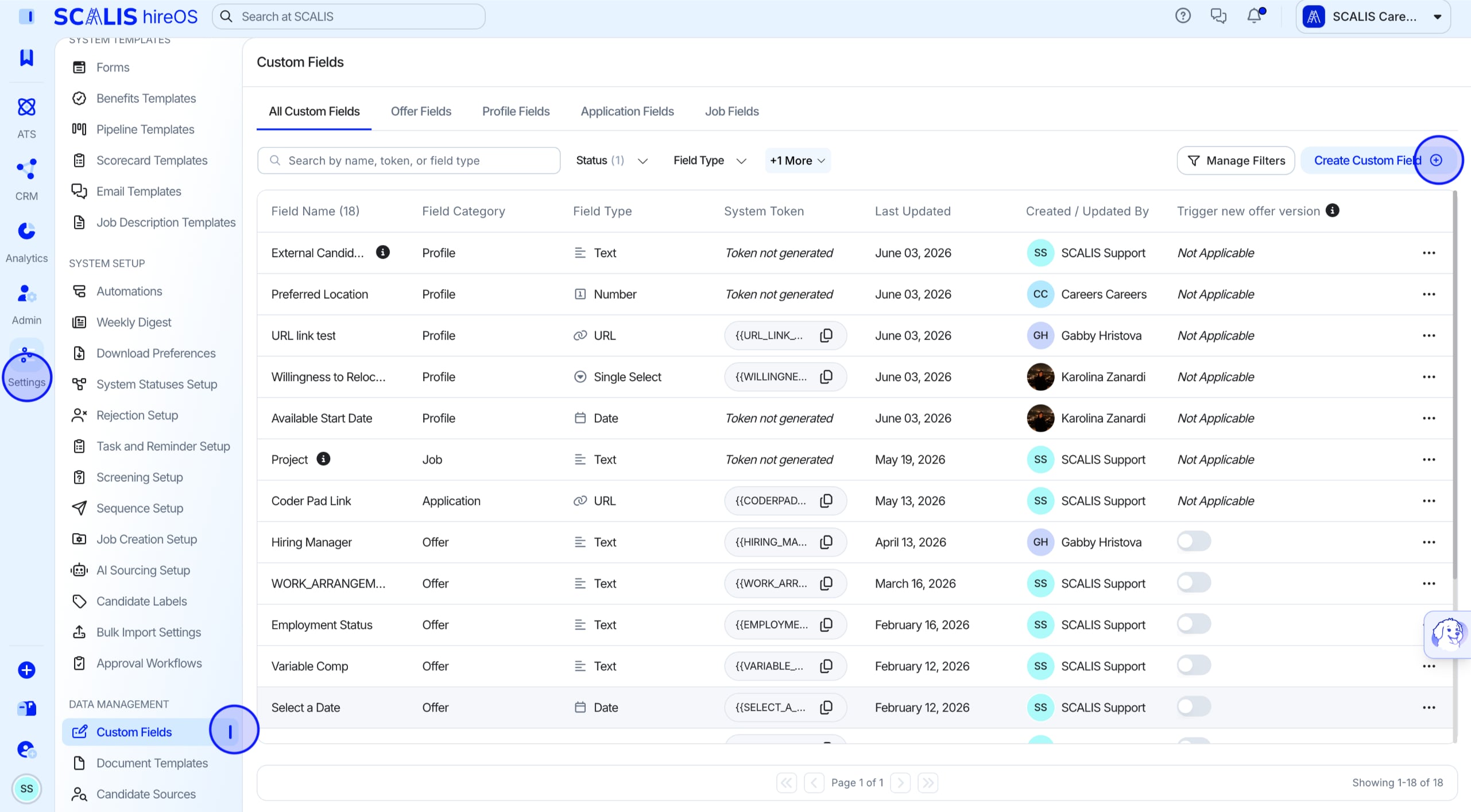
Open Custom Field Settings
 
Navigate to Company Settings, select Custom Fields, then select Create.
Company Settings menu with Custom Fields option and Create button
 
2
Step 2
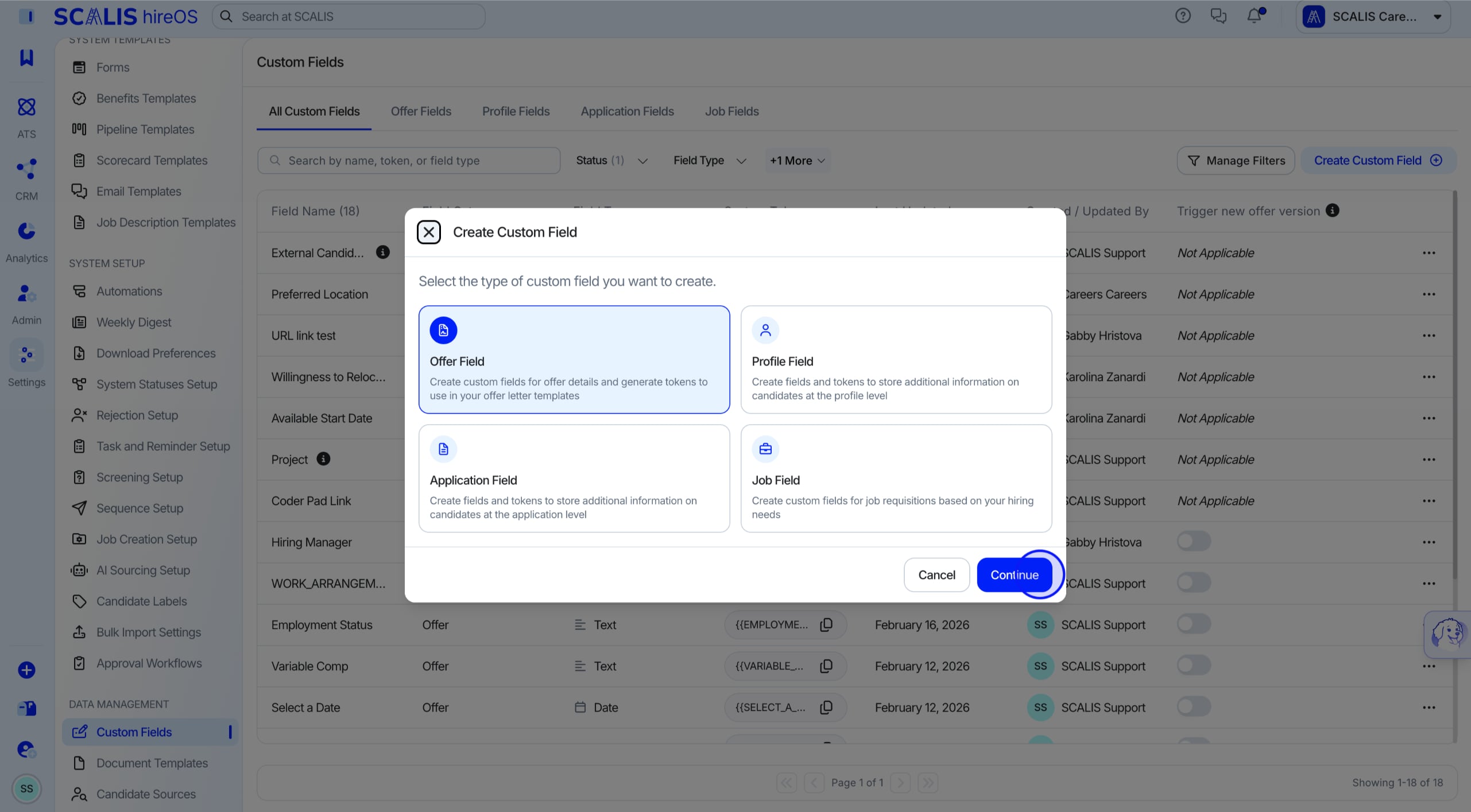
Select the Field Type
 
Select the type of field you'd like to create: Offer, Profile, Application, or Job.
Field type selection menu
 
3
Step 3
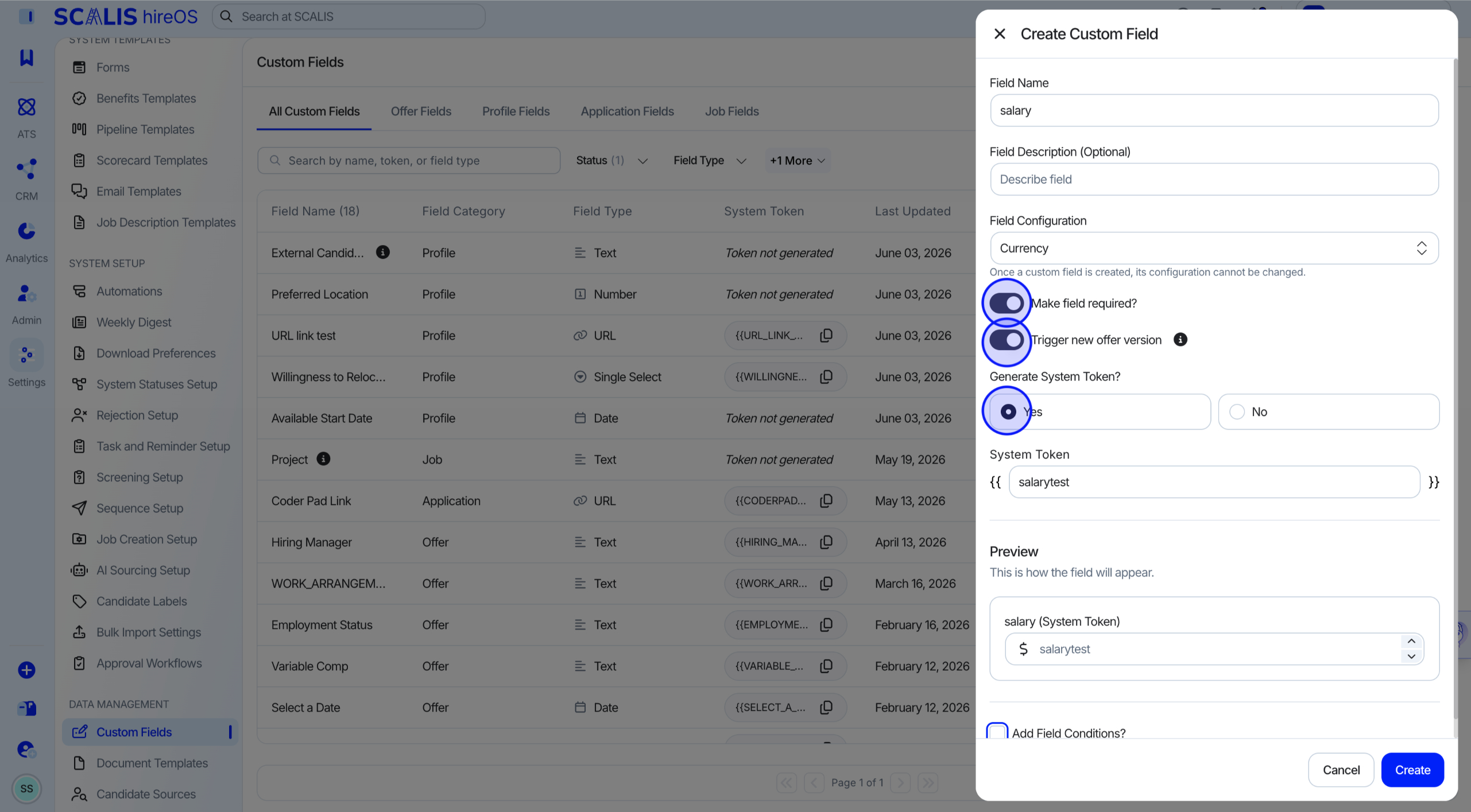
Configure the Field Settings
 
Fill in the details for the custom field you're creating, and choose whether it should generate a System Token.
Custom field configuration panel with System Token option
Final Step
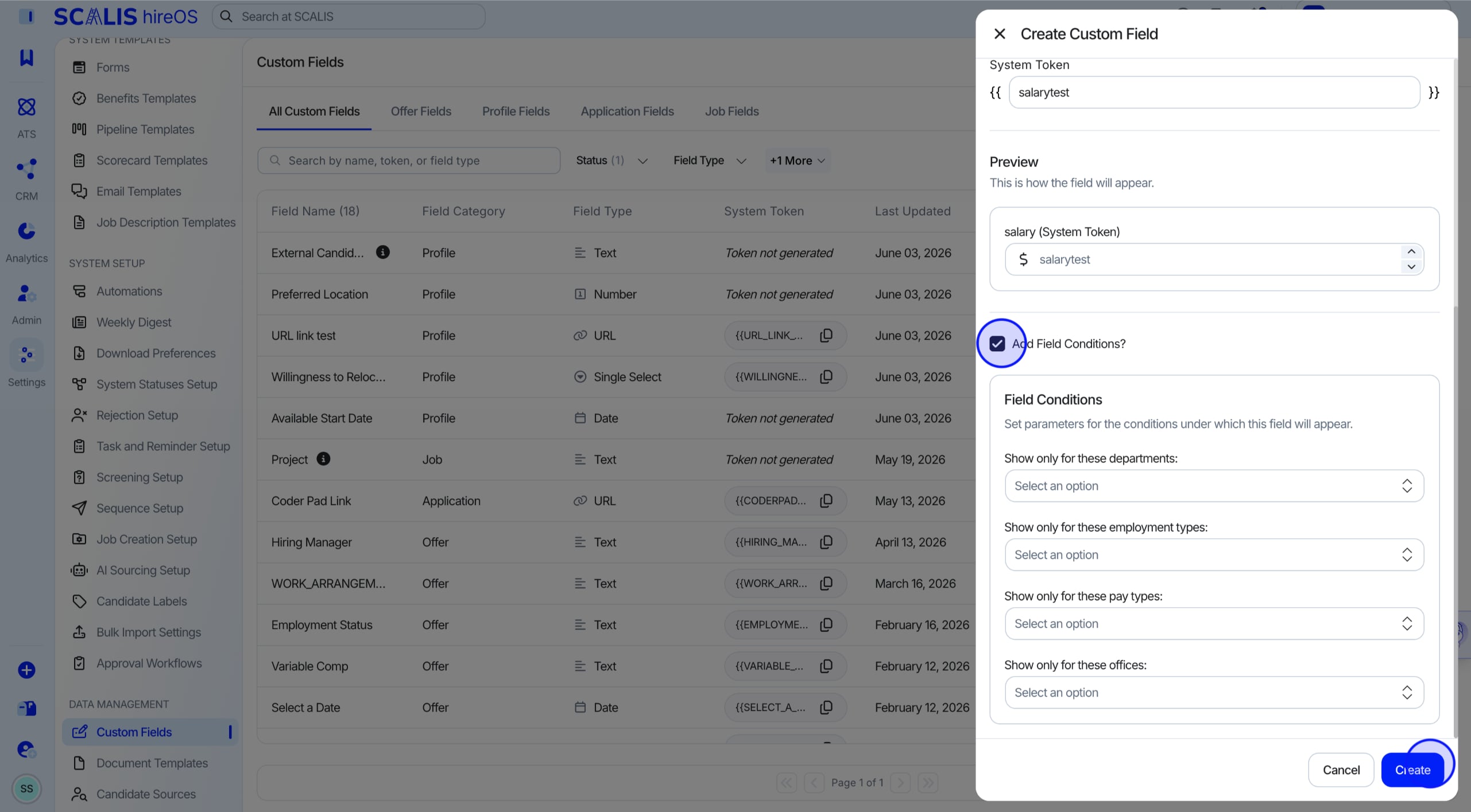
Add Conditions and Create
 
Add conditions for the field if necessary, then select Create.
Field conditions panel
Frequently Asked Questions
What are "Field Conditions"?
Field Conditions define the rules that control when and where a field appears in the system. By setting field conditions, you can display a field only for specific departments, employment types, pay types, or offices, keeping forms relevant and uncluttered so users only see fields that apply to the role they're working on.
What are System Tokens?
System Tokens are automatically generated placeholders linked to specific fields in the system. Once you generate a system token for a field, you can reuse that field's value in email and document templates, so SCALIS dynamically inserts the correct information, keeping things consistent and saving you from manual updates.
For any further questions, reach out to your Customer Success Manager in your designated Slack channel.