Creating Custom Fields

Follow this step-by-step article to understand the different custom fields and how to create them to streamline your hiring process.

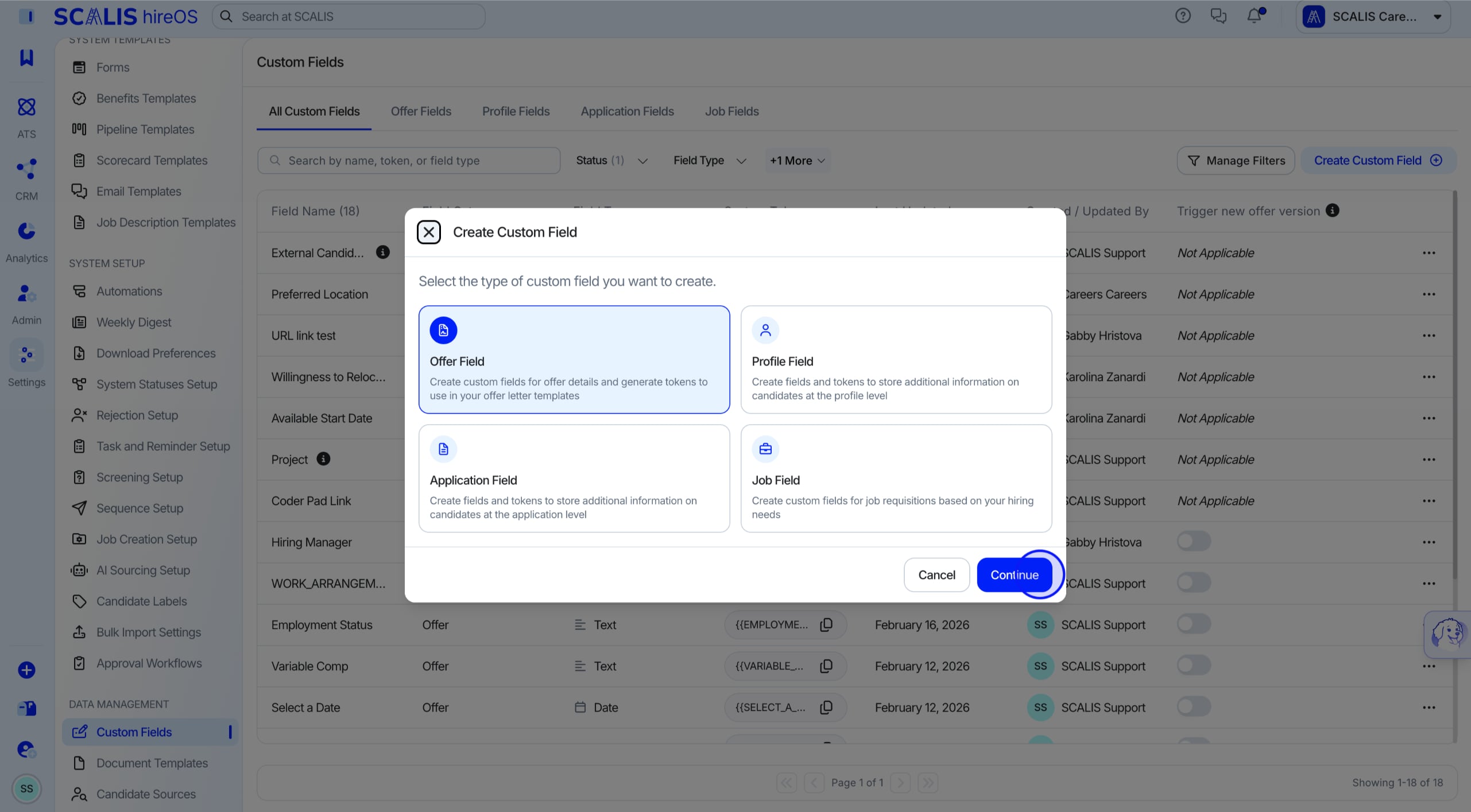
What are Custom Fields? 

Custom Fields are types of fields that you can create on the Offer, Job, Application and Profile level to distinguish specific information within the system. These fields help ensure consistency, improve reporting and capture additional information beyond the default fields. 

Creating Offer Custom Fields

Offer fields capture information related to an employment offer. These can be used during the creation of an offer, approval process, and typically contain sensitive or compensation related data. 

Common Uses of "Offer Fields"

  • Base salary or Hourly rate 
  • Bonus and commission structuring 
  • Offer expiration date 
  • Date selection 

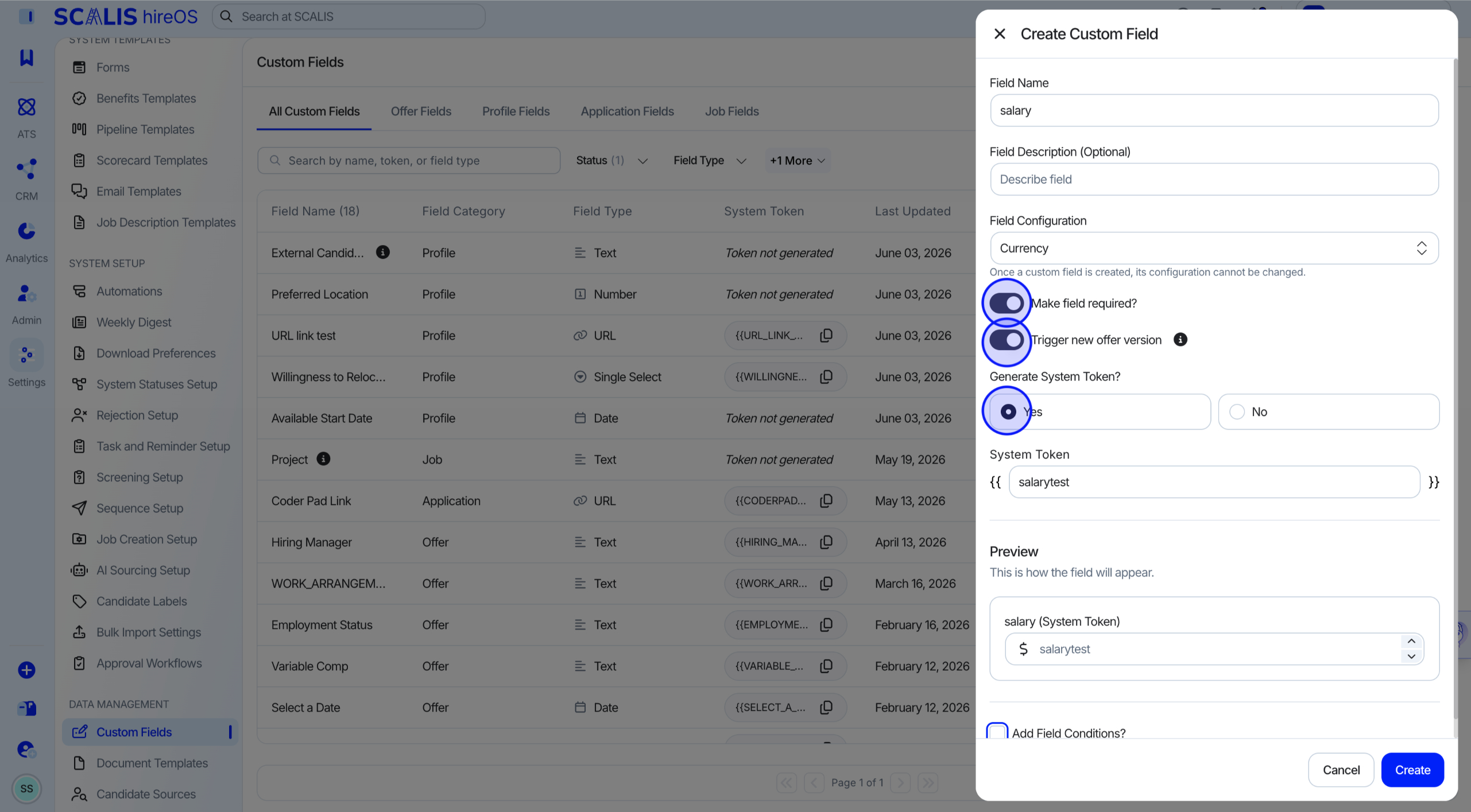
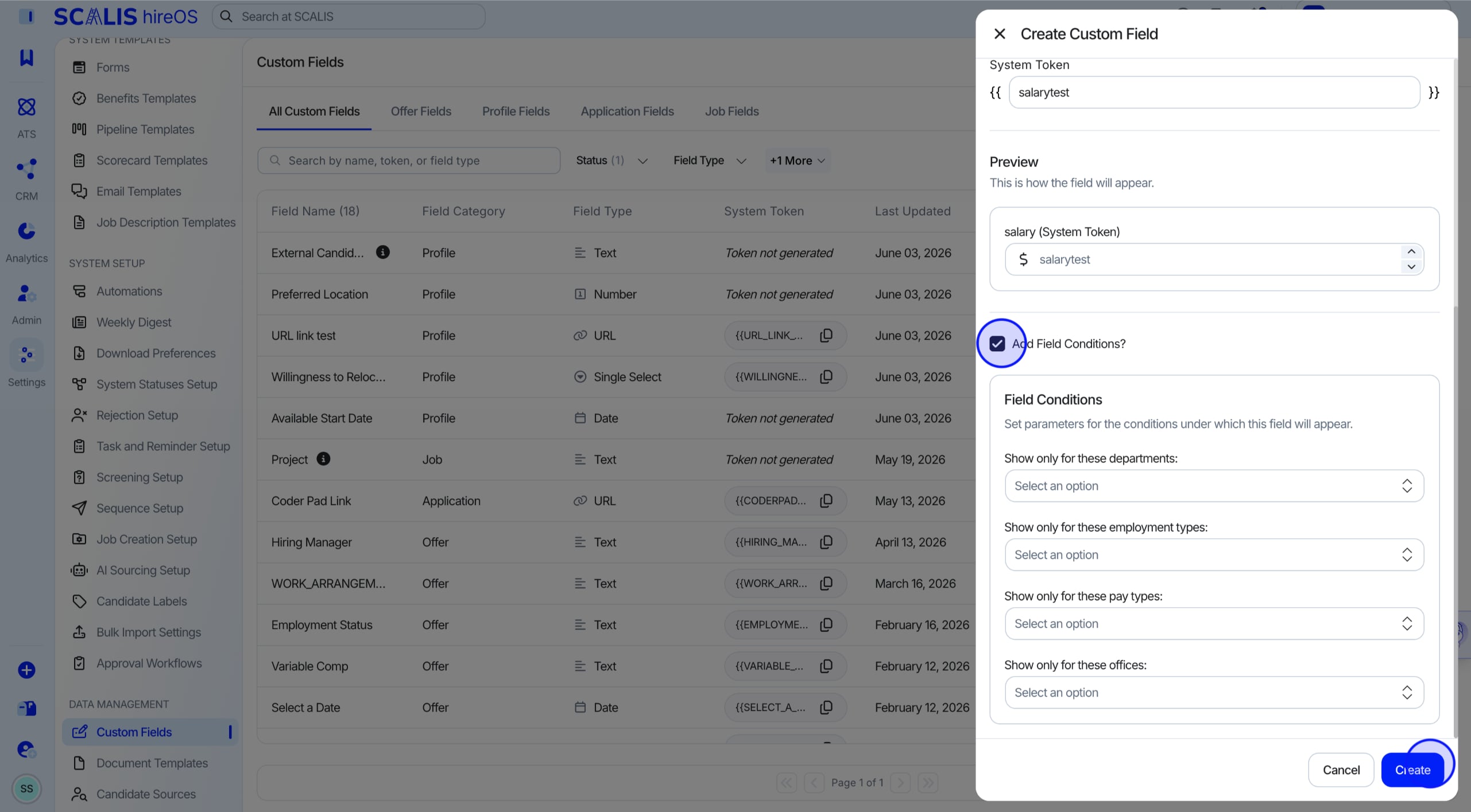
💡 Note: You can set parameters for these conditions under which the fields will appear. There is the option to set parameters based on Department, Employment Type, Pay Type, and Office location. 

Creating Profile Custom Fields

Profile fields store information that is specific to a candidate across ALL applications. This creates a centralized view of the candidate and is transferred across multiple roles, helping hiring teams understand a candidate hollistically and avoid re-collecting the same information multiple times.

Common Uses of "Profile Fields" 

  • Willingness to relocate 
  • Preferred working location 
  • "Do Not Contact" flag 
  • Skills or certifications 
  • Available Start Date 

Creating Application Custom Fields 

Application fields capture internal, role-specific information that is tracted by the hiring team for a candidate's application. These are tied to a specific job application and are not visible to the candidates. 

Common Uses of "Application Fields"

  • Hiring assessment links 
  • Work Authorization Status
  • Custom Questionnaires 
  • Salary Expectations 
  • Seniority / Job Leveling for that role 

Creating Job Custom Fields 

Job fields are used to store information about the role itself. They are used to define role-specific details that apply to all candidates for that job and remain consistent throughout the hiring process. 
Common Uses of "Job Fields" 

  • Backfill vs. Net-New role indication 
  • Specific Company Job Leveling Structure
  • Department or cost center 
  • Budget ID 
  • Finance or HR approval 
  • Time-zone specification 

How to Create Custom Fields 

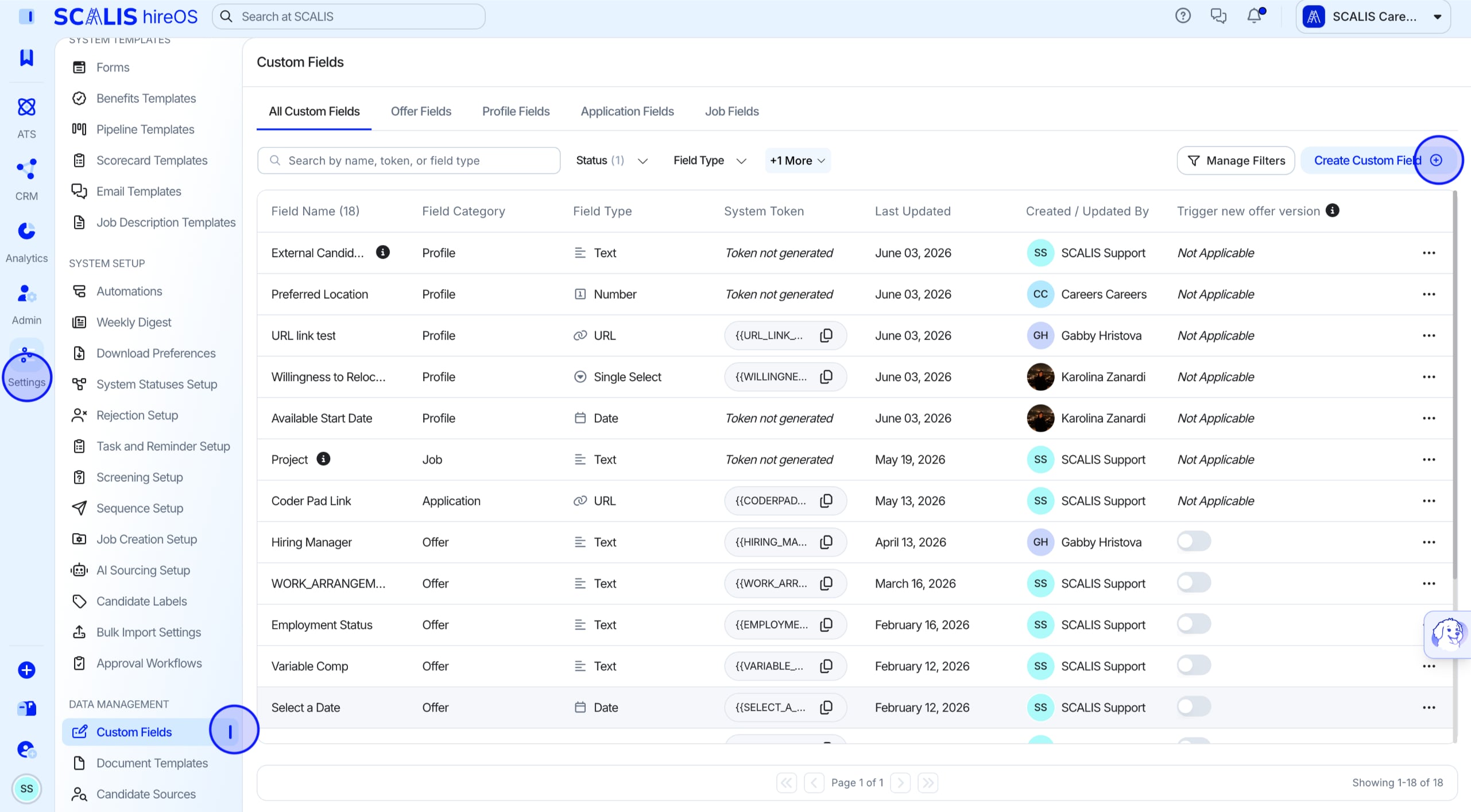
  1. Navigate to "Company Settings" and click "Custom Fields


  2. Choose the field type you'd like to create (Offer, Profile, Application, Job), then click "Create __ Field".  


  3. Fill in the details for the Custom Field you are creating, determine if it should generate a System Token, then click "Create". 


FAQ  

  1. What are "Field Conditions"?
    Field Conditions define the rules that control when and where a field is shown in the system. By setting field conditions, you can choose to display a field only for specific departments, employment types, pay types, or offices. This helps keep forms relevant and uncluttered, ensuring users only see fields that apply to the context of the role they’re working on.
  2. What are System Tokens?

    System Tokens are automatically generated placeholders linked to specific fields in the system. When you generate a system token for a field, you can reuse that field’s value in email and document templates. This allows the system to dynamically insert the correct information, ensuring consistency and saving time by avoiding manual updates.


For any further questions and clarifications, contact your Customer Success Manager in your designated Slack Channel.