.png?width=1391&height=437&name=SCALIS%20Logo%20(1).png)
CANDIDATE MANAGEMENT
SCALIS makes it easy to view candidate details and leave collaborative notes throughout the hiring process. Here's how to quickly find candidates and add your thoughts.
4 steps
1
Step 1
Find Candidates in Your Pipeline
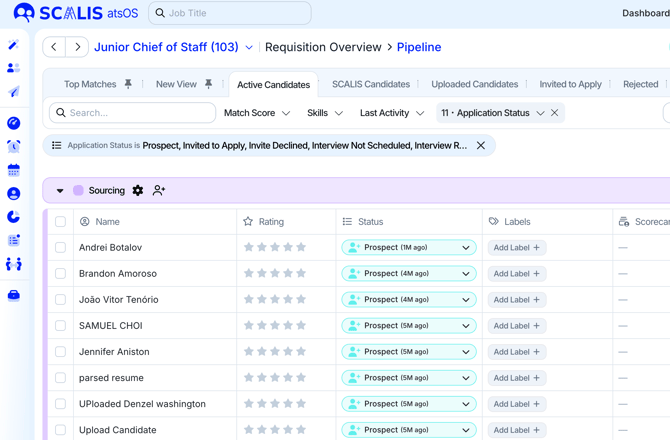
Go to the Pipeline View for your job.
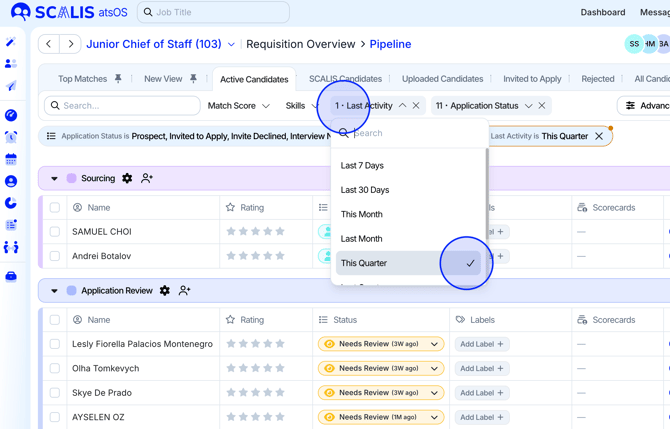
Candidates are grouped by stage (e.g., Sourcing, Application Review, Interviews, Offer, Hired).
Use filters (top of the screen) to narrow down by application status, match score, or last activity.
You'll see key details at a glance:
Candidate name
Interview status (e.g., Interview Not Scheduled, Interview Scheduled)
Most recent company and job title
Tenure, match score, and more
Select a candidate's name to open their full profile.
2
Step 2
Customize the Candidate Profile View
Recruiters and hiring team members can customize the information they view on a candidate's profile to fit their hiring needs and tasks.
From the Pipeline List view, open a candidate's profile by selecting the candidate's name.
On the top right of their profile, select the box icon next to "Next" to open the "Customize Candidate Layout" drawer.
Pick a preset for the candidate view, you can customize it afterward.
Choose between Recruiter, Coordinator, or Hiring Manager view.
You can also drag to reorder tabs or toggle their visibility in the candidate profile for even more customization.
3
Step 3
Review the Candidate Profile
In the candidate profile, you'll see:
Candidate summary (name, education, experience, contact)
Current application stage and timeline
Match % and total experience
Navigation menu on the top panel for details like:
Resume
Interview(s)
Scorecards
Offer Management
✓
Final Step
Leave a Note
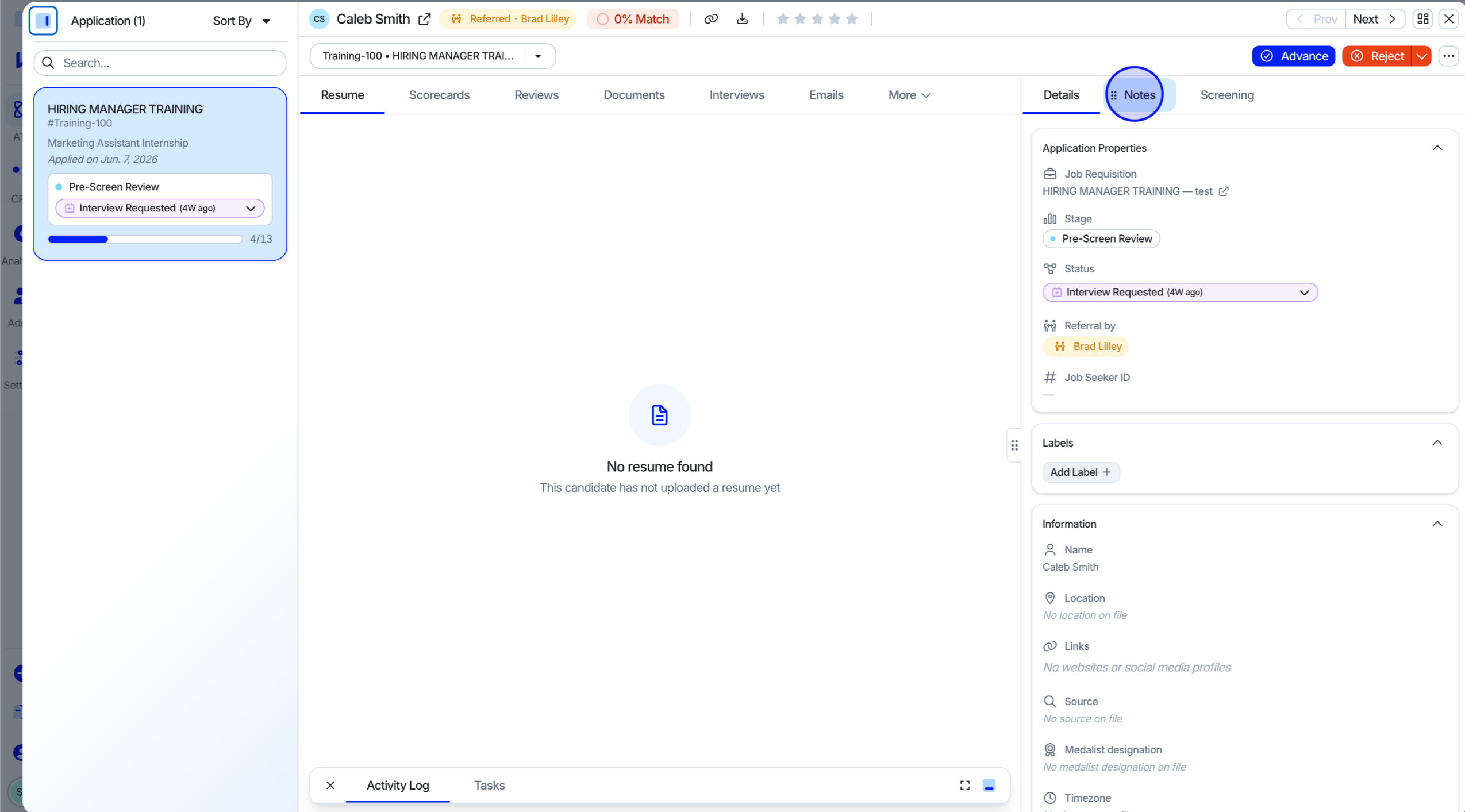
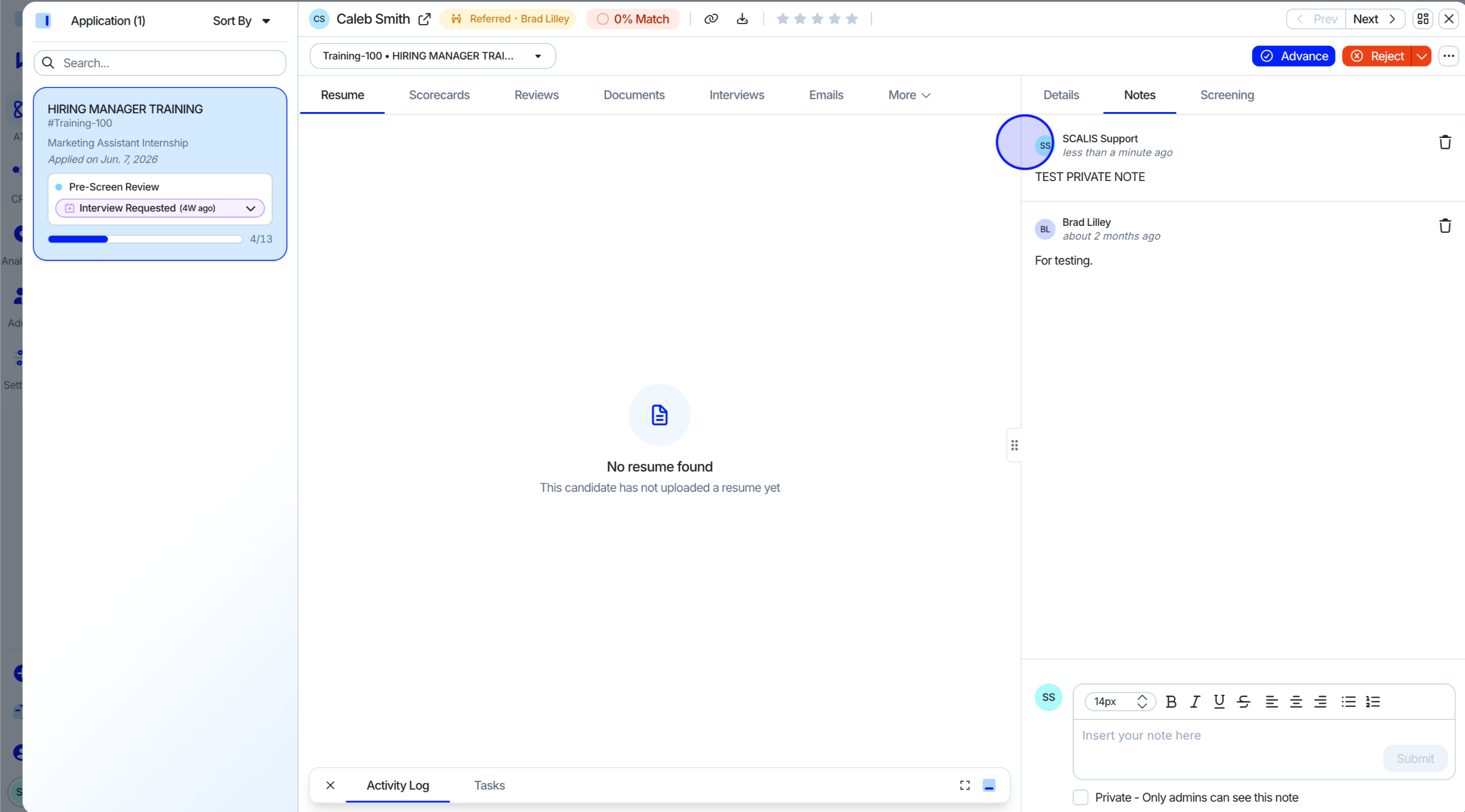
Select the Notes tab on the bottom sidebar.
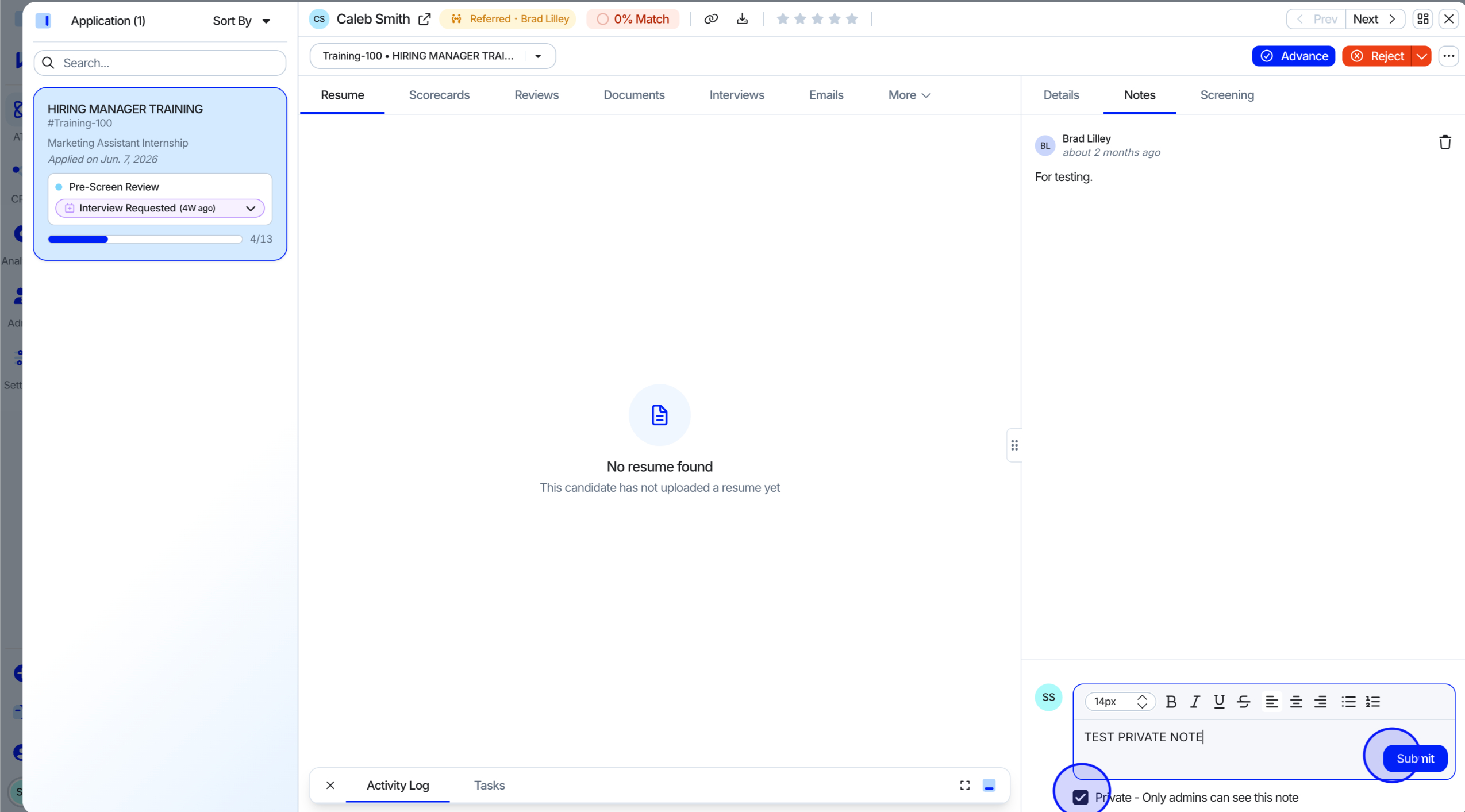
Add your feedback, thoughts, or reminders in the notes section.
You can also tag other team members using "@" followed by their name.
Optional: check the Private, Only admins can see this note box to keep the note internal and private from other hiring team members.
Select Submit to save your note.
Pro Tips
| Tip |
|---|
| Notes are visible to anyone with access to the job unless marked private. |
| Use notes to log call summaries, internal feedback, or flag special considerations. |
| For structured evaluation, pair notes with a scorecard in the Scorecards tab. |
If you're having trouble accessing a candidate or your notes aren't saving, reach out to your recruiter or email us at support@scalis.ai.