Skip to content
  • There are no suggestions because the search field is empty.

How to Send a Scheduler Link to a Candidate

INTERVIEW SCHEDULING
The Scheduler Link feature allows you to send candidates a self-scheduling link, empowering them to choose the interview time that works best for them based on your team's availability.
5 steps5 min read
 
 
1
Step 1
Send a Scheduler Link
 
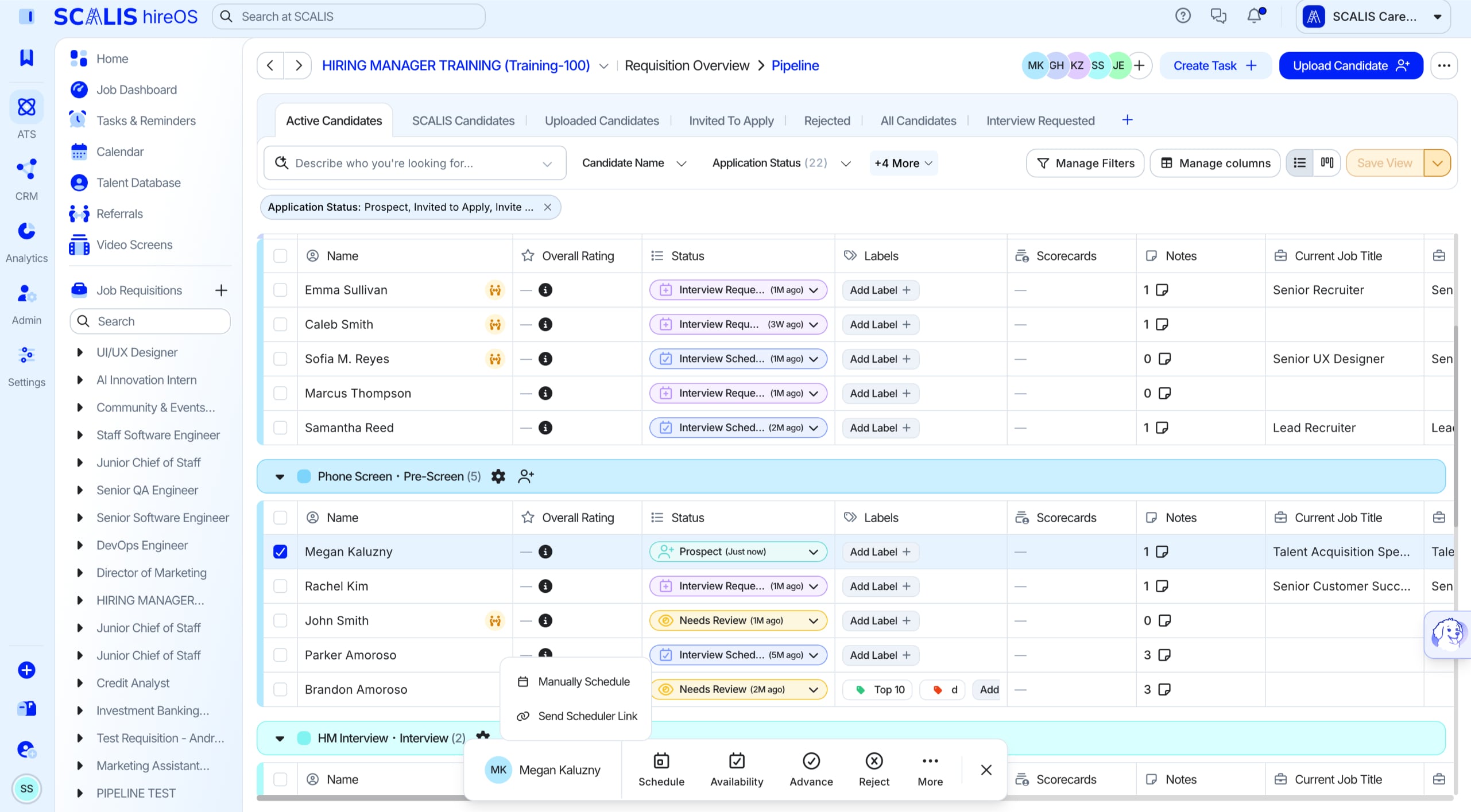
Navigate to the candidate within the job requisition.
 
Select Schedule Interview.
 
Press Send Scheduler Link.
Navigating to a candidate to send a scheduler link
Navigating to the candidate and sending a scheduler link.
 
2
Step 2
Complete the Scheduler Link Drawer

If the fields below haven't already been configured, complete them:
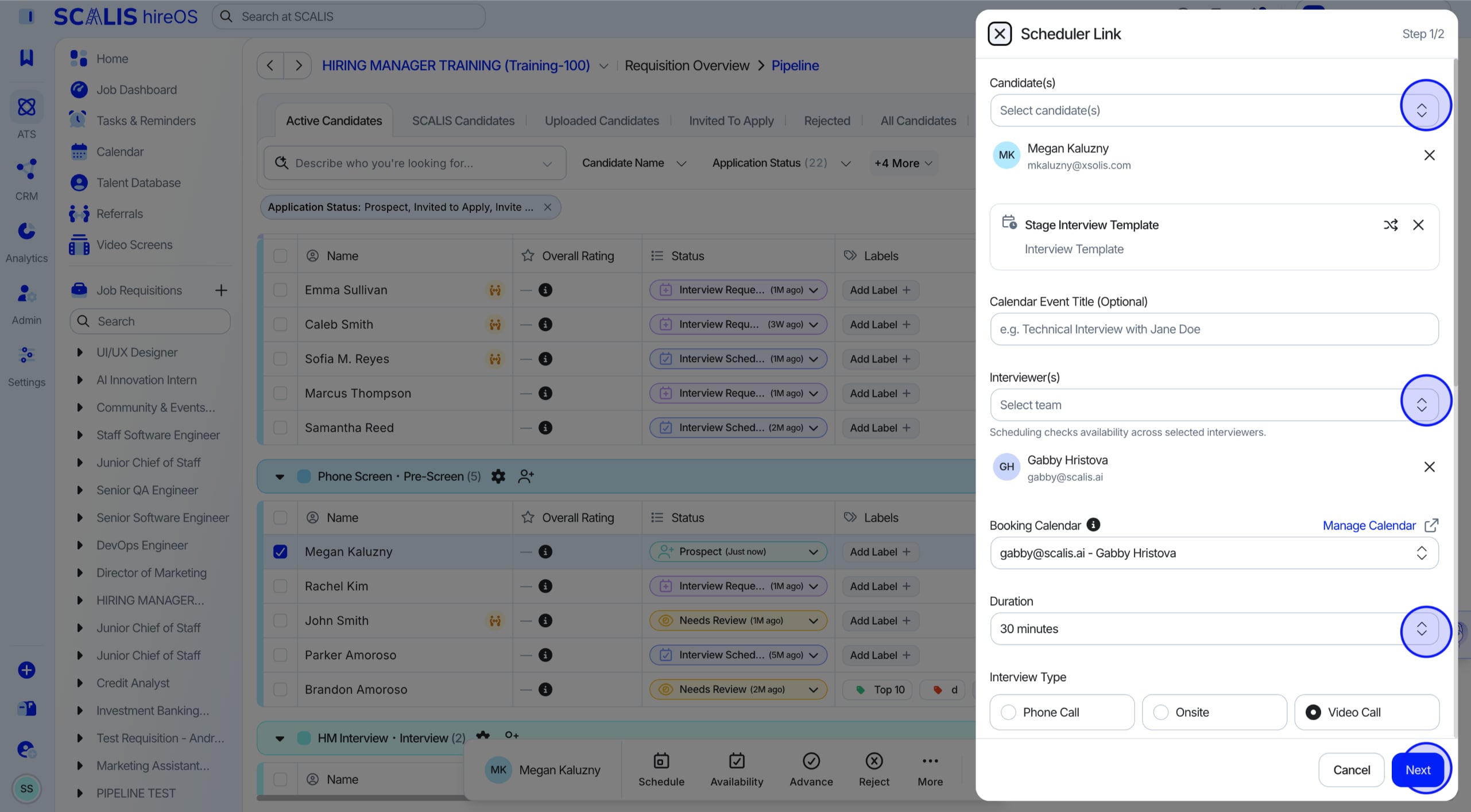
 
Interview Stage: select the stage this interview is tied to (e.g., Phone Screen, Onsite).
 
Calendar: choose the team calendar that this interview will appear on.
 
Candidates: choose one or multiple candidates.
 
Interview Team: select the interviewer(s). This determines the availability shown to the candidate.
 
Interview Length: choose the expected interview duration (e.g., 30 min, 60 min, Custom time).
 
Send From: select which email address to send the invitation from (e.g., SCALIS Email or your own).
 
Message for Candidate(s): optional custom message that appears in the email invite. You can use rich text formatting here.
 
AI Notetaker: toggle it ON when creating the event or the interview template to add it to self-scheduler links.
 
Press Next to confirm the candidate will receive an email with the scheduling link.
💡 Note: You can send the scheduler link on behalf of another user by selecting them in the Interview Team dropdown. Their availability will be used for scheduling.
Scheduler Link drawer
The Scheduler Link drawer with fields to complete.
 
3
Step 3
Send the Link
 
Click Send. The candidate receives an email with a link to choose their preferred time based on the availability of the selected interviewer(s).
 
Scheduler links are unique and dynamic: once a candidate books a time, it updates in real time.
 
You can always view scheduled interviews directly from the candidate profile or interview plan.
Send Scheduler Links Automatically

You can automatically send a candidate a scheduling link when you advance them to their next pipeline stage, so you don't need to trigger it manually every time.
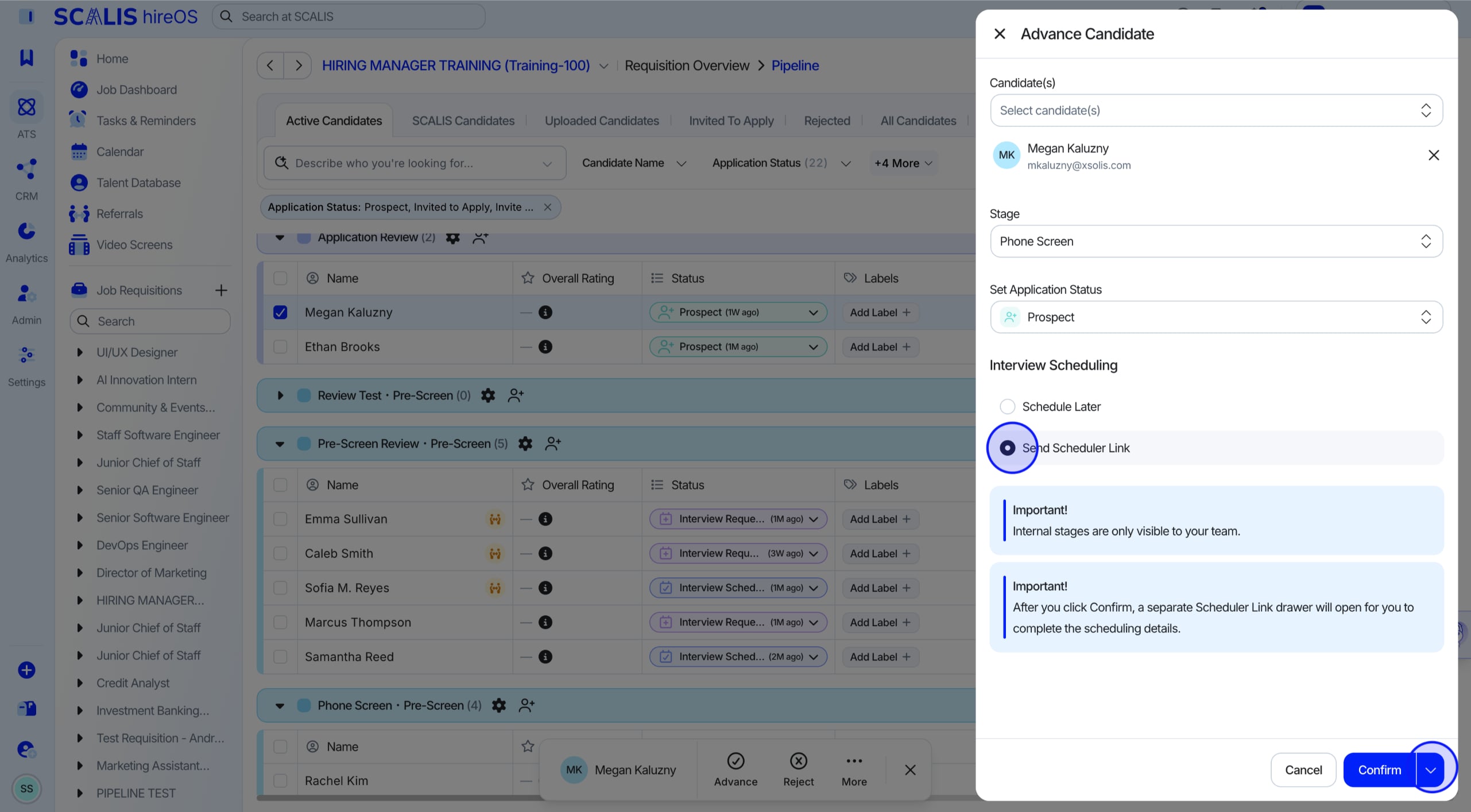
Automatic Scheduler Link on stage advancement
Automatically sending a Scheduler Link when advancing a candidate to the next stage.
 
1
Step 1
Configure Scheduler Link Settings
 
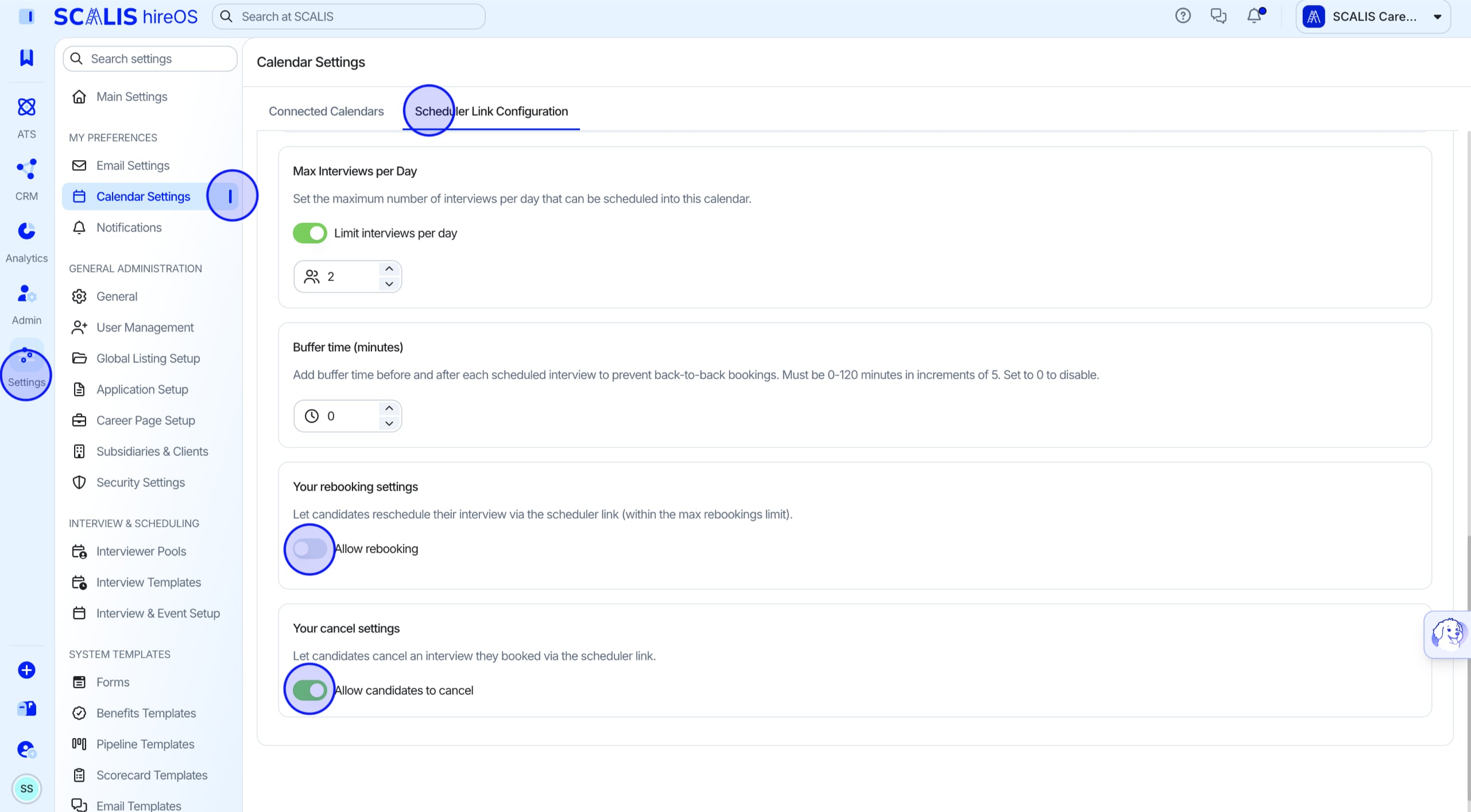
Go to Settings > Calendar Settings and scroll to the Scheduler Link section.
 
Available settings:
 
Minimum Scheduling Notice (hours): sets the earliest time a candidate can book from the moment they receive a scheduling link. Example: if set to 2 hours, a candidate submitting at 1:00 PM can't book anything earlier than 3:00 PM.
 
Rolling Days of Availability: defines how far into the future candidates can view and book open interview slots. Example: if set to 7, candidates can schedule within a 7-day rolling window from today.
 
Max Interviews per Day: limits how many interviews can be scheduled per day for any individual recruiter or interviewer. Example: if set to 2, SCALIS won't show that user as available after two bookings are confirmed for the same day.
 
Rebooking settings: if enabled, candidates can reschedule using the same scheduling link, up to the maximum number of rebookings you've defined. Their previous time slot is released automatically when they pick a new time. If disabled, candidates must contact your team for any updates.
 
Cancel settings: if enabled, candidates can cancel their booked interview directly from the scheduler link and the time slot is freed on your calendar. If disabled, candidates must reach out to your team if they can't attend.
Scheduler Link configuration settings
Scheduler Link configuration settings.
Final Step
Set Organization Level Settings

Company-level rebooking and cancellation rules let administrators define global scheduling policies that apply across all scheduler links in the organization.
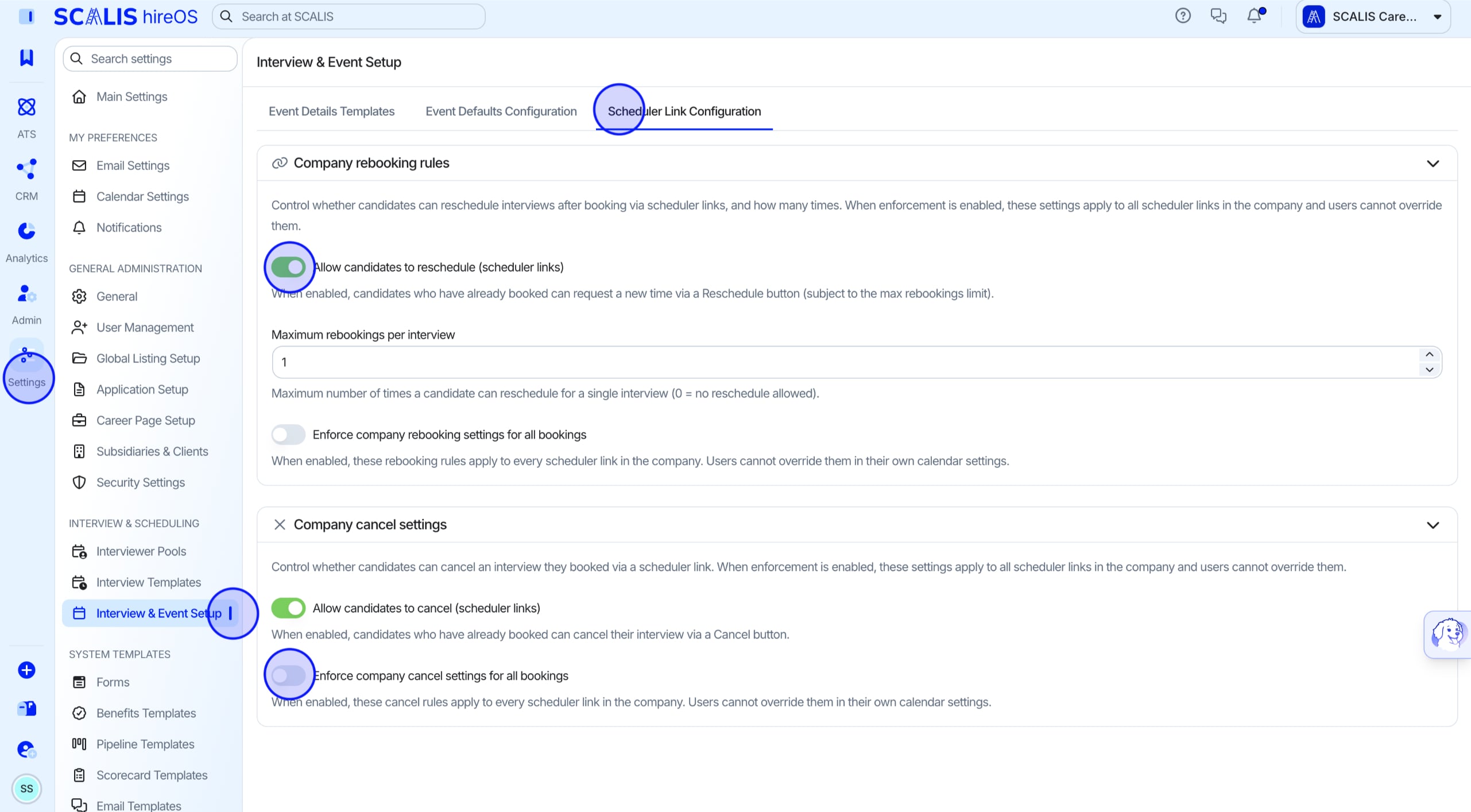
 
Click the Settings tab on the left navigation, go to Interview & Event Setup, then open the Scheduler Link Configuration tab.
 
Scroll down to find two options:
 
Company rebooking rules: when Enforce company rebooking settings for all bookings is enabled, the company's rescheduling rules (including whether rescheduling is allowed and the maximum number of rebookings) override any individual scheduler link or user level calendar settings. Users can't customize or bypass these limits.
 
Company cancel settings: when Enforce company cancel settings for all bookings is enabled, the company's cancellation policy overrides individual scheduler link settings for every candidate.
Organization-level rebooking and cancellation settings
Organization-level rebooking and cancellation settings.
Know What Happens Next
 
Candidate status updates to "Interview Requested": as soon as the scheduler link is sent, the candidate's application status updates automatically.
 
Notification upon scheduling: once the candidate books a time, you and anyone else involved in the interview receive a notification.
 
Candidate status updates to "Interview Scheduled": after the candidate confirms a time, their status updates automatically in the pipeline.
Canceled & Rescheduled Interviews
Know What Happens if a Candidate Cancels

After a candidate cancels their interview, the original scheduling link becomes invalid. If they try to access it again, they'll see a message telling them the link is no longer valid. The candidate can't use the same link to book or reschedule another interview; they need to contact the recruiting team to request a new scheduling link if they want to schedule again. This ensures canceled interviews are fully closed and prevents unintended re-bookings through the same link.

Know What Happens if a Candidate Reschedules

When a candidate reschedules their interview, the original time slot is released automatically and the interview updates to the newly selected date and time. If the candidate opens the scheduling link again, they can reschedule further as long as additional re-bookings are still allowed within the maximum limit; once that limit is reached, the link no longer allows further changes. This keeps the calendar accurate while giving candidates flexibility within the limits you've defined.

Frequently Asked Questions
Where is the interviewer availability pulled from?
Availability is taken from the host calendar. Double check that the Host Calendar is the correct calendar you'd like the interview scheduled on. This is useful if your company uses one shared calendar.

That's it! Reach out to your CSM any time you need a hand configuring scheduler links for your team.