![SCALIS Logo.png]](https://help.scalis.ai/hs-fs/hubfs/SCALIS%20Logo.png?height=47&name=SCALIS%20Logo.png)
🗓 Connecting Your Calendar
Connect your calendar account to SCALIS to manage Interviews, Events Scheduling and Calendar Sync.
1. Navigate to Calendar from the left navigation bar and click the Gear icon at the top right - you can also access the Calendar Settings from your Company Settings.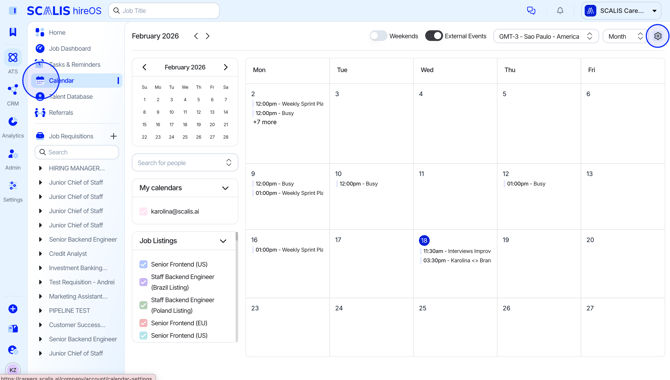
2. Click Connect button and select your calendar provider to sync your schedule.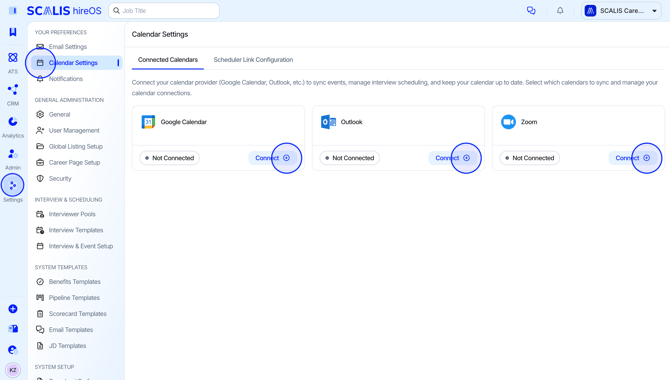
3. After selecting your provider, read the terms of use and click Accept and Connect to proceed.
-
Log in and accept requested permissions.
✅ You’re done! SCALIS can now surface real-time availability for self-scheduling and interviewer coordination.
💡 SCALIS separates SCALIS events from non-SCALIS events for a clear, organized view.
Shared Calendars
If your calendar provider supports shared calendars (like Google), all shared calendars you have access to will appear here once connected. These calendars can be used to check availability and schedule interviews, based on the visibility and permissions set by the calendar owner.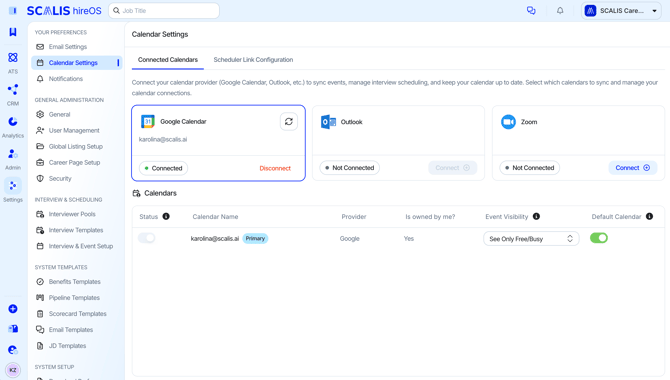
- Calendar Status: Enable or disable the calendar. Disabled calendars will not appear in booking dropdowns for you or others to book with.
- Event Visibility: Control how calendar events are visible to others. Visibility settings apply to others, but not to calendar owners or those with shared access.
- Default Calendar: Set your default calendar used for creating new events.
✉️ Configure Scheduler Link Settings (Individual Settings)
-
Navigate to the Calendar Settings from your Company Settings.
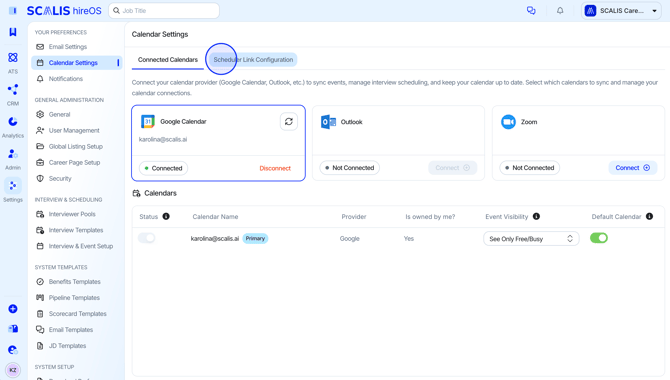
- Click Scheduler Link Configuration tab and customize the settings to your liking.
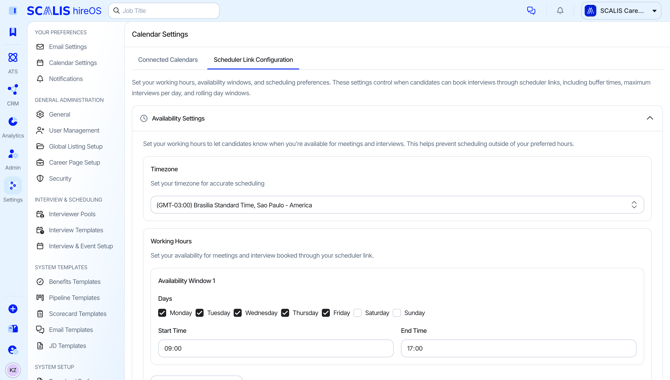
⚙️ Available Scheduler Link Settings
Working hours
-
Set your availability for meetings and interview booked through your scheduler link.
⏰ Minimum Scheduling Notice (hours)
-
Determines the earliest time a candidate can select for their availability starting from the time of submission.
-
Example: If set to 2 hours, a candidate submitting at 1:00 PM can’t book anything earlier than 3:00 PM.
-
📅 Rolling Days of Availability
-
Determines the number of days out a candidate can schedule an interview via scheduling link (this window begins after the minimum scheduling notice period passes).
Example: If set to 7, candidates can schedule within a 7-day rolling window from today.
👥 Max Interviews per Day
-
Set the maximum number of interviewers per day that can be scheduled into the calendar of an individual recruiter or interviewer.
Example: If set to 2, SCALIS will not show that user as available after two bookings are confirmed for the same day.
⌛ Buffer Time (before/after minutes)
- Add buffer time before or after of each scheduled interview to allow for preparation and prevent back-to-back bookings. Must be 0-120 minutes in increments of 5. Set to 0 to disable.
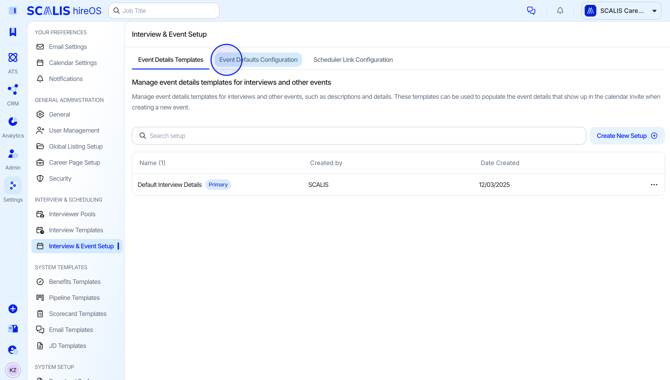
Event Defaults Configuration
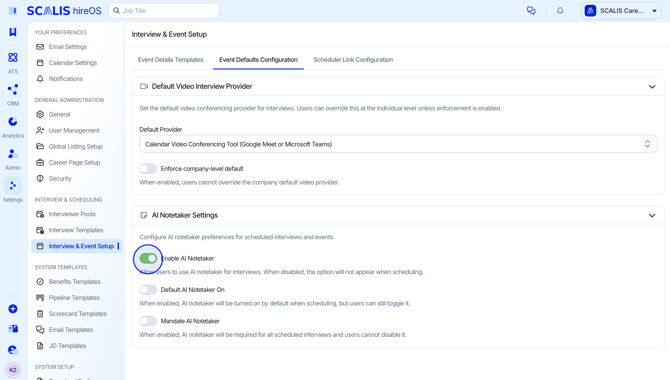
Manage default settings for how interviews and events are scheduled across your company. Define the default video conferencing provider and control whether users can override it, and configure Al Notetaker preferences.
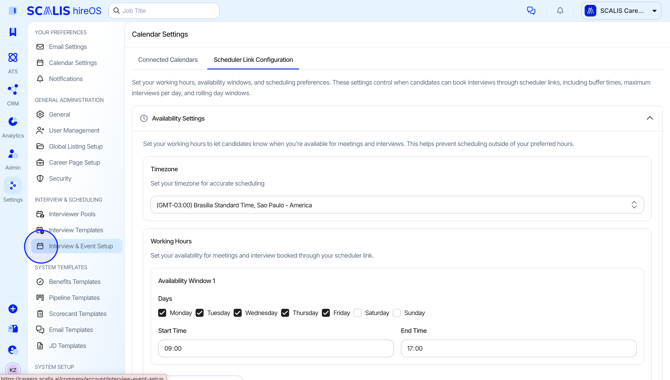
- Navigate to the Interview & Event Setup from your Company Settings.
- Click Event Defaults Configuration tab.
- Default Video Interview Provider: Set the default video conferencing provider for interviews.
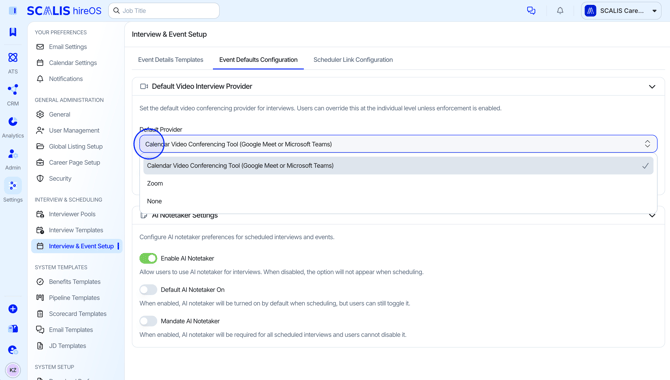
- Users can override this at the individual level unless enforcement is enabled.
- Al Notetaker Settings: Configure Al notetaker preferences for scheduled interviews and events.