![SCALIS Logo.png]](https://help.scalis.ai/hs-fs/hubfs/SCALIS%20Logo.png?height=47&name=SCALIS%20Logo.png)
✏️ Step-by-Step: How to Enable a Custom Field for Uploads
-
Create or Edit a Custom Field
-
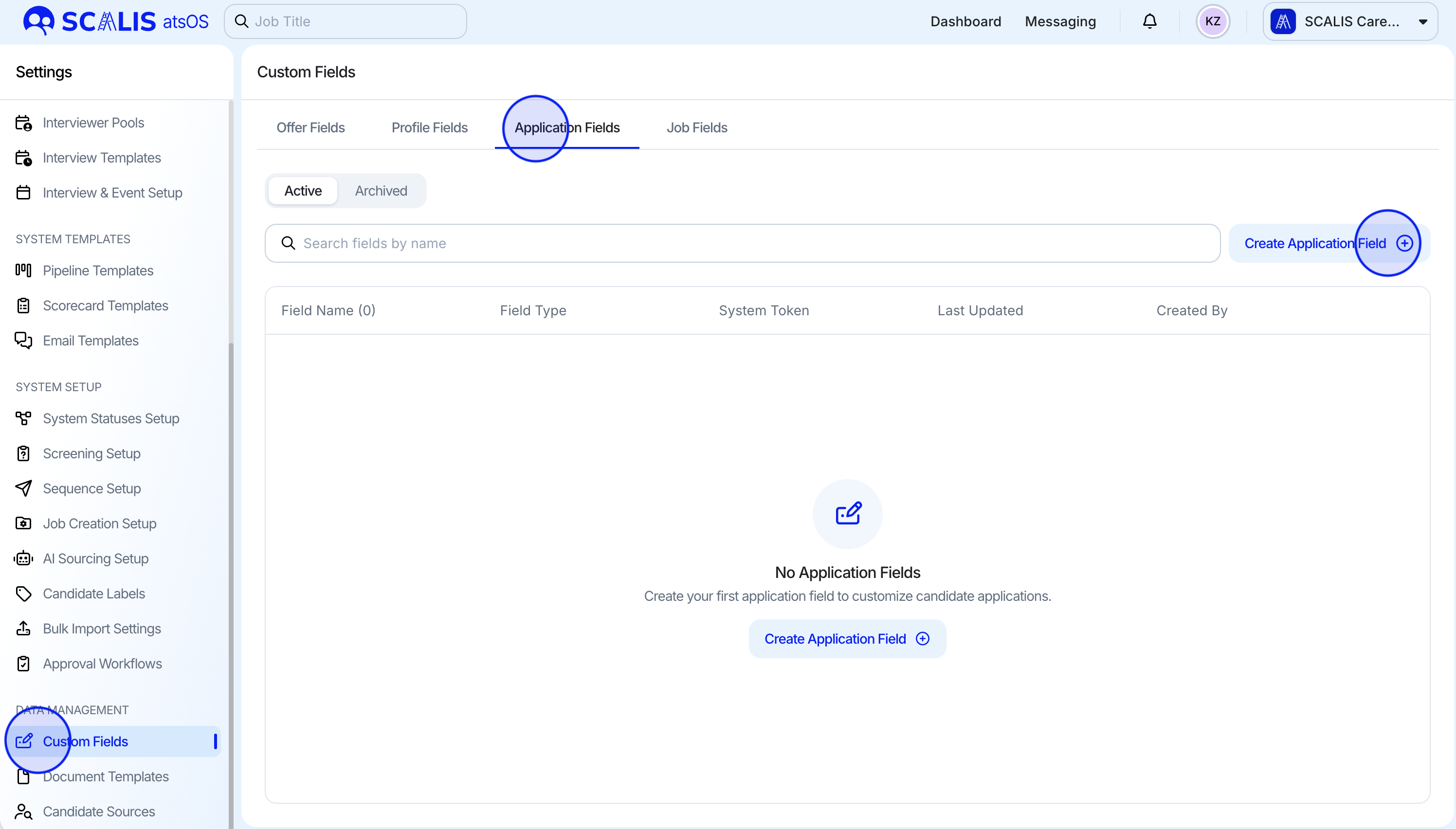
Navigate to your Company Settings.
-
Go to the Custom Fields.
-
Select between the field type you want to create (Profile Fields or Application Fields)
- Click "Create Field".
-
📝 Note: Only Custom Profile Fields or Custom Application Fields can be added to the Upload Process.
-
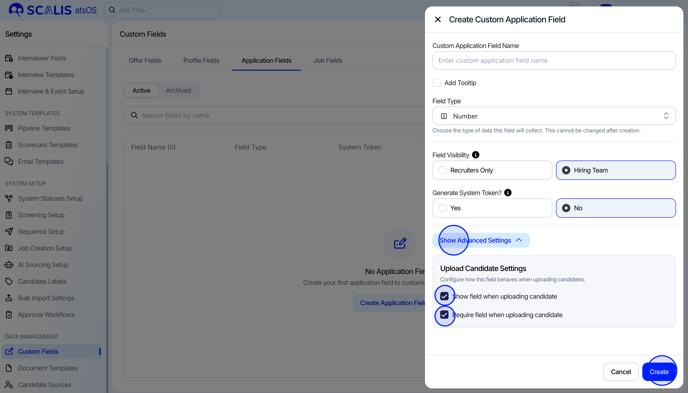
Open Advanced Settings
-
Scroll down and click on "Advanced Settings" within the field editor.
-
-
Enable Field in Upload Candidate Drawer
-
Under the Upload Candidate section, check:
-
✅ Show when uploading candidates – to display the field in the drawer.
-
✅ Require when uploading candidates – to make the field mandatory during upload (optional).
-
-
-
Save your changes.
✅ That’s it!
Once saved, the field will appear the next time you or a teammate uploads a candidate, making sure key information is captured upfront.