![SCALIS Logo.png]](https://help.scalis.ai/hs-fs/hubfs/SCALIS%20Logo.png?height=47&name=SCALIS%20Logo.png)
✅ Step 1: Move the Candidate to the Offer Stage
-
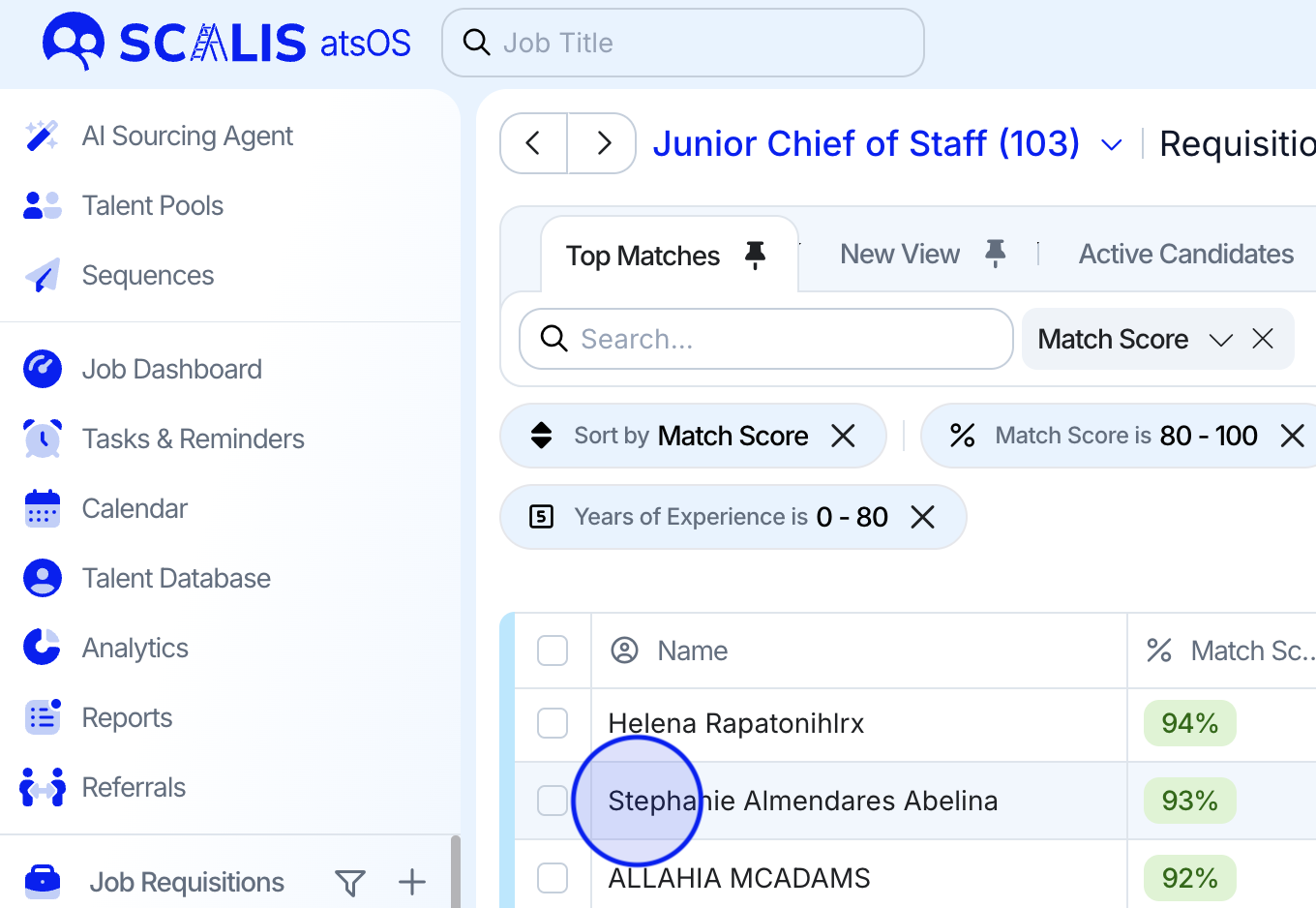
Navigate to the candidate’s profile.
-
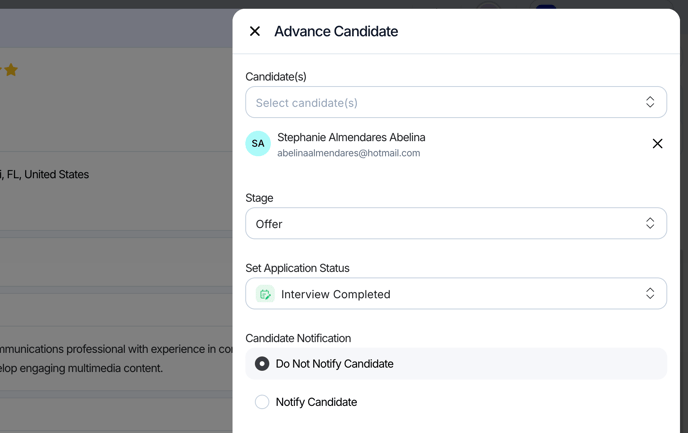
Use the advance button to move the candidate to the Offer stage.
-
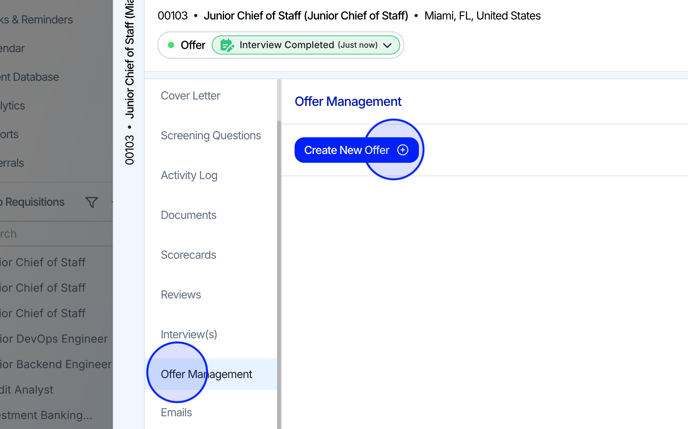
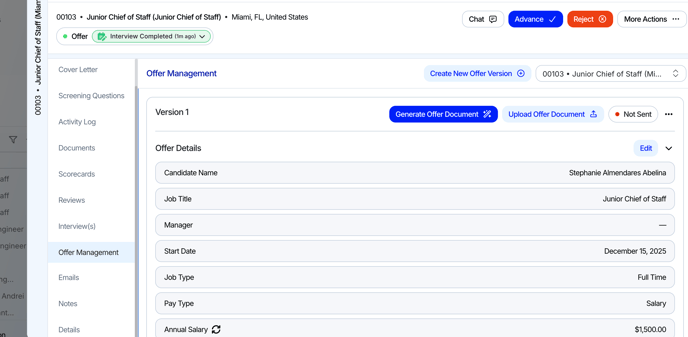
Then navigate to the Offer Management tab of the candidate profile.
-
This action will unlock the Create Offer button.
✍️ Step 2: Create the Offer
-
Click Create Offer.
-
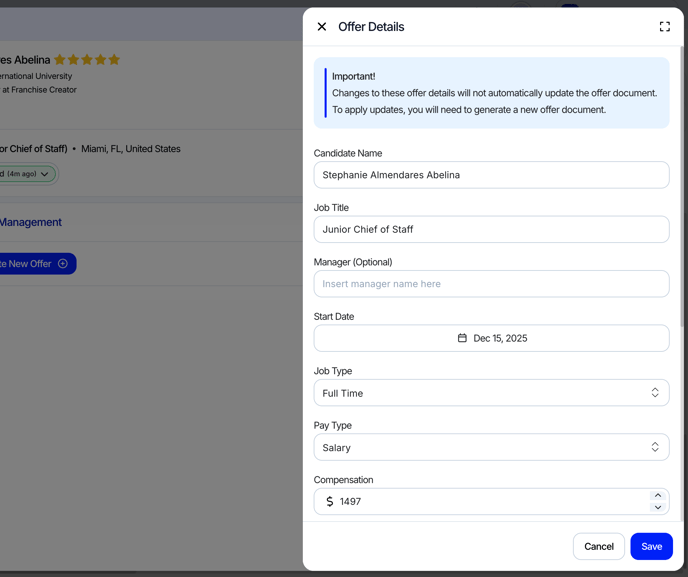
The Offer Details Drawer will appear. Fill in all required fields, including:
-
Job Title
-
Compensation details (Base, Bonus, Equity, etc.)
-
Start Date
-
Employment Type
-
Any other company-standard fields
-
-
When finished, click Save.
-
The offer is now saved with the status "Not Sent" and stored on the candidate’s profile under the Offers tab.
-
⚙️ Need to Add Custom Fields?
If your offer requires additional fields (e.g., visa sponsorship, signing bonus, location override):
-
Go to Company Settings > Custom Fields > Offer Fields
-
Click "Create Custom Field"
-
Choose field type (e.g., text, dropdown, currency), define visibility, and mark as required if applicable
-
[View full instructions here →]
Once complete, return to the Offer drawer and your new Custom Fields will be available for use.
📄 Step 3: Generate the Offer Letter
-
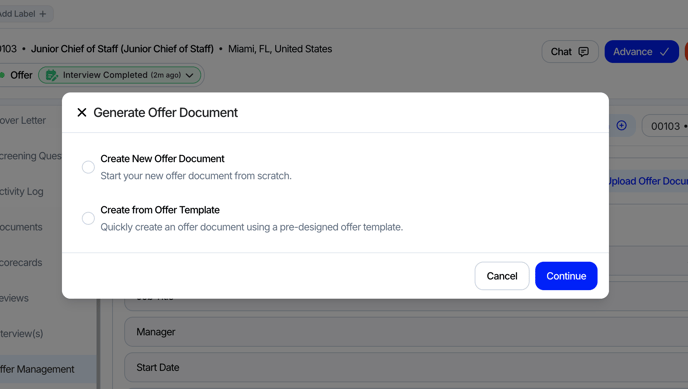
Click "Generate Offer Letter"
-
Choose one of the following:
-
Start from scratch (manual doc creation)
-
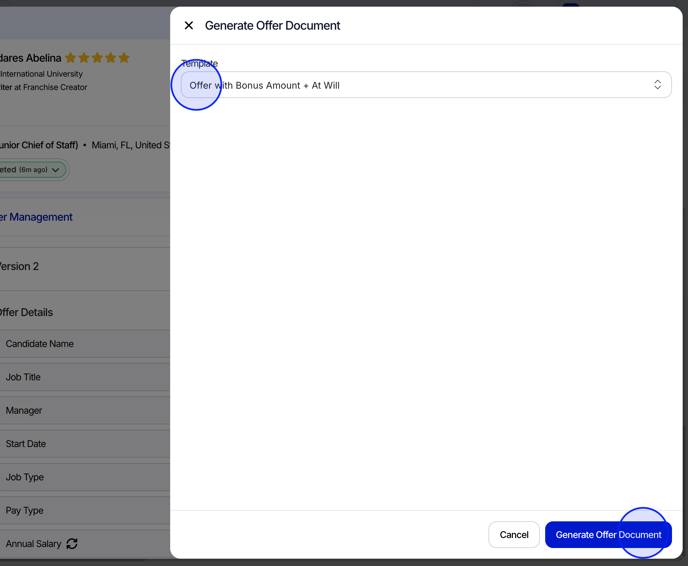
Use existing offer template from your template library
-
-
From the dropdown, select your preferred template. Click "Generate Offer"
-
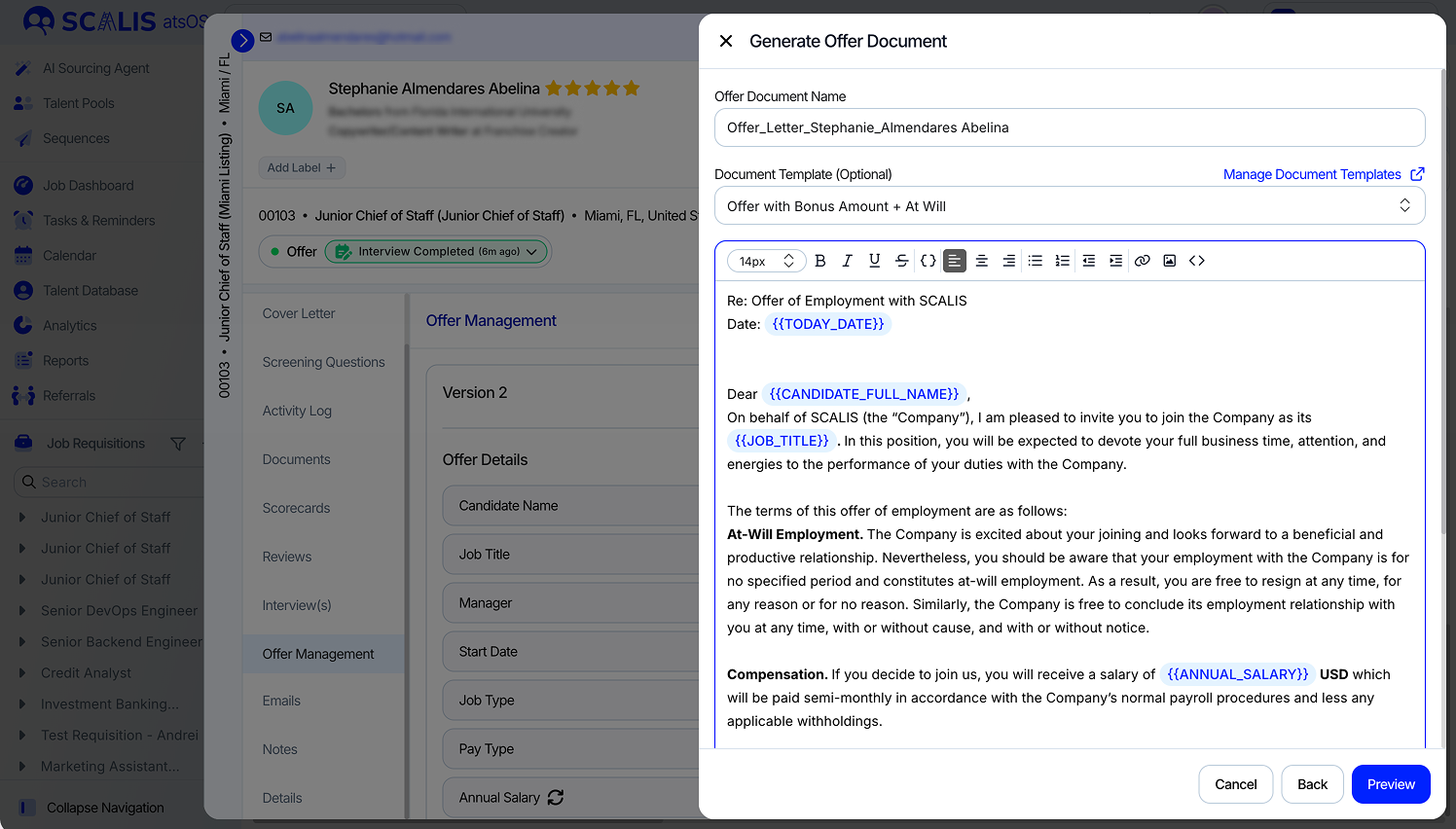
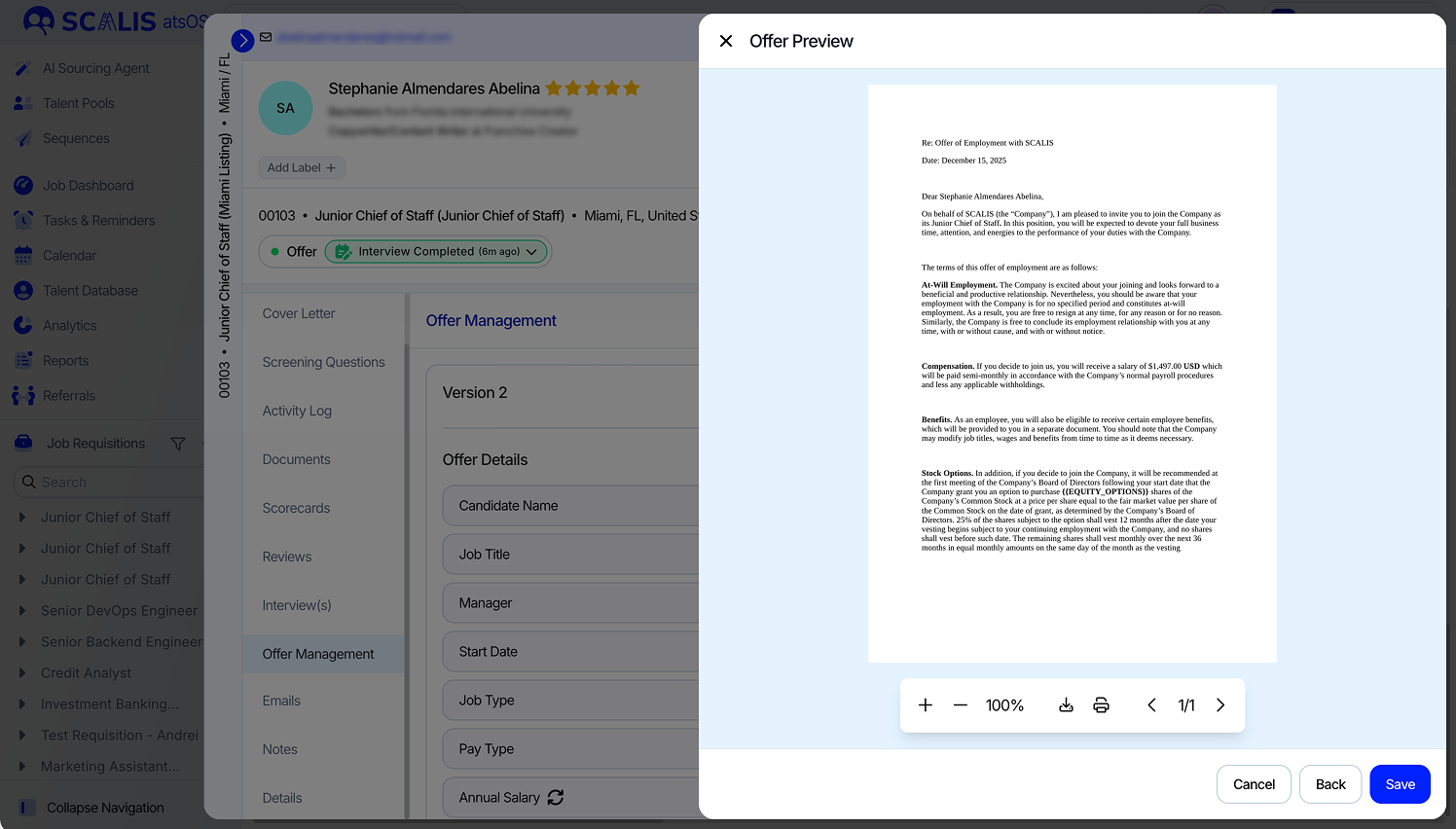
The document will auto-populate with tokenized offer details (e.g., candidate name, job title, salary).
-
Click "Preview" to review formatting and content.
-
When satisfied, click "Save".
-
A PDF version of the offer letter is now stored under the offer version and ready to send.
-
📬 Step 4: Send the Offer
Click "Send Offer Document" to initiate delivery. You will be prompted to choose your method:
Option 1: Email Without E-signature
-
Sends a simple email with the PDF attached (no signing required)
Option 2: Send for E-signature (Recommended)
Uses our embedded Dropbox Sign (HelloSign) integration to manage signatures.
If you select option 2:
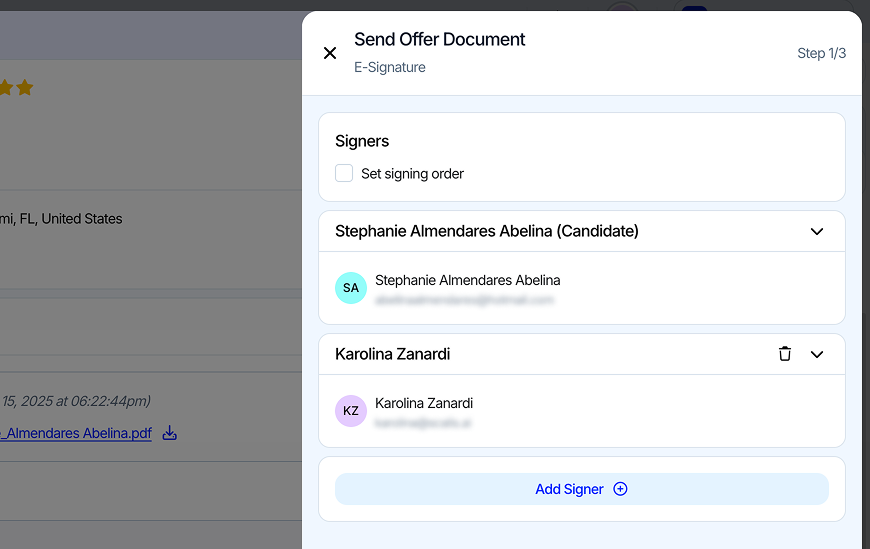
Step 1: Assign Signers
-
Select Candidate as the default signer
-
Optionally, add additional internal signers (e.g., Hiring Manager, Legal)
-
To enforce a signing sequence, toggle "Set Signing Order" and arrange signers accordingly
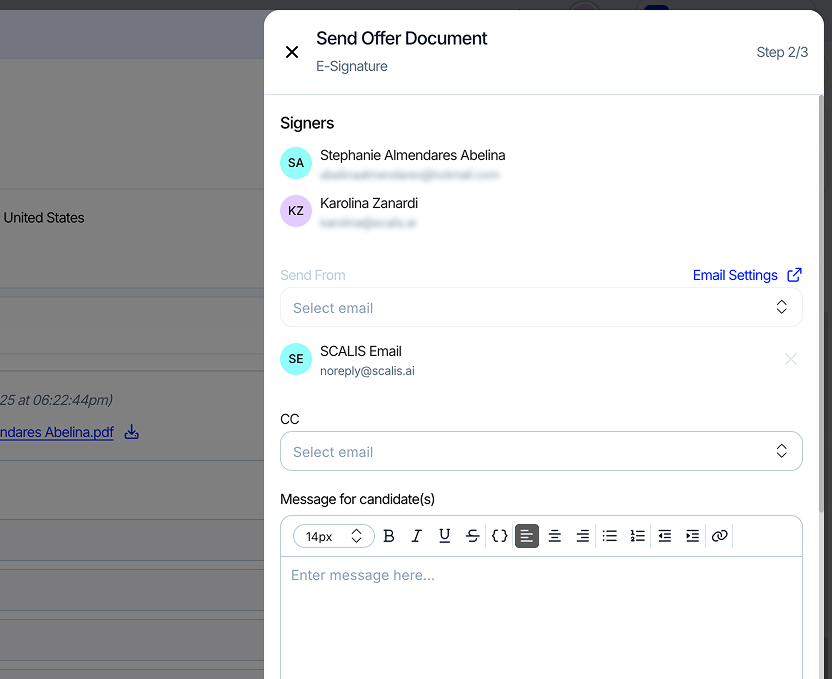
Step 2: Select an Email Template
-
Choose a pre-approved email template (e.g., “Offer Letter - Standard Full Time”)
-
This message is sent to the candidate, while Dropbox Sign sends a separate notification for signature.
Step 3: Configure Signature Fields
-
You’ll be taken to the Dropbox Sign interface.
-
Use the left-hand sidebar to drag and drop signature elements:
-
Signature
-
Date Signed
-
Initials (if needed)
-
-
For multiple signers: use the dropdown at the top to toggle between signers and assign their respective fields
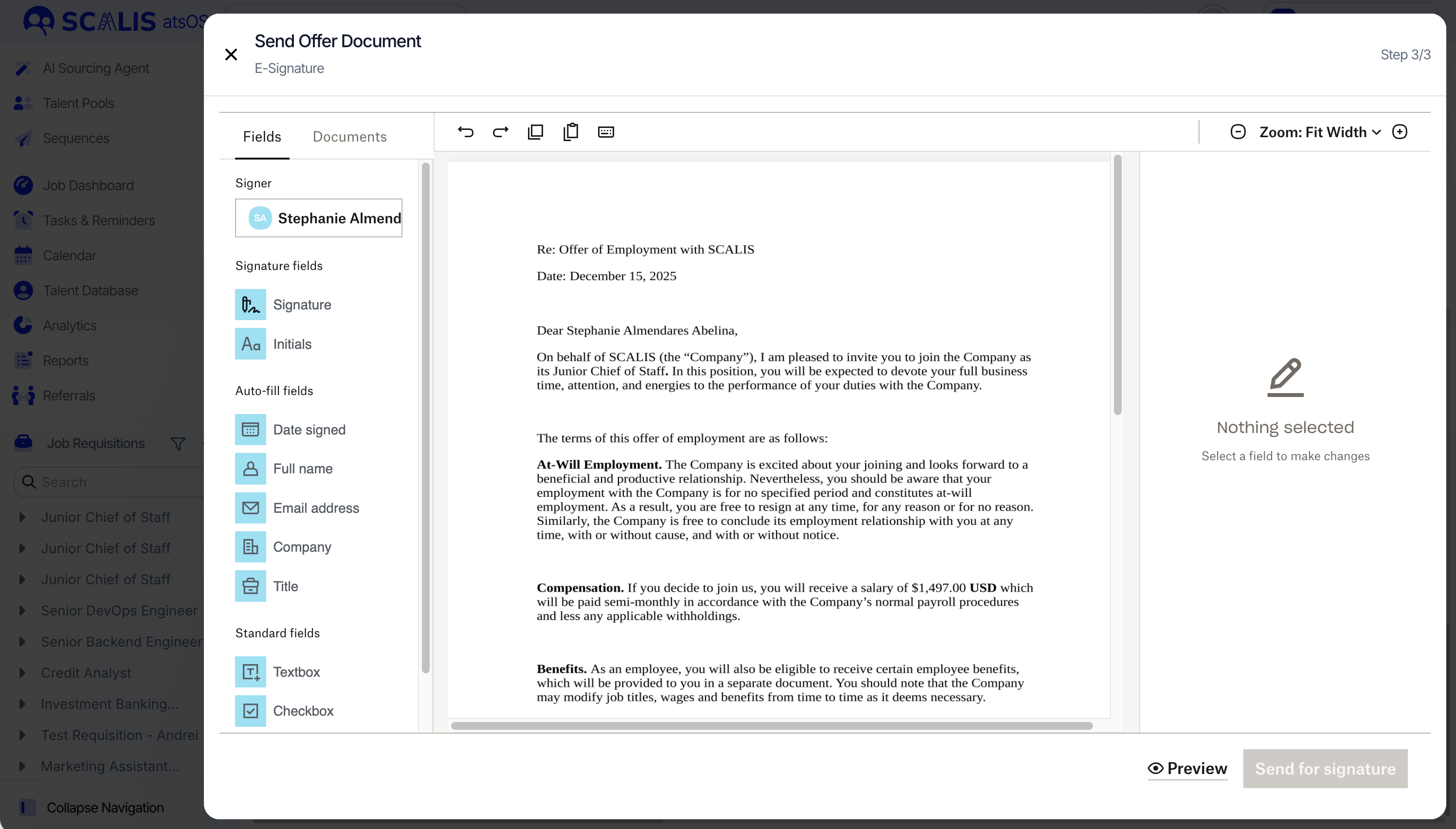
⚠️ Important: Ensure every required signer has a designated signature field — otherwise, they will not be able to complete the document.
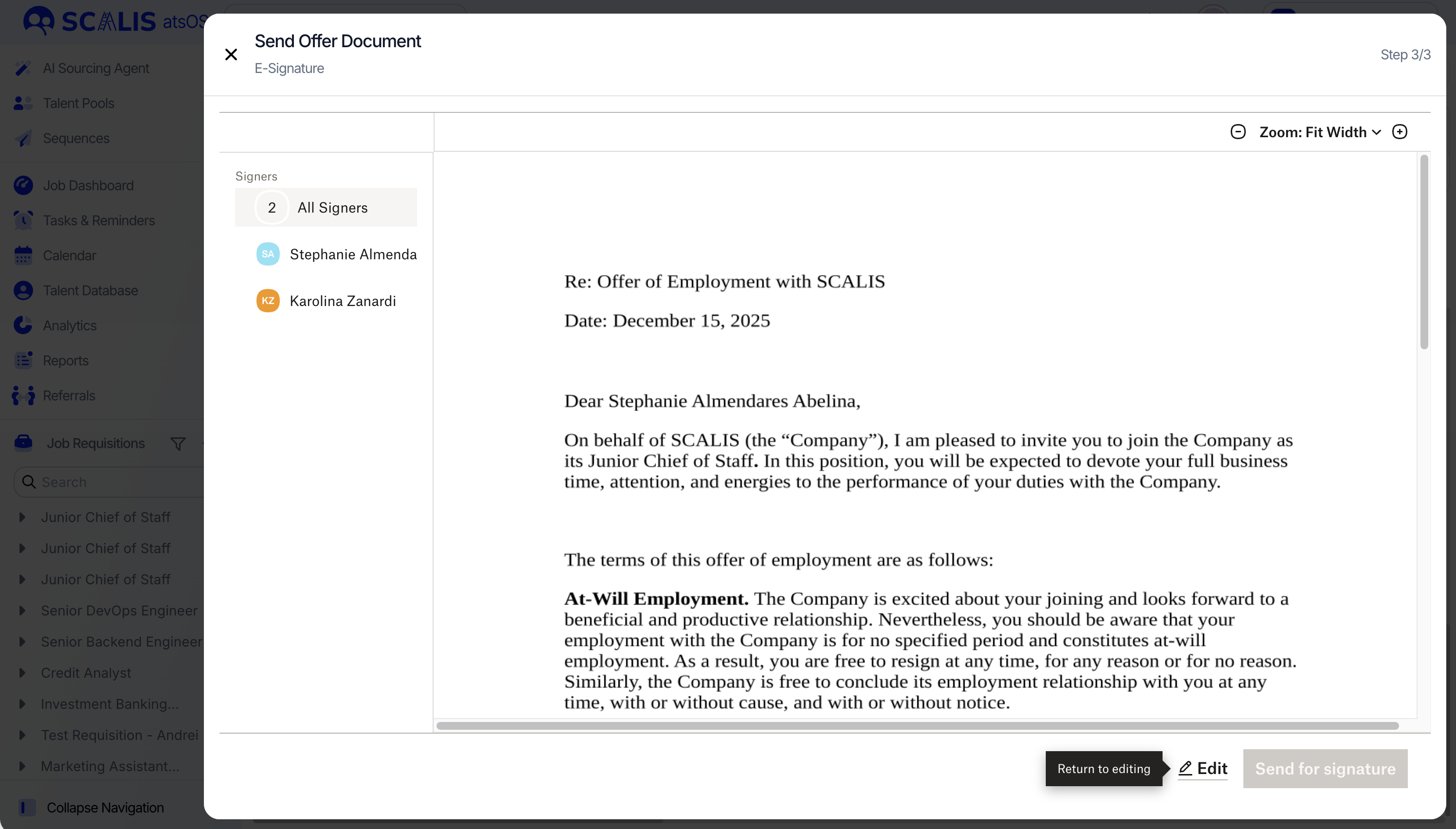
Step 4: Final Review & Send
-
Click "Preview" to see exactly what the recipient will experience.
-
When ready, click "Send".
-
The offer status will immediately update to “Sent”
-
📥 After the Offer is Sent
-
The candidate receives two emails:
-
From your company (custom email template)
-
From Dropbox Sign prompting them to sign the document
-
-
Internal signers (if applicable) will also be notified to sign in the correct sequence
Once All Signatures Are Collected:
-
You will receive a notification via email
-
Offer status will automatically update to “Signed”
-
The signed PDF will be:
-
Stored on the candidate’s profile under the "Offers" tab
-
Downloadable by admins and relevant hiring stakeholders.
-
🧠 Best Practices & Tips
-
Double-check tokens in your offer template to avoid missing data fields.
-
Use custom offer fields for region-specific clauses or approval tracking.
-
If sending a bulk offer, ensure signing order and email templates are pre-configured.
-
Archive outdated templates to reduce errors.