![SCALIS Logo.png]](https://help.scalis.ai/hs-fs/hubfs/SCALIS%20Logo.png?height=47&name=SCALIS%20Logo.png)
📍 Step-by-Step Instructions
-
Go to the Candidate Profile
From any job or the talent database, click on the candidate’s name to open their profile.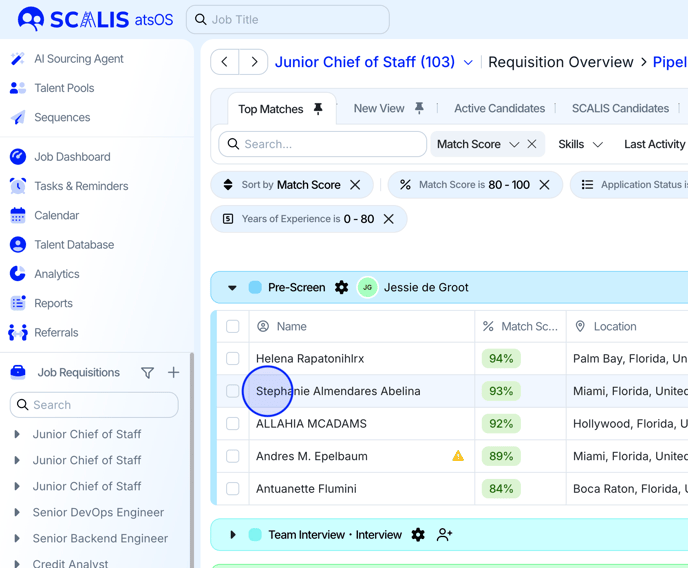
-
Open the Activity Log
In the candidate profile, navigate to the Activity Log tab. This is where all logged interactions and updates are tracked.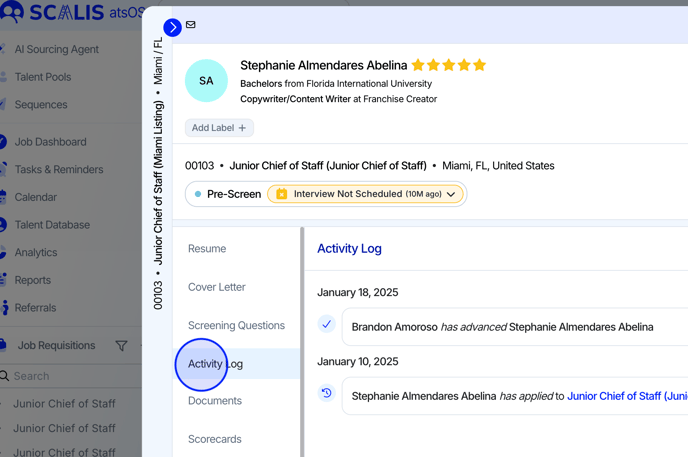
-
Click “+ Add Touchpoint”
At the top-right corner of the Activity Log, click the + Add Touchpoint button.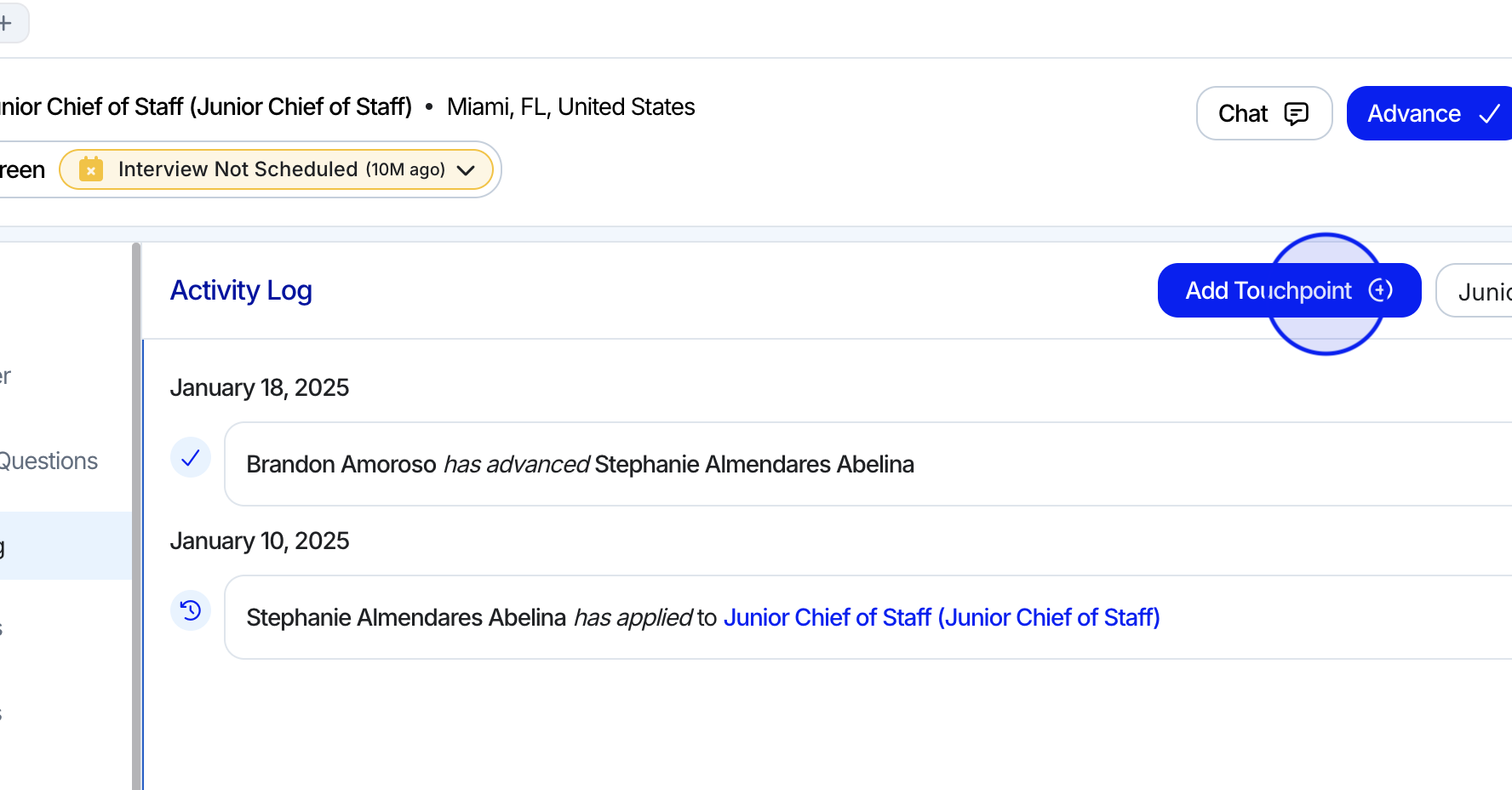
-
Complete the Touchpoint Details
In the pop-up window:-
Touchpoint Type: Select from options like Call, Email, Linkedin InMail, etc.
-
Date: Set when the interaction took place.
- User: Set which user made the interaction
-
Notes: Include key context, outcomes, or next steps.
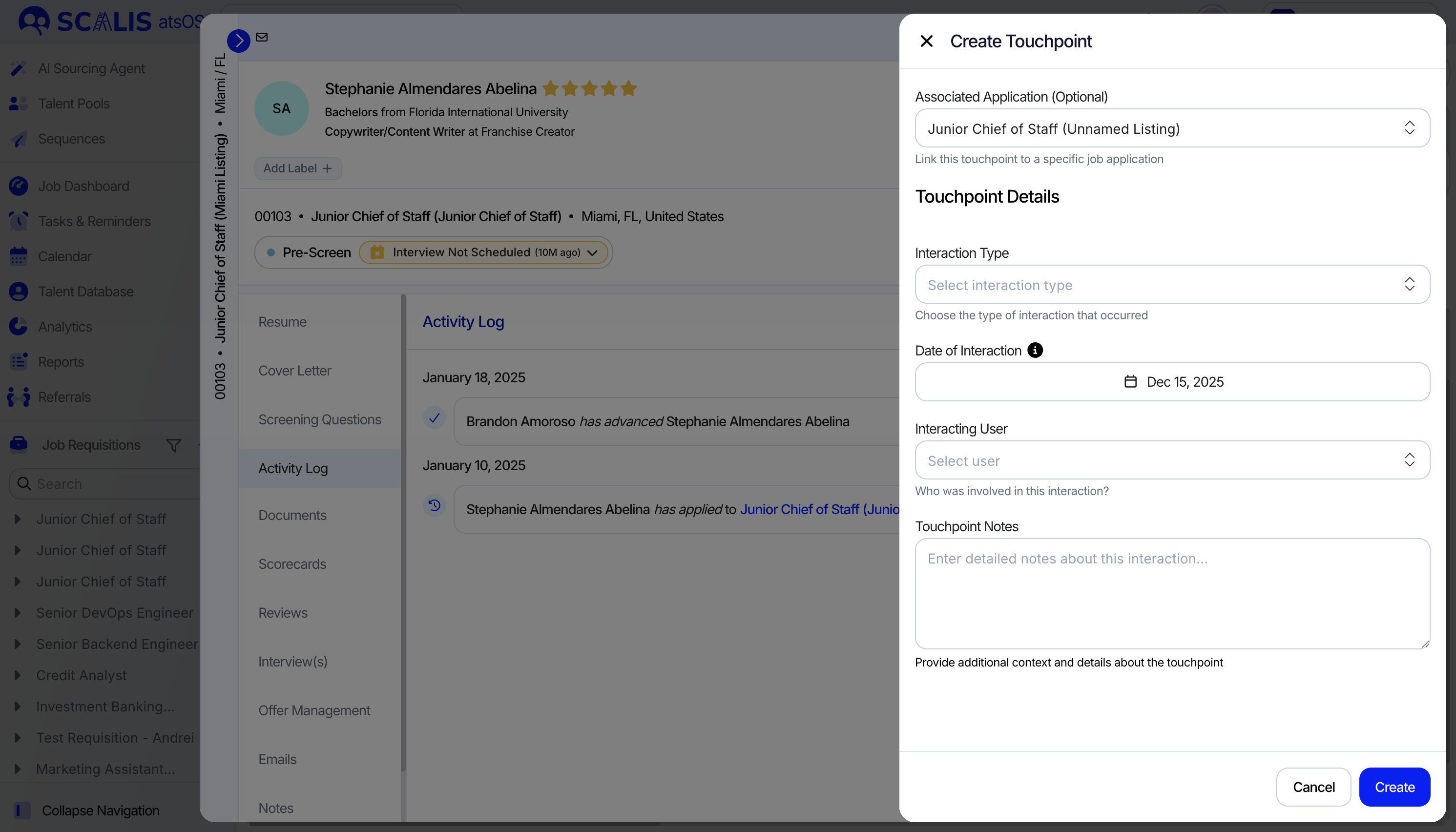
-
Important: Touchpoint Notes are public to everyone on the hiring team. If you want to add a private note, you must do so directly from the notes tab.
- Save the Touchpoint
Click Save. The touchpoint will now appear in the Activity Log with a timestamp and author.