![SCALIS Logo.png]](https://help.scalis.ai/hs-fs/hubfs/SCALIS%20Logo.png?height=47&name=SCALIS%20Logo.png)
How to Build a Pipeline Template
Step 1: Navigate to your Company Settings and click "Pipeline Templates".
Step 2: Click "Create Pipeline" in the top right corner.
Step 3: Create a "Template Name" and chose the Department this template will be for.
Example: If the template is for Marketing hiring, title it "Marketing Pipeline Template" to use across Marketing hiring with that pipeline flow.
Step 4: Set up the Stage types that will be in the pipeline by clicking "Add Stage" and selecting a stage type.
⭐ "Sourcing" and "Application Review" will always be at the start of every pipeline and are not customizable.
🔥 Tip: You can customize the visibility of each stage to be "Internal" or "Public" (candidates can see this in their application).
There are 5 Different Stage Types:
Review, Generic, Phone Screen, Interview, and Assessment
👨💻 Review
An internal team member is responsible for reviewing this stage. Reviewers are typically assigned based on expertise or stage ownership.
👨💻 Generic
This is a flexible stage type without predefined requirements. It can be used for any process setup that doesn't fit the other specific stage types.
👨💻 Phone Screen
This is the initial screening stage which requires setup of format, interviewer, and scheduling logistics.
- Interview Template: Specifies the format of the interview, determining how the session will be conducted.
- Interview Type: Specifies the format of the interview, determining how the session will be conducted. (Phone Call or Video Call)
- Scheduling Logic: Determines the structure and flow of the interview.
👨💻 Assessment
Technical or take-home assignment stage to evaluate candidates.
- Assessment Type: Specifies the format of the assignment. "External Link"directs the candidate to an external test, while "Take-Home" requires a file to be uploaded for the candidate to complete.
- Assignment Review: Defines who will evaluate the assessment
- Expiration Date: Defines the time limit for the candidate to complete the assessment
- Scorecard Template: Determines the evaluation for used by the interviewer to assess the candidate's performance. This can be selected from pre-made templates, or created net-new.
👨💻 Interview
The core interview stage requiring format, interviewer(s), and evaluation setup.
- Interview Template: Specifies the format of the interview, determining how the session will be conducted. This can be selected from pre-made templates, or created net-new.
- Interview Type: Specifies the format of the interview, determining how the session will be conducted.
- Scheduling Logic: Determines the structure and flow of the interview.
Editing an Existing Pipeline Template
⚠️ A Pipeline Template becomes locked from editing once it has been used in a job where candidates have progresses beyond the Application Review stage.
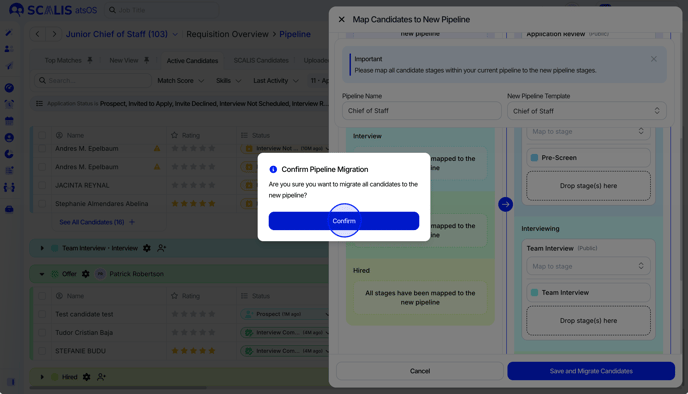
You are still able to edit an existing pipeline template, however, it will create and save it as a new template. From this point you will have to migrate your candidates from the old template to the new one. 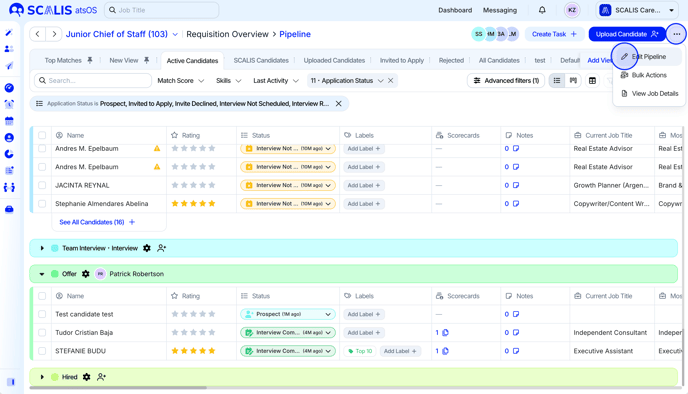
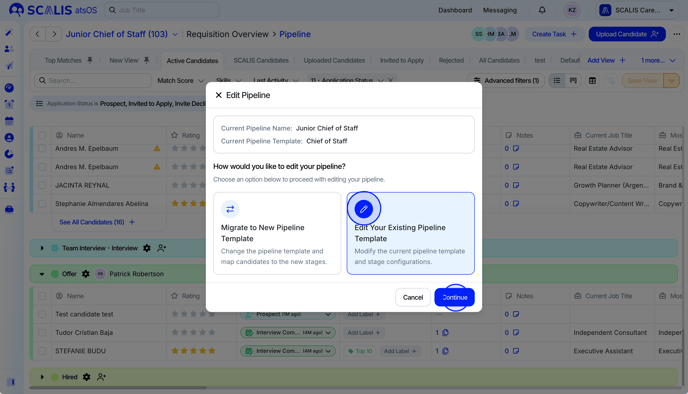
- Select the "Edit your Existing Pipeline" option and continue.
- An "Edit Pipeline Template" drawer will open, allowing you to adjust the template settings. Click "Save" to proceed.
- 🔺 Keep in mind that making changes will generate a new template rather than updating the existing one. 🔺
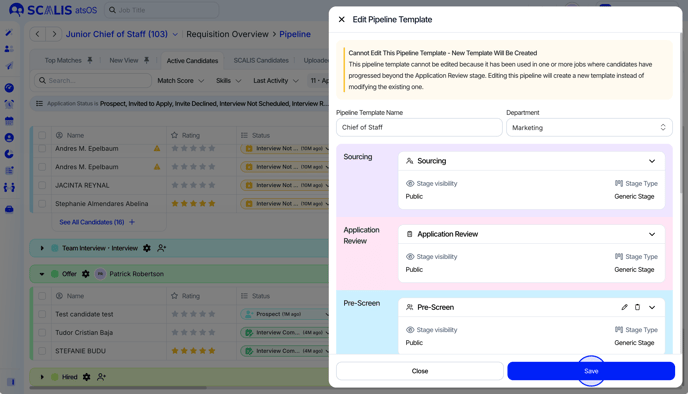
- 🔺 Keep in mind that making changes will generate a new template rather than updating the existing one. 🔺
- Drag and drop the candidate stages from your current pipeline that you want to include in the new template.
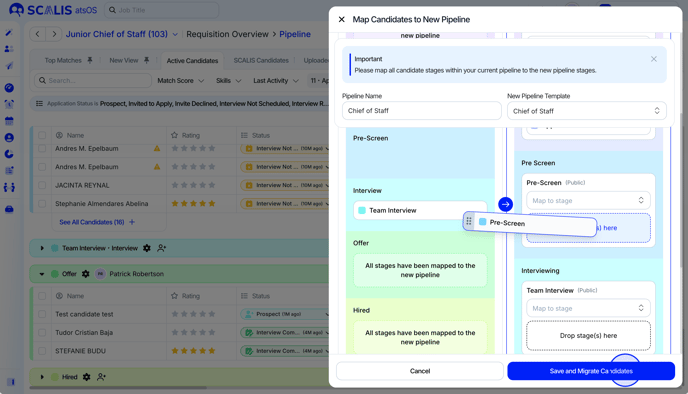
- Click "Save and Migrate Candidates", then "Confirm". Your candidates will be migrated to the new pipeline.