![SCALIS Logo.png]](https://help.scalis.ai/hs-fs/hubfs/SCALIS%20Logo.png?height=47&name=SCALIS%20Logo.png)
Step 1: Click “Schedule Interview”
-
Navigate to the candidate’s profile or the pipeline view.
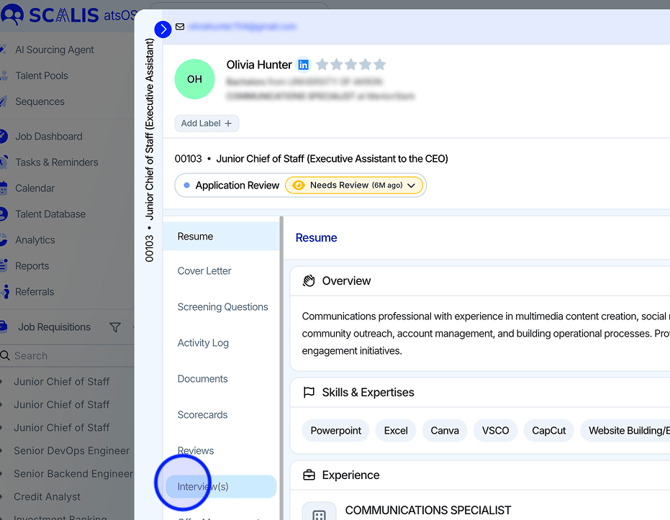
-
Click the Schedule Interview button.
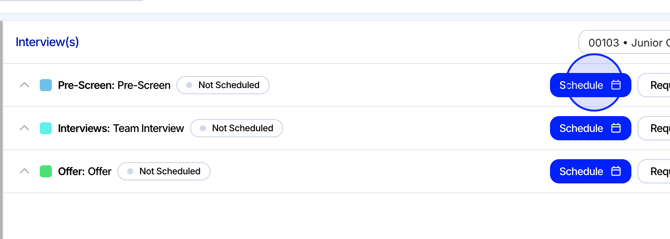
-
You’ll be prompted with two options:
-
Send Scheduler Link – allows the candidate to pick a time.
-
Manually Schedule – lets you pick and send a confirmed time.
-
- Select "Send Scheduler Link".
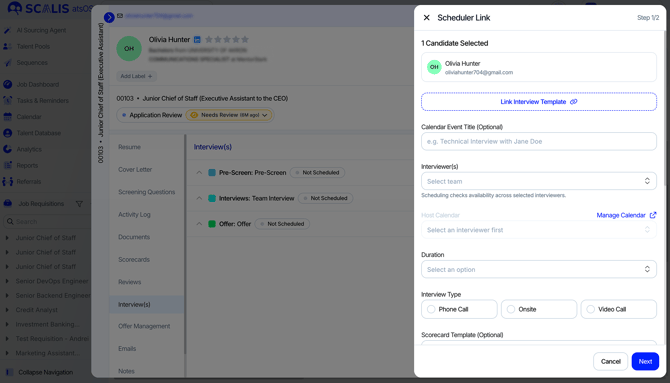
Step 2: Complete the Scheduler Link Drawer
A side panel (drawer) will appear with the following fields:
| Field | Description |
|---|---|
| Interview Stage | Select the stage this interview is tied to (e.g., Phone Screen, Onsite). |
| Calendar | Choose the team calendar that this interview will appear on. |
| Candidates | Choose one or multiple candidates. |
| Interview Team | Select the interviewer(s). This determines the availability shown to the candidate. |
| Interview Length | Choose the expected interview duration (e.g., 30 min, 60 min, Custom time). |
| Send From | Select which email address to send the invitation from (e.g., SCALIS Email or your own). |
| Message for Candidate(s) | Optional custom message that appears in the email invite. You can use rich text formatting here. |
💡 Note: You can send the scheduler link on behalf of another user by selecting them in the Interview Team dropdown. Their availability will be used for scheduling.
🔥 Tip: The AI Notetaker can be added to Self-Scheduler Links by toggling it ON when creating the event or creating the interview template.
Step 3: Send the Link
Once all required fields are completed:
-
Click "Send", and the candidate will receive an email with a link to choose their preferred time based on the availability of the selected interviewer(s).
Notes:
- Scheduler links are unique & dynamic. Once a candidate books a time, it updates in real-time.
- You can always view scheduled interviews directly from the candidate profile or interview plan.
Configure Scheduler Link Settings
1. Scroll to the “Scheduler Link” Section in Settings > Calendar Settings
⚙️ Available Scheduler Link Settings
⏰ Minimum Scheduling Notice (hours)
Set the earliest time a candidate can book from the moment they receive a scheduling link.
Example: If set to 2 hours, a candidate submitting at 1:00 PM can’t book anything earlier than 3:00 PM.
📅 Rolling Days of Availability
Define how far into the future candidates can view and book open interview slots.
Example: If set to 7, candidates can schedule within a 7-day rolling window from today.
👥 Max Interviews per Day
Limit how many interviews can be scheduled per day for any individual recruiter or interviewer.
Example: If set to 2, SCALIS will not show that user as available after two bookings are confirmed for the same day
Organization Level Settings
Company-level rebooking and cancellation rules allow administrators to define global scheduling policies that apply across all scheduler links in the organization.
- Click the "Settings" tab on the left navigation. Navigate to "Interview & Event Setup" and go to the "Scheduler Link Configuration"tab. Scroll down and you'll find two options:
- Company rebooking rules: when "Enforce company rebooking settings for all bookings" toggle is enabled, the company's rescheduling rules (including whether rescheduling is allowed and the maximum number of rebookings) override any individual scheduler link or user-level calendar settings. Users will not be able to customize or bypass these limits in their own configurations.
- Company cancel settings: when "Enforce company cancel settings for all bookings" toggle is enabled, the company's cancellation policy overrides individual scheduler link settings. All candidates booking through any scheduler link will follow the same cancellation rules.
What Happens Next?
-
🟡 Candidate Status Updates to “Interview Requested”
As soon as the scheduler link is sent, the candidate's application status will automatically update to Interview Requested. -
🔔 Notification Upon Scheduling
Once the candidate books a time, you (and anyone else involved in the interview) will receive a notification. -
🟢 Candidate Status Updates to “Interview Scheduled”
After the candidate confirms a time, their status will automatically update to Interview Scheduled in the pipeline.
Rebooking and Cancellation Settings
Control whether candidates can reschedule or cancel interviews they've booked through your scheduler link.
- Click the "Settings" tab on the left navigation. Navigate to "Calendar Settings" and go to the "Scheduler Link Configuration" tab. Scroll down and you'll find two options:
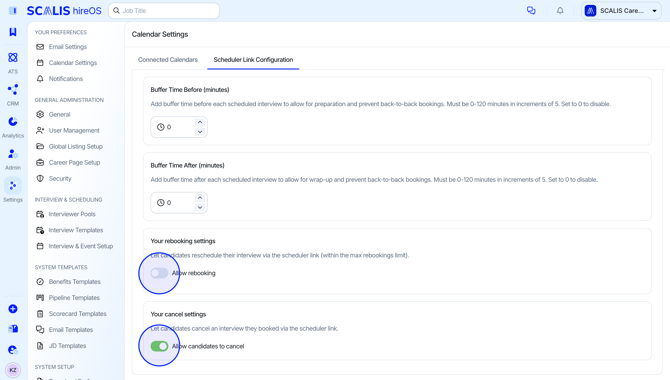
- Rebooking settings: If enabled, candidates can reschedule their interview using the same scheduling link, up to the maximum number of rebookings you've defined. When they select a new time, their previous time slot is automatically released and made available to others. If disabled, candidates won't be able to change their scheduled time on their own and must contact your team for any updates.
- Cancel Settings: If enabled, candidates can cancel their booked interview directly from the scheduler link. The time slot will be freed up in your calendar. If disabled, candidates won't see the option to cancel and will need to reach out to your team if they can't attend.
💻 Below is a screenshot of the candidate view after clicking the Scheduler Link when an interview has already been scheduled and both rescheduling and cancellation are enabled.
If an Interview is Canceled by the Candidate:
After a candidate cancels their interview, the original scheduling link becomes invalid. If they try to access it again, they will see a message informing them that the link is no longer valid.
- At this point, the candidate cannot use the same link to book or reschedule another interview. They will need to contact the recruiting team to request a new scheduling link if they wish to schedule again.
- This ensures that canceled interviews are fully closed and prevents unintended re-bookings through the same link.
💻 Below is a screenshot of the candidate view after cancelling an interview.
If an Interview is Rescheduled by the Candidate:
When a candidate reschedules their interview, the original time slot is automatically released and the interview is updated to the newly selected date and time.
If the candidate opens the scheduling link again:
- If additional re-bookings are still allowed (within the maximum limit), they will be able to reschedule again.
- If the maximum number of re-bookings has been reached, the link will no longer allow further changes.
This ensures the calendar stays accurate while giving candidates flexibility within the limits you've defined.
FAQ
Where is the Interviewer availability pulled from?
-
Availability is taken from the host calendar. Be sure to double check that the "Host Calendar" is the correct calendar you'd like the interview to be scheduled on.
- This is useful if as a company there is one shared calendar.