![SCALIS Logo.png]](https://help.scalis.ai/hs-fs/hubfs/SCALIS%20Logo.png?height=47&name=SCALIS%20Logo.png)
How to Submit a Referral
Users are able to have a SCALIS User or External Referrer use the Referral feature to submit and refer a candidate for a Job Requisition.
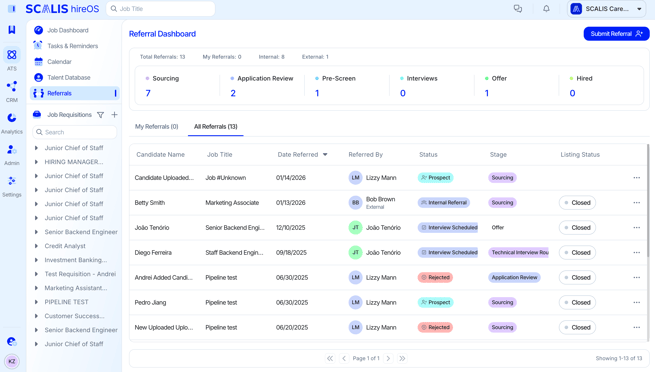
- Navigate to the Job Dashboard, and click "Referrals" on the left.
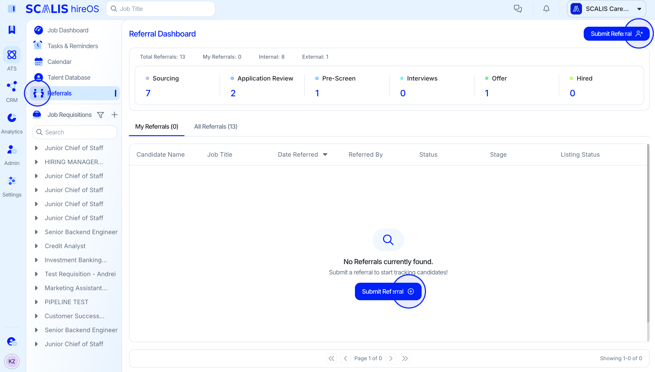
- Click "Submit Referral" and upload their resume and details.
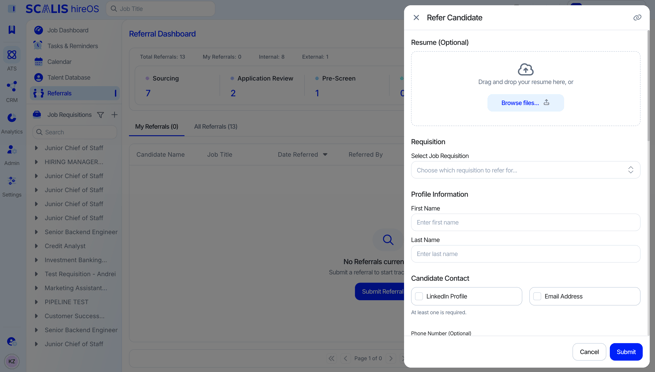
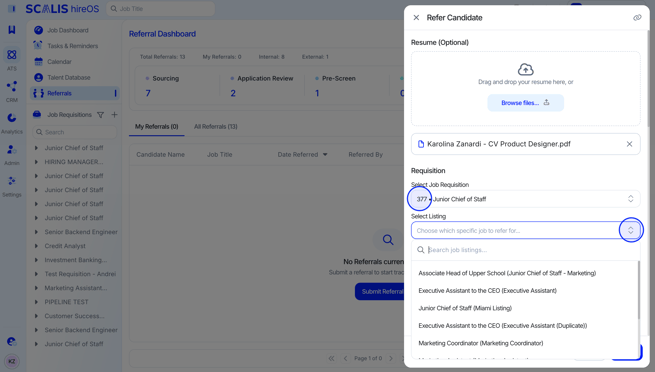
- Link them to an existing job by selecting the Job Listing from the drop down.
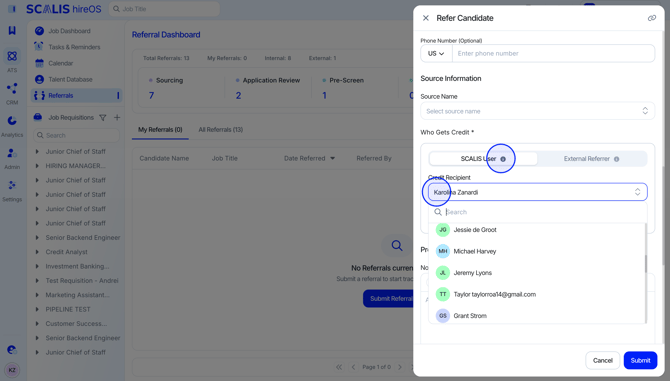
- Select if the Referrer is a SCALIS User (this person has a SCALIS account) or if they are an "External Referrer" (this is anyone outside of your company - recruiter, agency, personal contact, etc.)
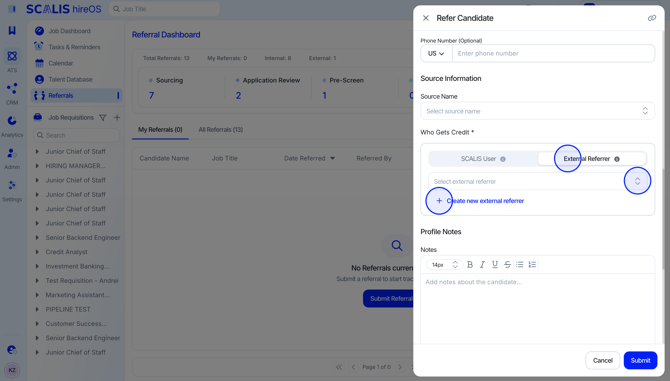
- If "External Referrer" is selected, enter the Referrer's information.
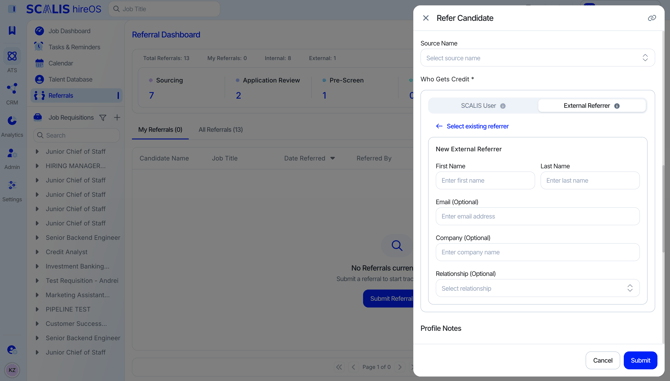
- If "External Referrer" is selected, enter the Referrer's information.
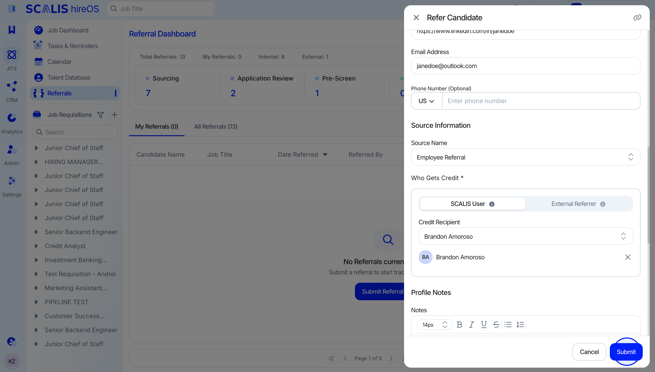
- Add in any notes regarding the candidate regarding your relationship with them, reason for referring them, etc.
- Once satisfied, click "Submit".
🖱️ Tracking your Referrals
- Navigate to the "Referrals" tab from the Job Dashboard.
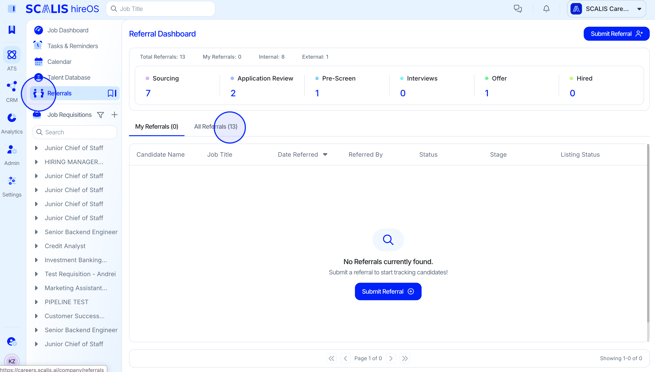
- Here you will be able to see all your referrals and what stage of the process they are in. If you are a Super Admin, you will be able to track all company referrals that have been submitted.
Sharing a Referral Link outside of SCALIS
- Navigate to the Job Dashboard and click "Submit Referral"
- From the drawer that opens, click the hyperlink at the top right to copy the URL.
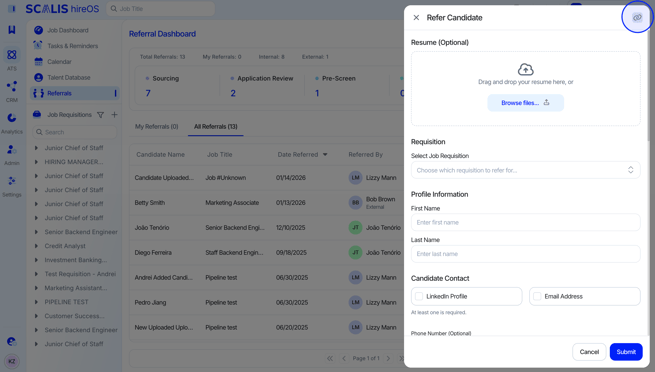
- Share this URL with Slack channels, or company-wide communication channels for employees to make referrals (❗This link will only work for individuals with a SCALIS account).