.png?width=1391&height=437&name=SCALIS%20Logo%20(1).png)
GETTING STARTED
Get familiar with SCALIS by exploring these key navigation shortcuts.
Top + side nav3 min read
Top navigation bar
The bar across the top of SCALIS, available from anywhere in the product.
SCALIS hireOS logo: click it any time to jump back to your Job Dashboard.
Global search: search across all of SCALIS ATS from the search bar.
Dashboard: your central hub for managing all jobs you're assigned to. View job statuses, pipelines, and progress across active requisitions.
Messaging: an integrated messaging system for communicating directly with candidates inside SCALIS. Use it to answer questions and send updates seamlessly.
Support help desk: the question mark icon opens the help desk so you can find support articles and get help without leaving SCALIS.
Notifications: the bell icon shows your latest alerts and updates.

ATS side navigation
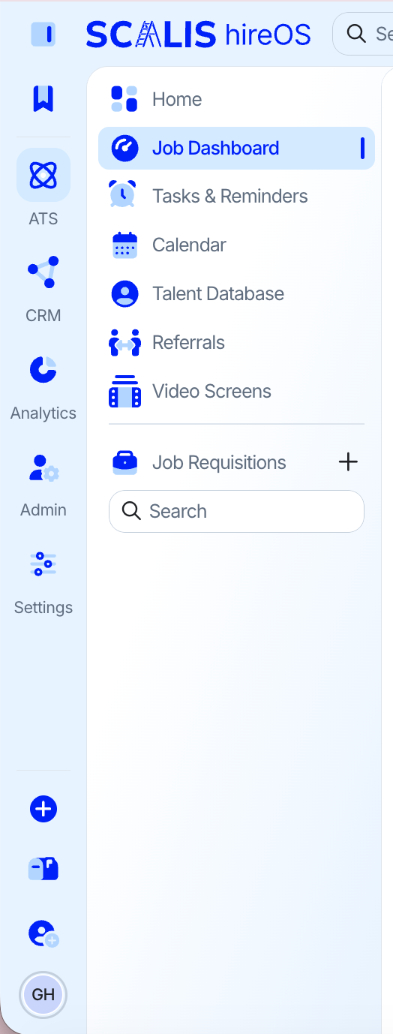
When you're working in the ATS, the left navigation gives you:
Job Dashboard: your central hub for managing all jobs you're assigned to.
Tasks & Reminders: stay on top of your to-dos with task tracking and automatic reminders.
Calendar: view and manage your schedule, including SCALIS and non-SCALIS events.
Talent Database: manage your candidate database and explore potential talent, with filters and views to slice your talent.
Analytics: track key metrics and performance data for informed decision-making.
Reports: generate detailed reports to review performance, track progress, and share insights with your team.
Referrals: share and track referrals made by users.
CRM side navigation
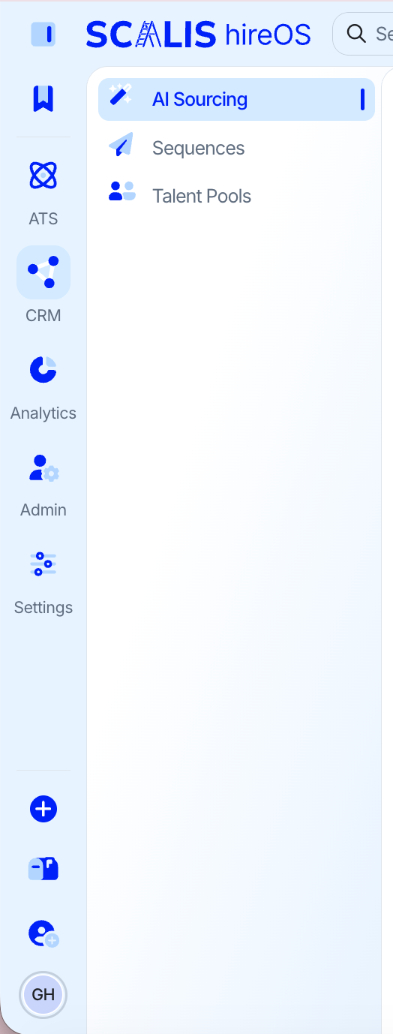
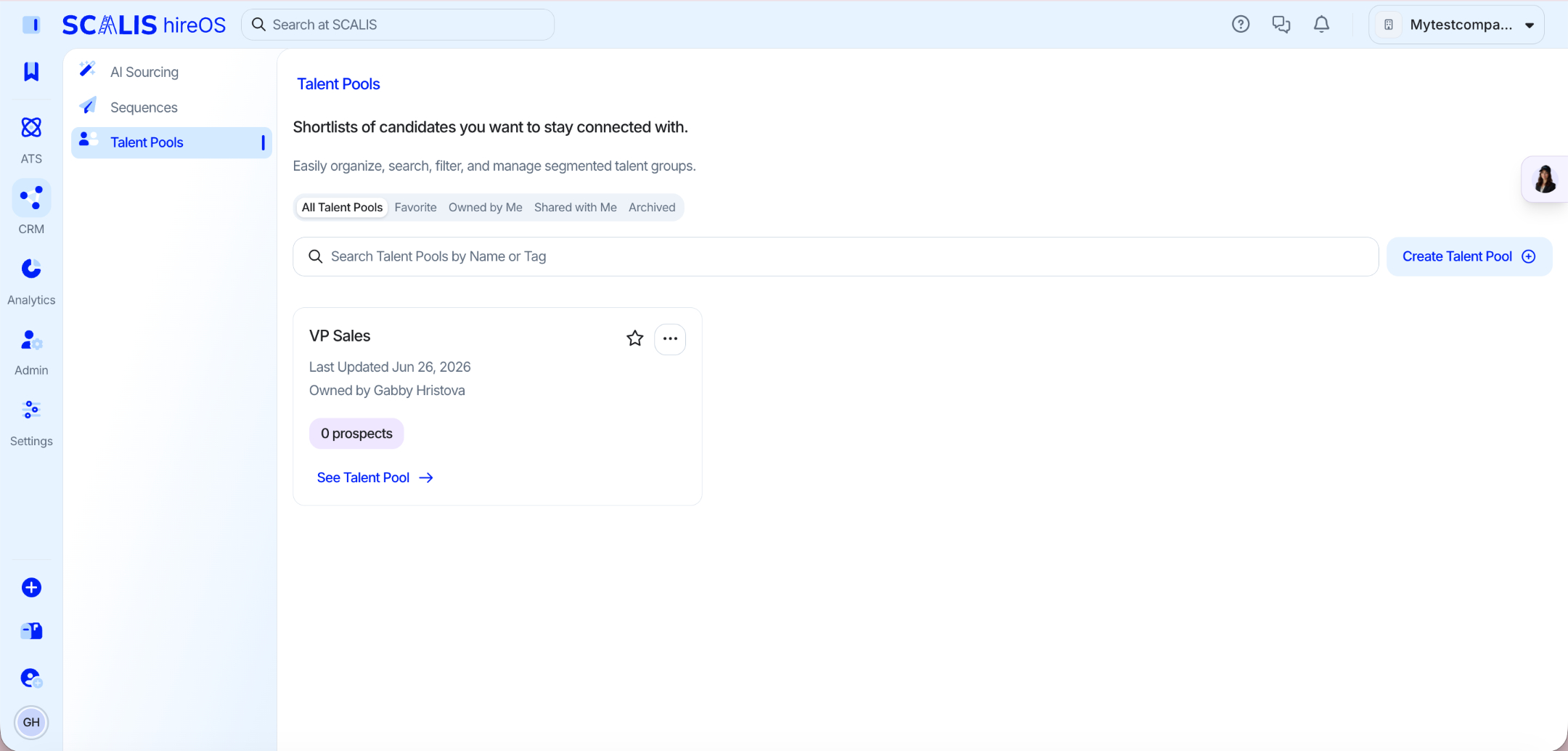
Switch into the CRM and the left navigation focuses on sourcing and outreach. Each area is covered below.
AI Sourcing Agent (Bella)
Talent Pools
Sequences
A closer look at the CRM
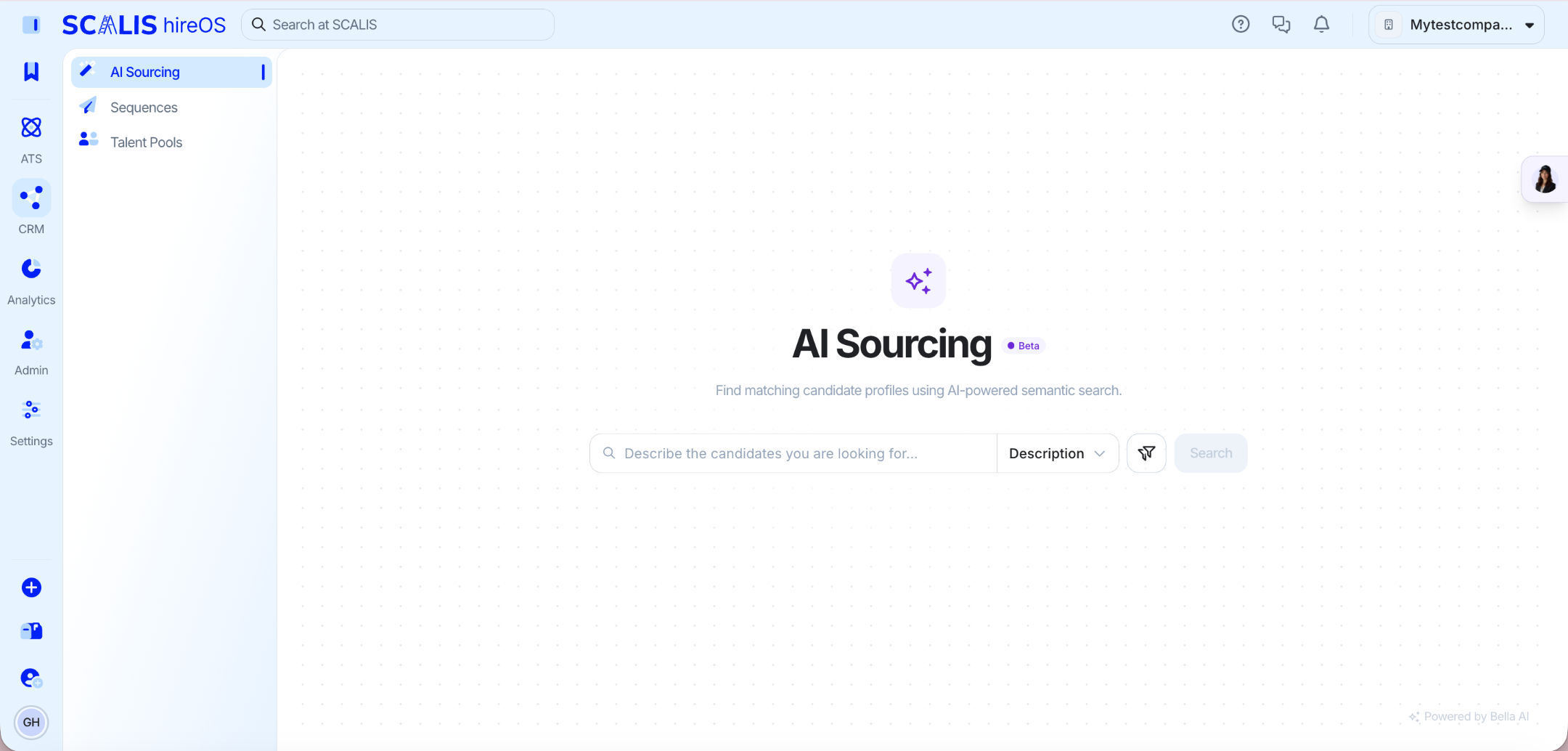
AI Sourcing Agent (Bella)
Your agentic AI recruiting partner, working alongside you from initial sourcing all the way to final placement.
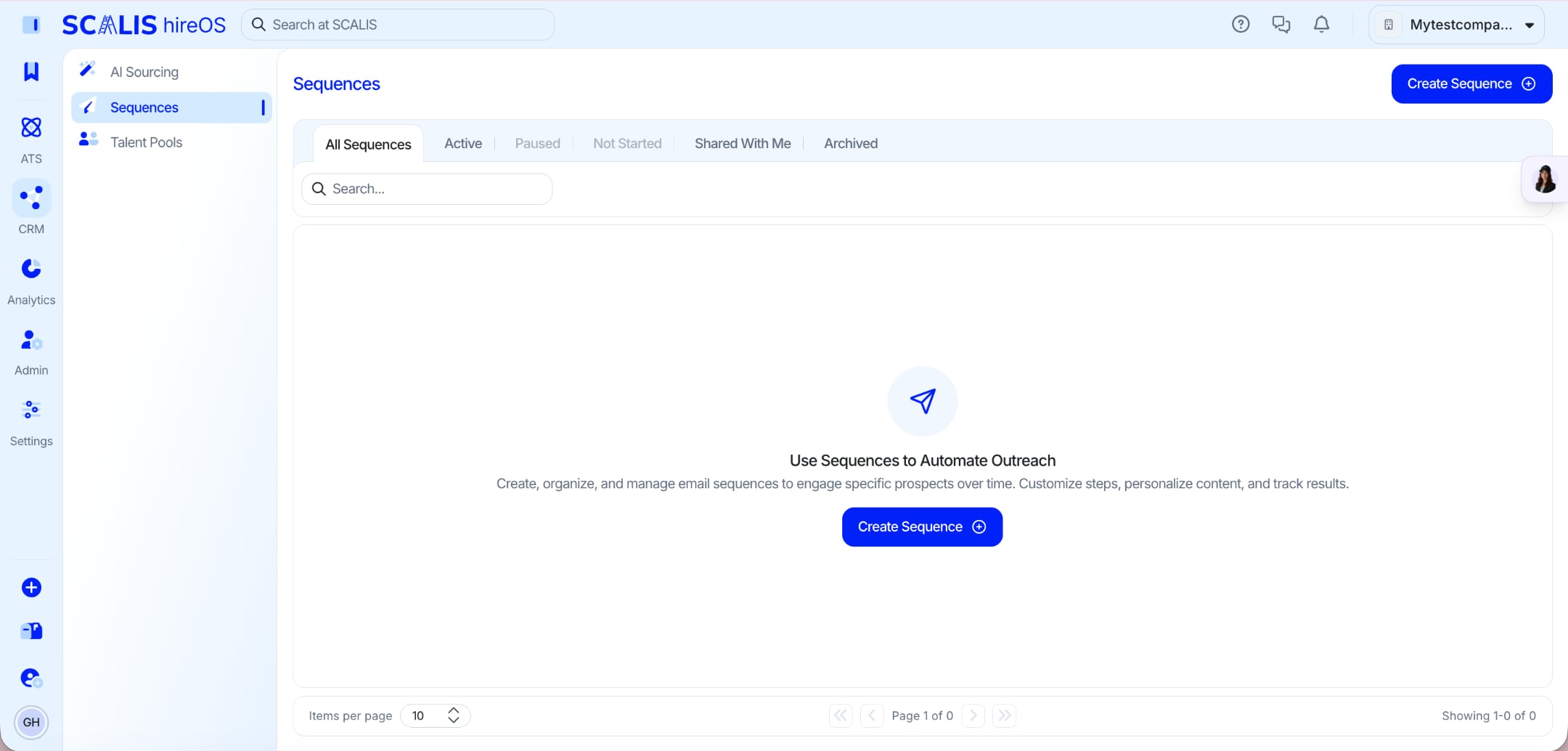
Sequences
Create, organize, and manage email sequences to engage specific prospects over time.
Talent Pools
Build shortlists of candidates you want to stay connected with, and revisit them whenever a relevant role opens.
Frequently Asked Questions
How do I get back to my Job Dashboard?
Click the SCALIS hireOS logo in the top navigation bar at any time.
Where do I get help inside SCALIS?
Click the support help desk icon (the question mark) in the top navigation bar.
Related articles
Take a few minutes to click around and get comfortable. Once the navigation feels familiar, the rest of SCALIS falls into place. Reach out to your CSM any time you have questions.