.png?width=1391&height=437&name=SCALIS%20Logo%20(1).png)
INTEGRATIONS
Follow this step-by-step guide to manage subsidiaries, clients, and business relationships.
In this guide
Activate Subsidiaries & Clients
1
Step 1
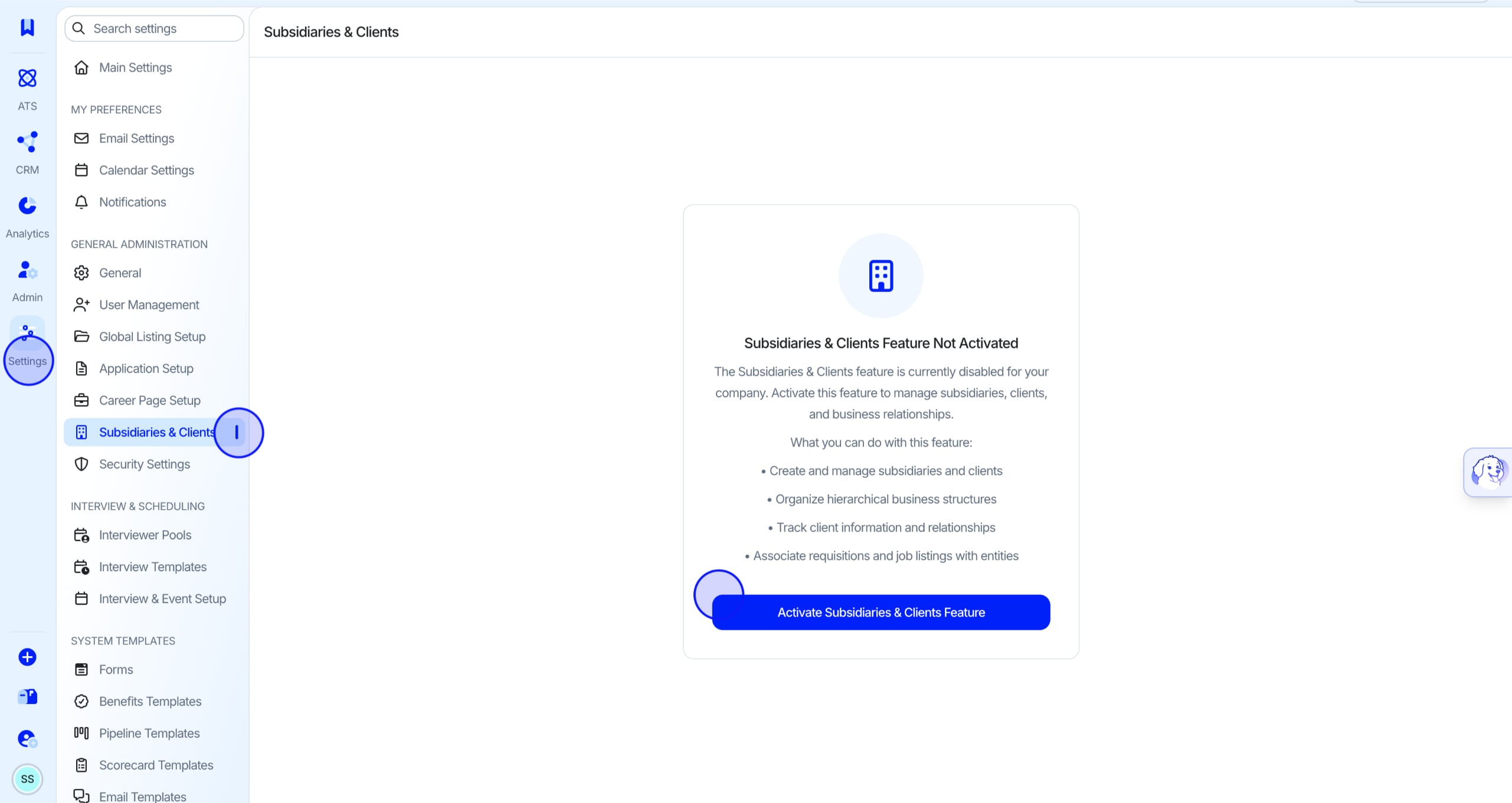
Navigate to Company Settings
Navigate to your Company Settings and click "Subsidiaries & Clients".
2
Step 2
Activate the Feature
Click "Activate Subsidiaries & Clients Feature", then click "Confirm".
💡 Note: Success! Follow the steps below to learn how to create new subsidiaries & clients.
Creating a New Subsidiary or Client
3
Step 3
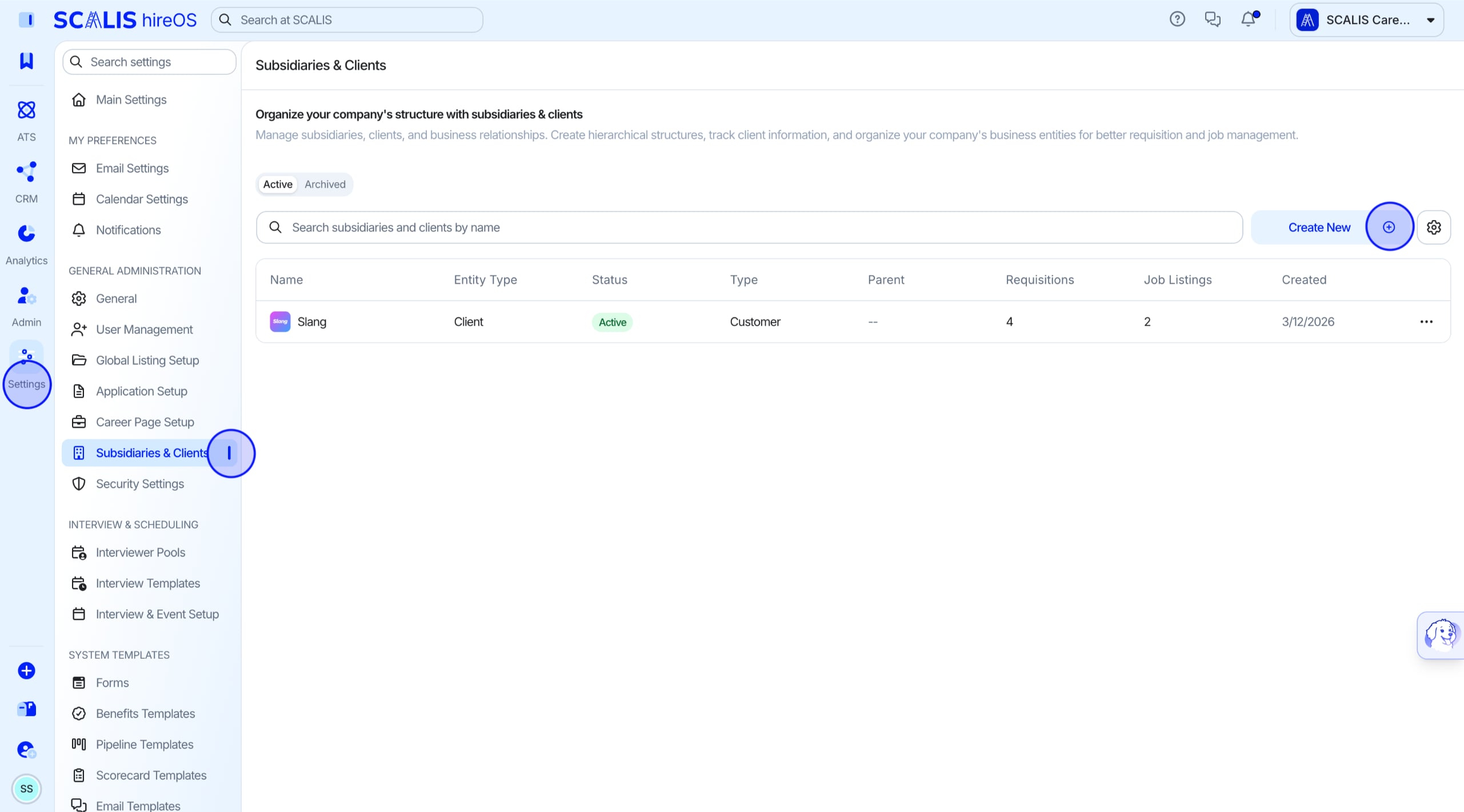
Click Create New
Create and manage subsidiaries and clients, organize hierarchical business structures, track client information and relationships, and associate requisitions and job listings with entities.
Click "Create New" to start adding a new subsidiary or client.
4
Step 4
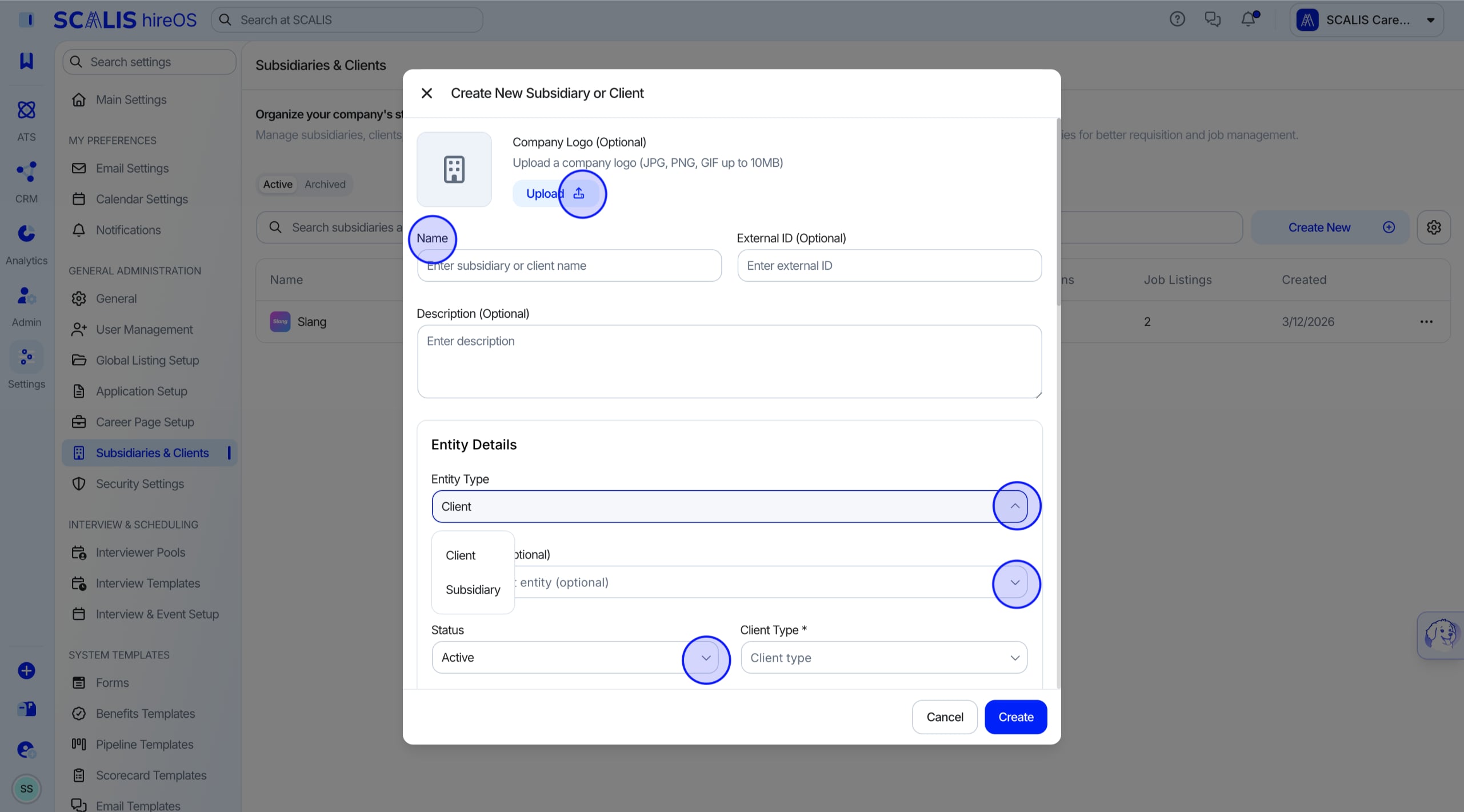
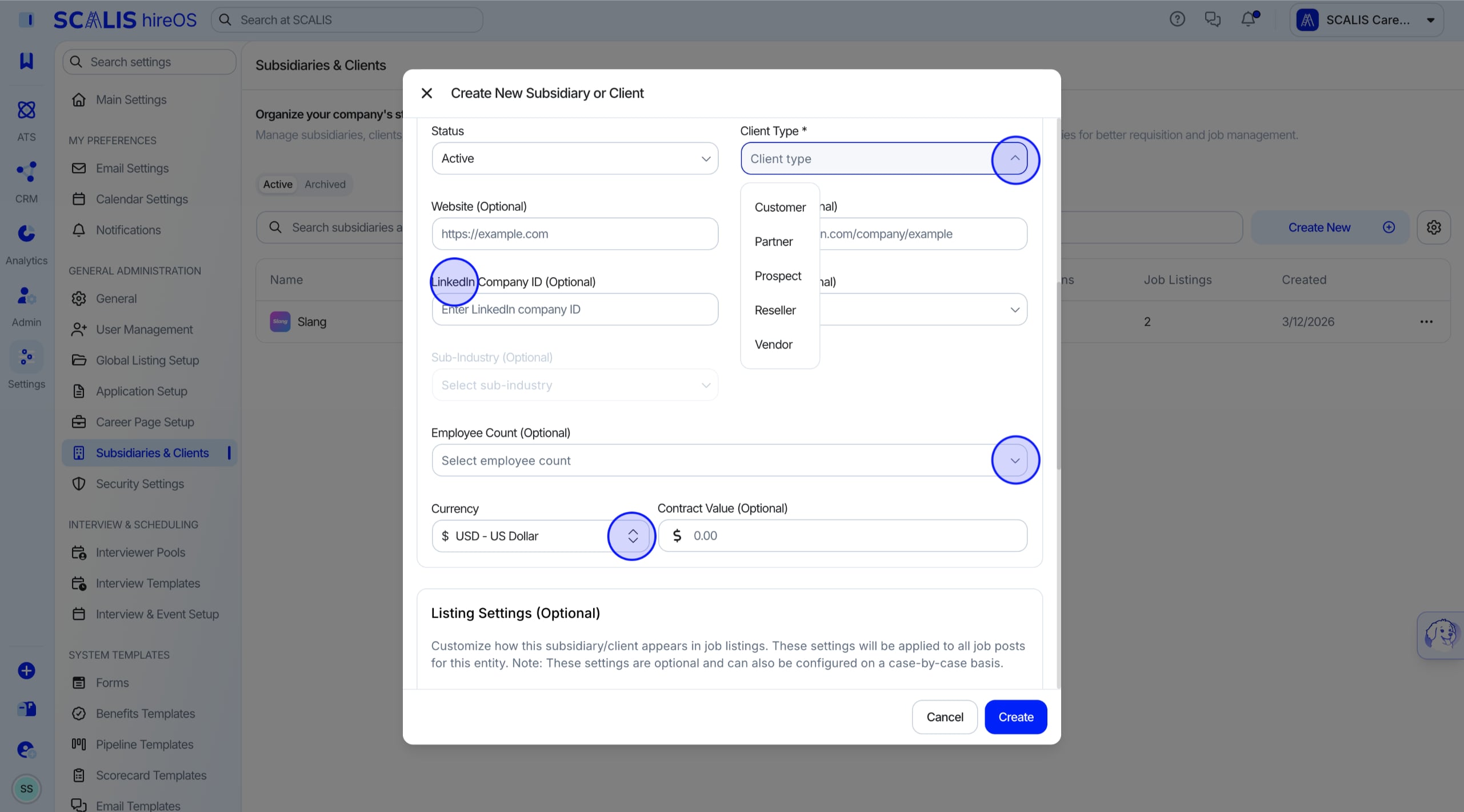
Add Client Details
Add the entity's details: Name, Entity Type, Status, Client Type, LinkedIn Company ID (if you want job listings to flow to their LinkedIn), Currency, and any other optional fields you see fit.
5
Step 5
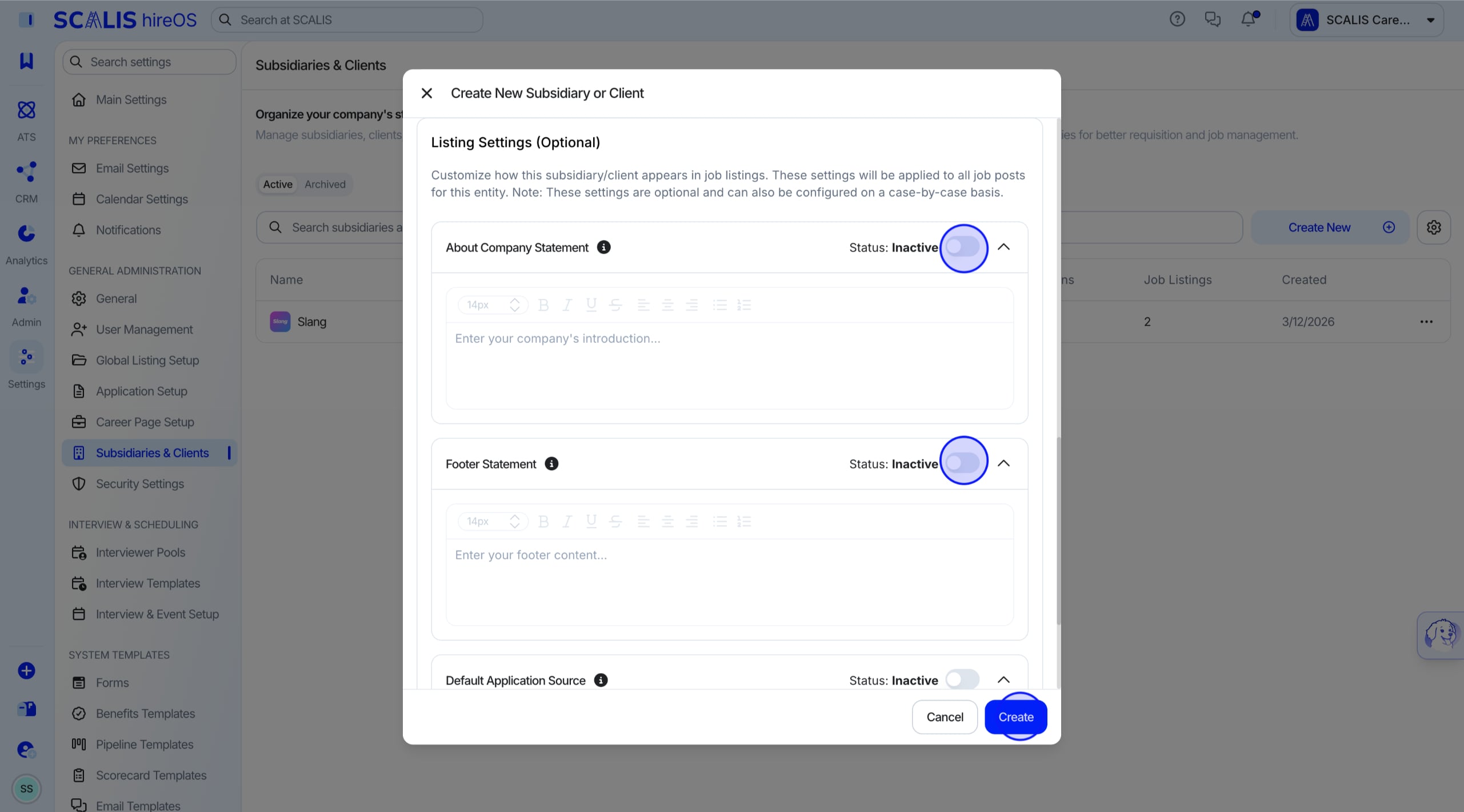
Add About, Footer, and Application Source
Add the About Statement, Footer Statement, and Default Application Source. These apply to all jobs under this client or subsidiary.
Click "Create".
⚠ Warning: This information will be shown on the job posting!
Adding a Subsidiary or Client to Jobs and Listings
6
Step 6
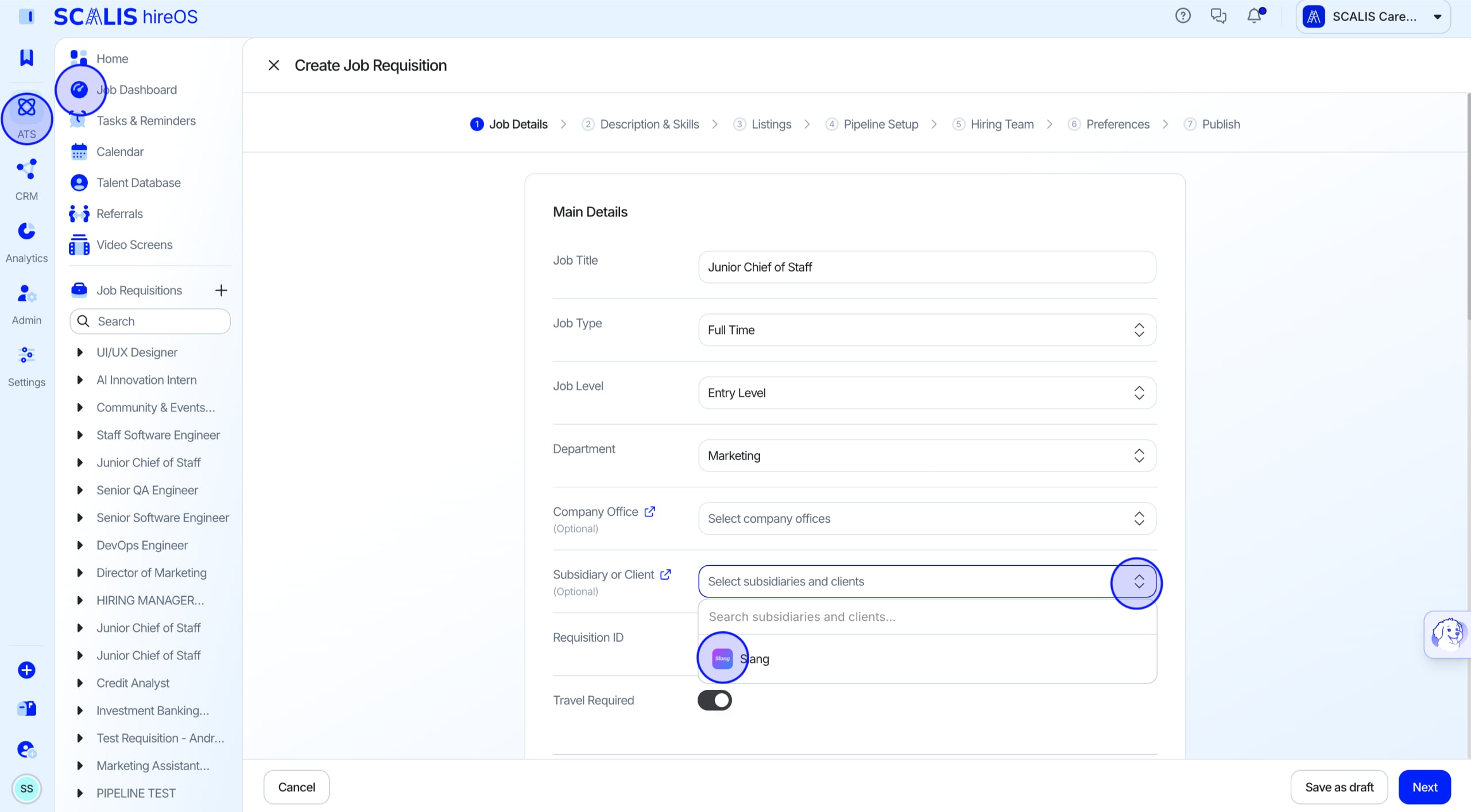
Start a Job Requisition
Add subsidiaries or clients to your jobs and listings to organize your company structure, connect requisitions with the right entities, and keep client relationships and job data aligned.
Go to the Job Dashboard and click "New Job Requisition".
In the Requisition Details section, scroll down and choose the Subsidiary or Client you'd like to add to the job.
7
Step 7
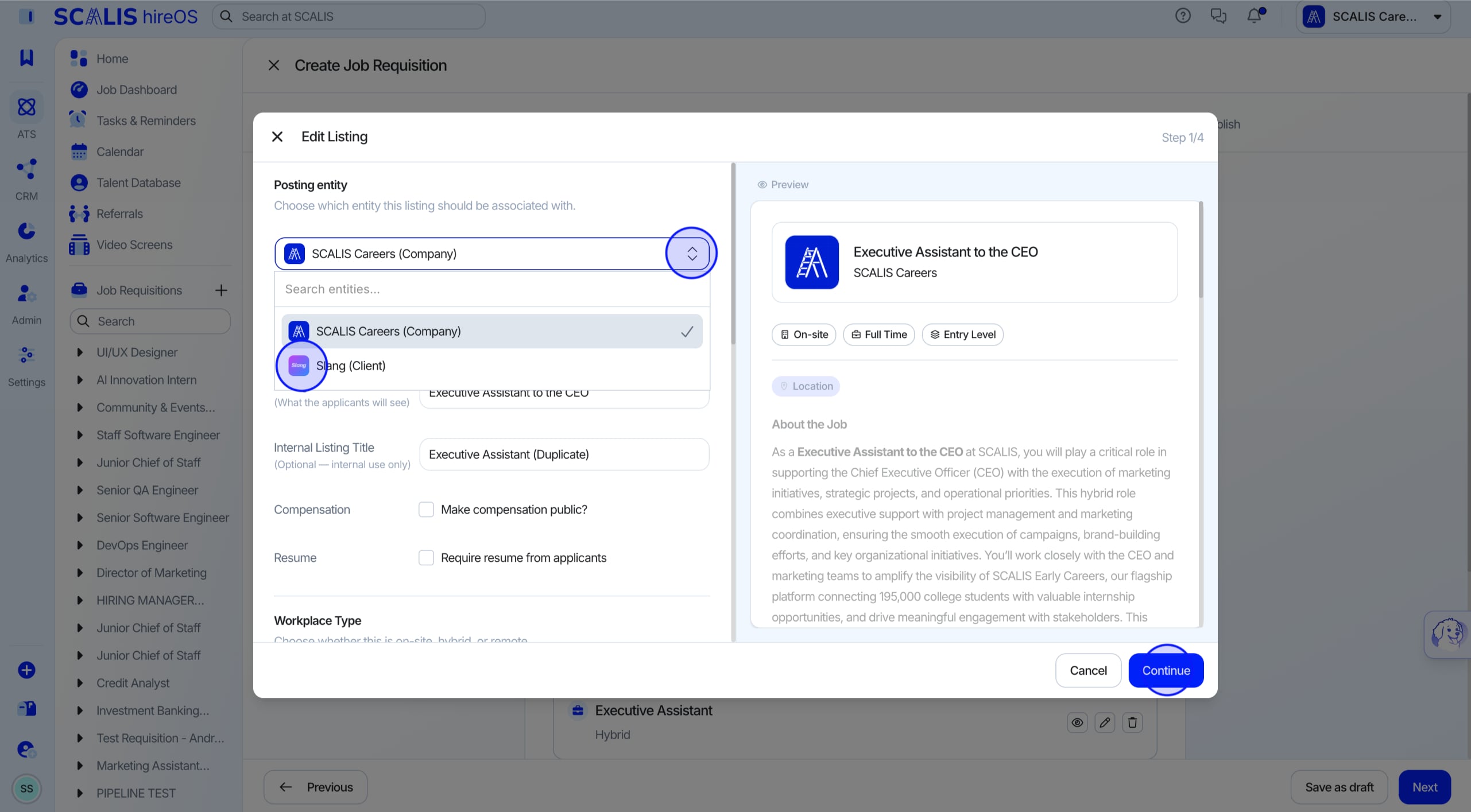
Select the Entity in the Listing
In the Listings step, click "Create Listing" and select an Entity.
✓
Final Step
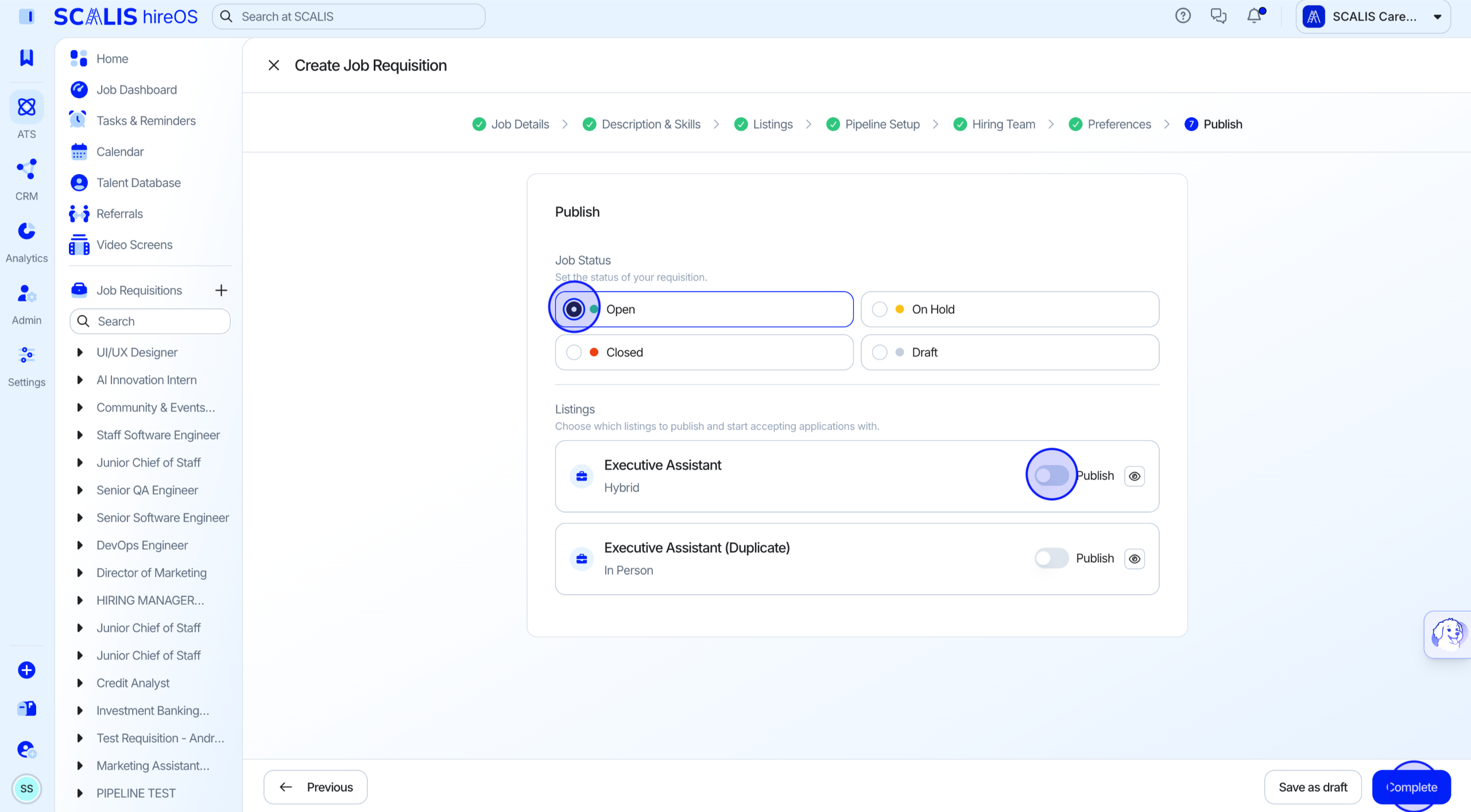
Publish the Listing
Finish all the steps and publish the job and its listings.
After publishing, the listing will include the Subsidiary or Client's logo, name, about statement, and footer statement.
For additional support, contact your SCALIS CSM for assistance.