.png?width=1391&height=437&name=SCALIS%20Logo%20(1).png)
INTERVIEW SCHEDULING
Add video screens into your interview process to evaluate candidates asynchronously and speed up your hiring flow.
6 sections8 min read
In this guide
Creating Video Screens
1
Step 1
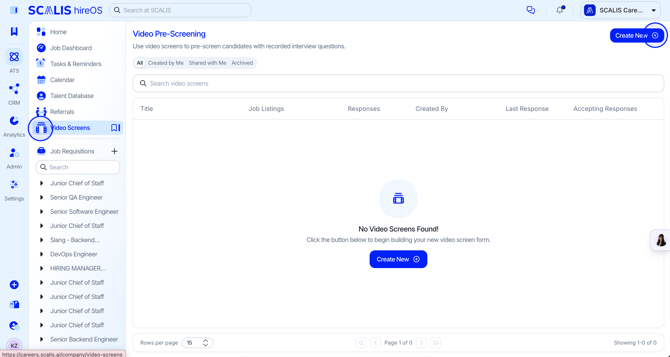
Open Video Screens
Select Video Screens from the left navigation.
2
Step 2
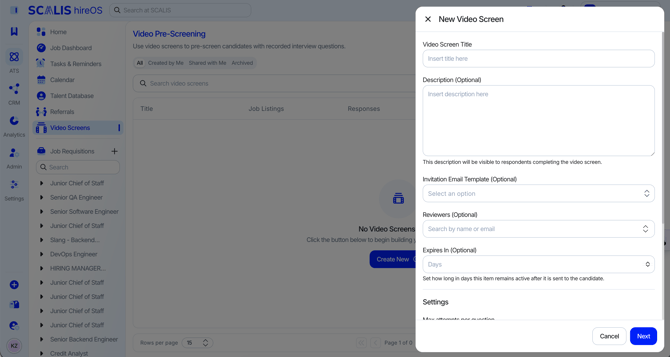
Start a New Video Screen
Select Create New and fill out the form.
Add a Title, Description for the purpose of the video screen, assign Reviewers, and set an Expiration Date.
To send the video screen automatically when a candidate applies, attach an email template with instructions for candidates.
3
Step 3
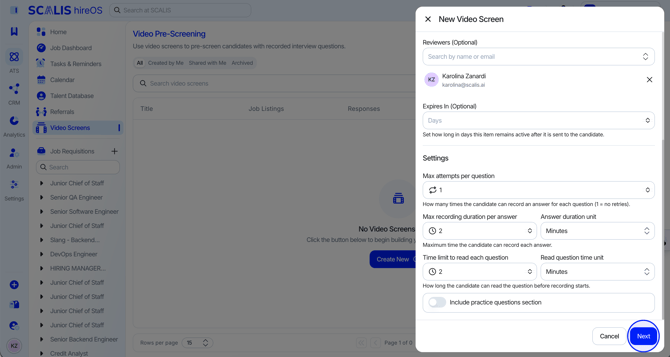
Configure the Settings
Choose whether candidates are allowed to access practice questions, then select Next.
4
Step 4
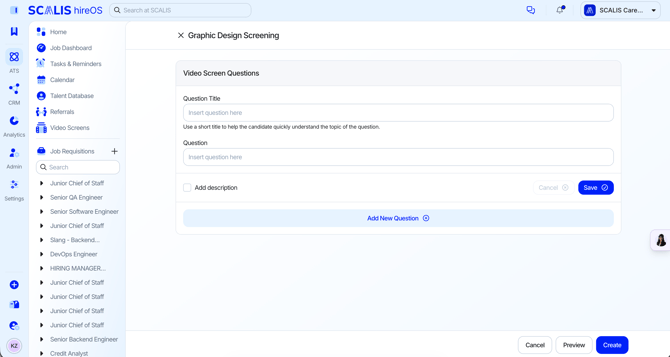
Add Questions and Create
Fill out the practice questions and video screen questions.
Select Preview to see the format of the video screen, then select Create.
Creating a Video Screen with a Requisition
1
Step 1
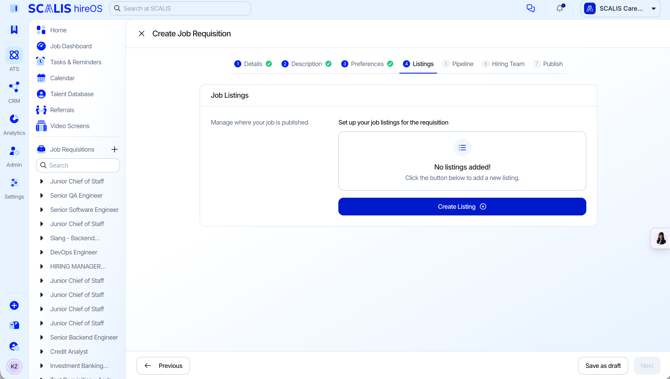
Start a New Requisition
From the Job Dashboard, select Create New Requisition and complete steps 1 through 3.
2
Step 2
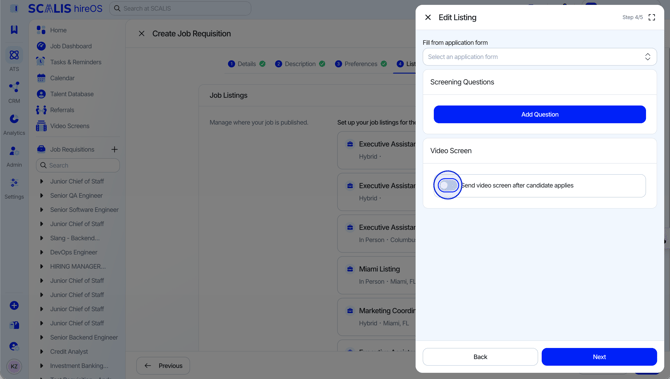
Turn On Video Screening
When you reach Job Listing setup (step 4), toggle on Send video screen after candidate applies.
3
Step 3
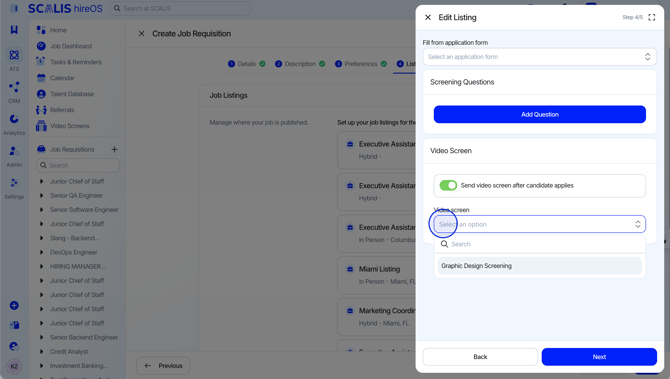
Attach the Video Screen
Select the video screen you'd like to attach to the listing, then select Save.
4
Step 4
Complete the Requisition
Follow the remaining steps to create your requisition, then select Complete.
5
Step 5
Confirm It's Live
Your video screen is now automatically sent to candidates once they apply to that listing.
Sending a Video Screen to a Candidate
1
Step 1
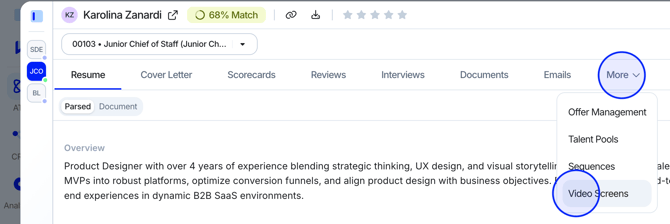
Open the Candidate's Video Screens Tab
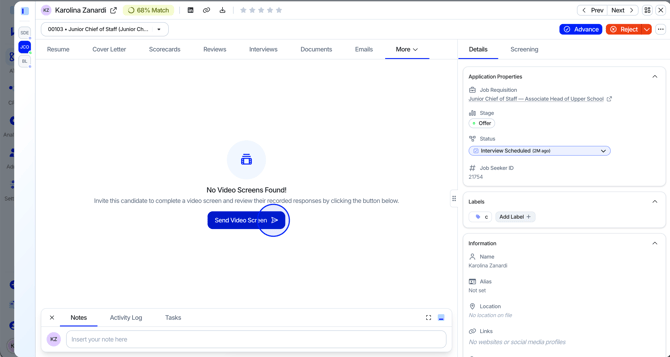
Navigate to the candidate's profile within the requisition, then select the Video Screens tab.
2
Step 2
Send the Video Screen
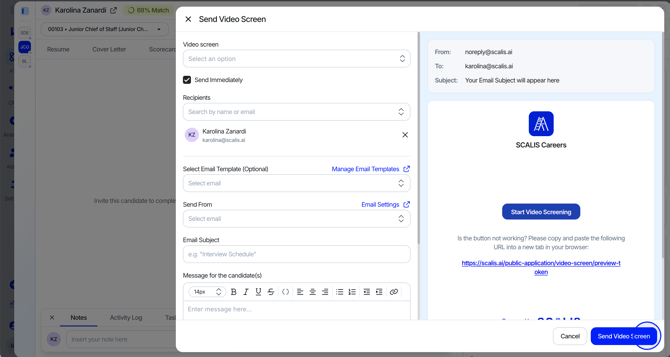
Select Send Video Screen, confirm the correct video screen is selected and the email information is correct, then select Send Video Screen.
3
Step 3
Resend or Remind
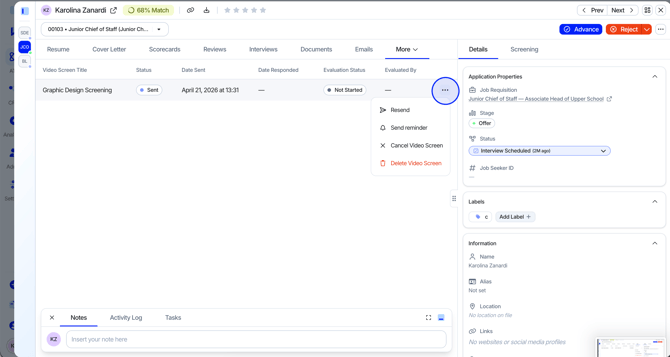
To send a reminder or resend the video screen, select the ellipses (...) next to Evaluated By, then select Send Reminder or Resend.
Evaluating from the Video Screen Page
1
Step 1
Open the Video Screen
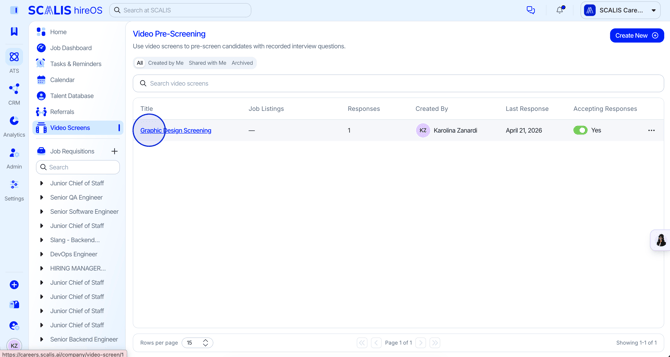
Video screen submissions can be reviewed either from the Video Screens page in the left navigation or directly within a candidate's profile.
Navigate to the Video Screen page from the left navigation and select the title of the video screen you'd like to review submissions for.
💡 Note: Video screens may take a few minutes to process after the candidate submits them.
2
Step 2
Choose a Submission to Review
Select the respondent's name, or select Start Evaluating to review all submissions in order.
3
Step 3
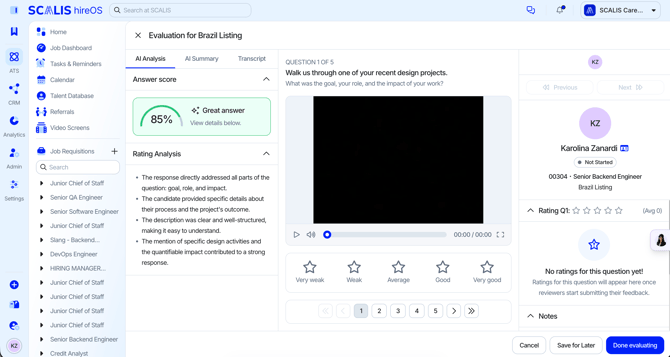
Review the Transcript and AI Analysis
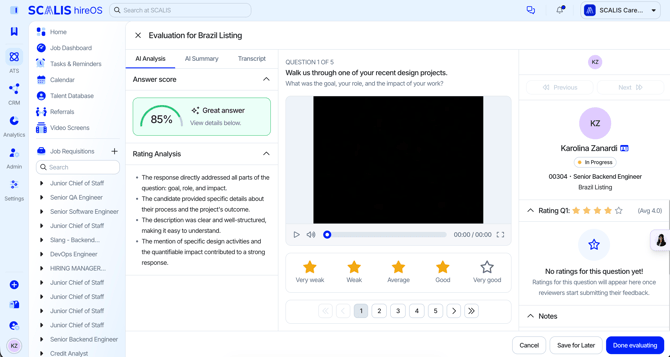
View the Transcript, AI Summary, and AI Analysis, which score the candidate's answer and analyze the pre-screen.
4
Step 4
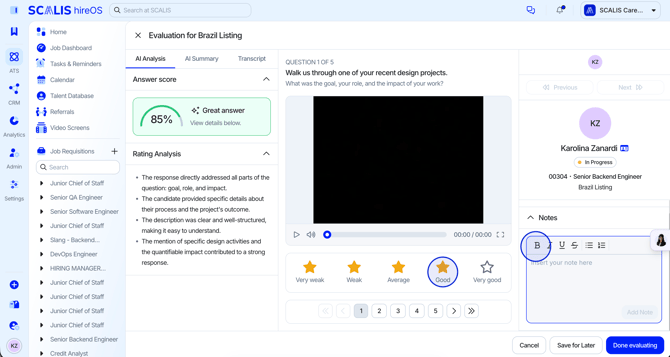
Rate the Response
At the bottom, use the star rating to rate each answer, and add notes on the right hand side.
5
Step 5
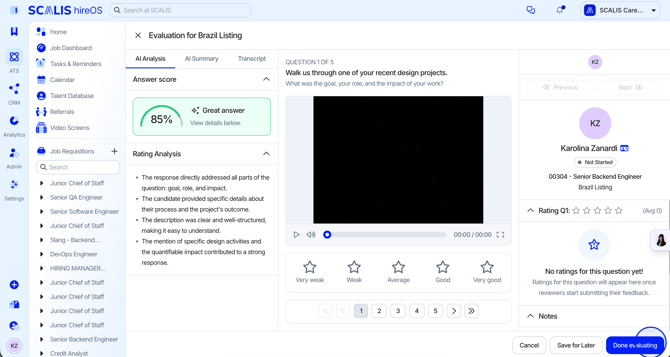
Finish the Evaluation
Once you're satisfied with your ratings, select Done Evaluating.
6
Step 6
Confirm It's Saved
The evaluation saves automatically to the candidate's profile under Video Screens.
Evaluating from a Candidate Profile
1
Step 1
Open the Video Screens Tab
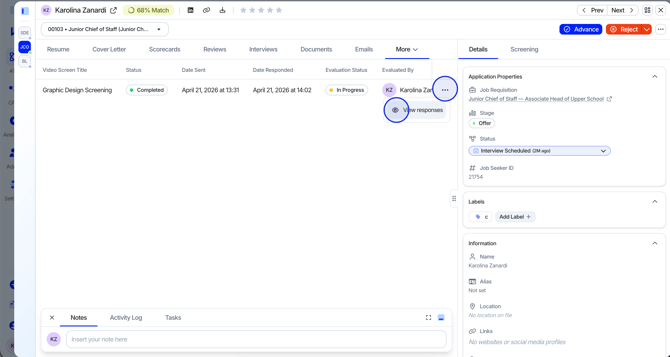
Navigate to the candidate's profile and select the Video Screens tab at the top of the screen.
2
Step 2
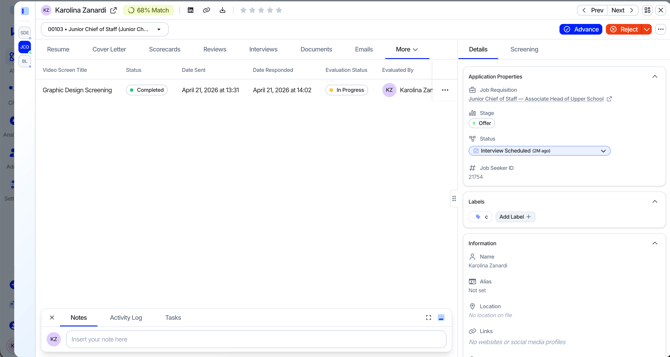
Check the Status
View the status, date sent, date responded, and evaluation status.
3
Step 3
Open the Responses
Select the ellipses (...), then select View Responses to begin the evaluation.
4
Step 4
Complete the Evaluation
Finish the evaluation, then select Done Evaluating.
For Candidates Completing Video Screens
1
Step 1
Receive the Invitation
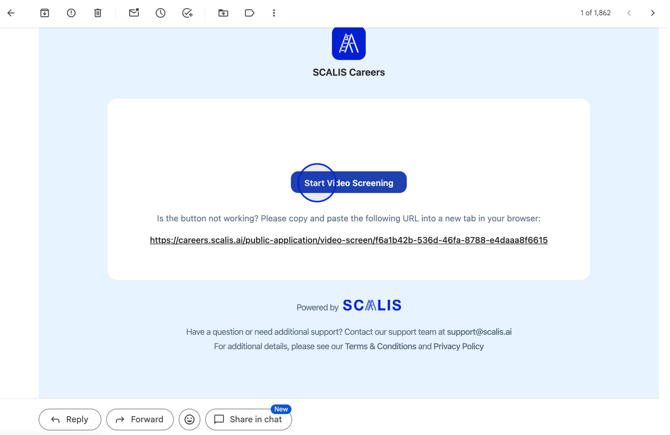
You'll receive an email from the company you're interviewing with that contains the video screen link.
2
Step 2
Start the Video Screen
Open the email and select Start Video Screening.
3
Step 3
Check Your Camera and Microphone
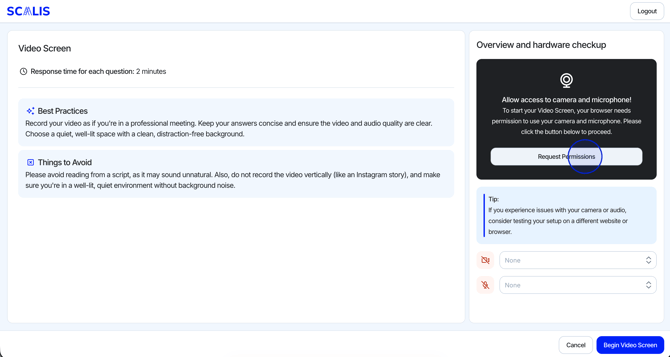
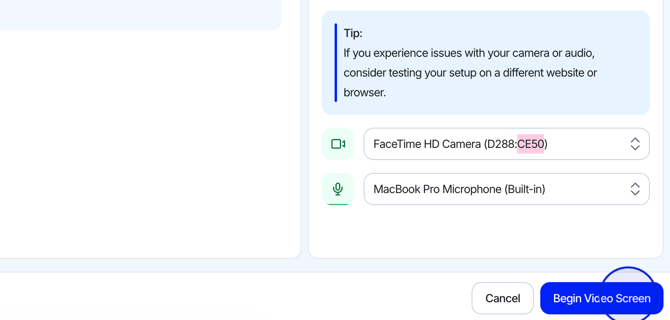
Connect your camera and microphone, and review the directions on the screen.
4
Step 4
Begin
Select Begin Video Screen once you're ready.
5
Step 5
Answer the Questions
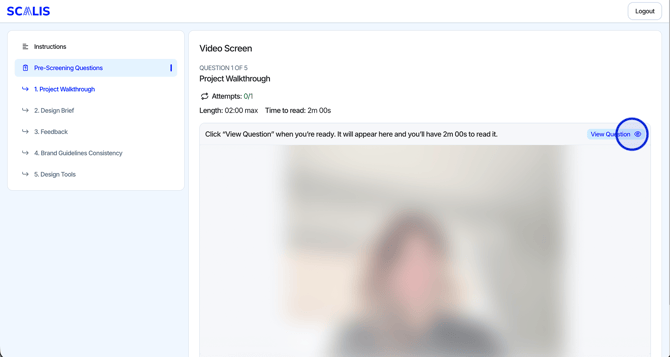
You'll be brought into the video screening room and prompted to answer the questions.
6
Step 6
Record Your Answers
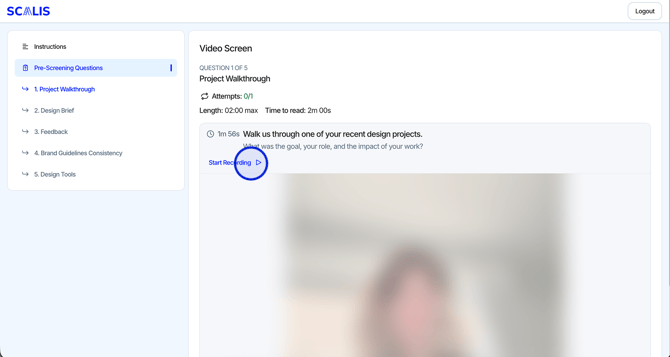
Record your answer to each question.
✓
Final Step
Submit
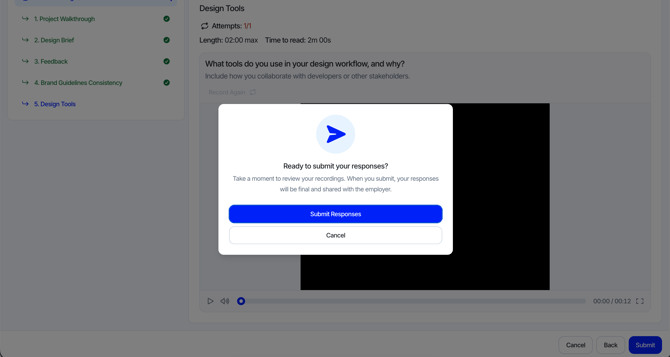
Once you've answered all the questions and are satisfied with your answers, select Submit.
That's it! Video screens help your team evaluate candidates faster, before they ever reach a live interview. Reach out to your CSM any time you need a hand.