
ANALYTICS
Create a custom dashboard in SCALIS, add the widgets that matter to you, and focus your view by including or excluding data.
4 steps4 min read
1
Step 1
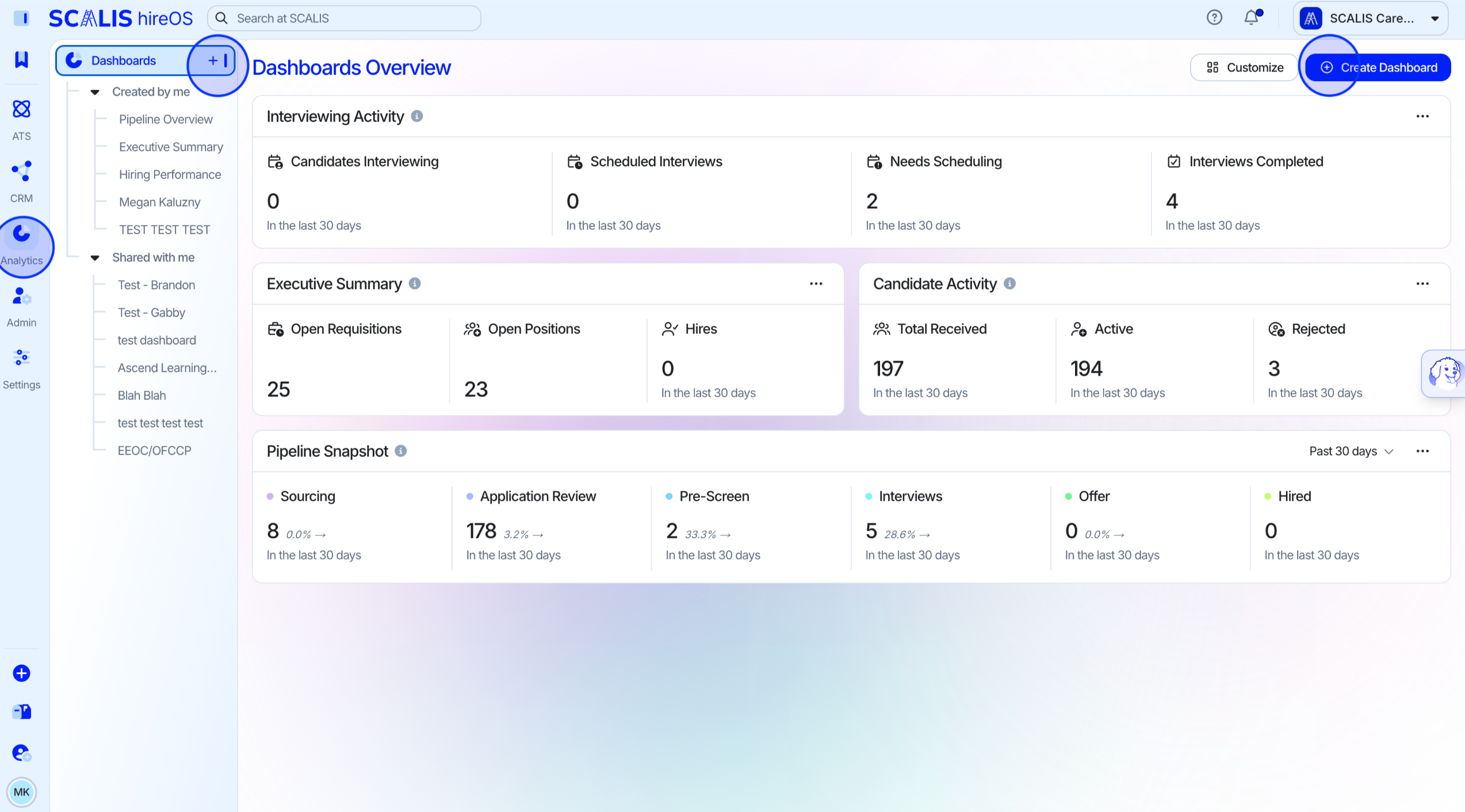
Navigate to Dashboards and create a new dashboard
Dashboards live inside Analytics and give you a single view of the hiring metrics you care about most.
From the main navigation, go to Analytics > Dashboards.
Select Create Dashboard to start building.
2
Step 2
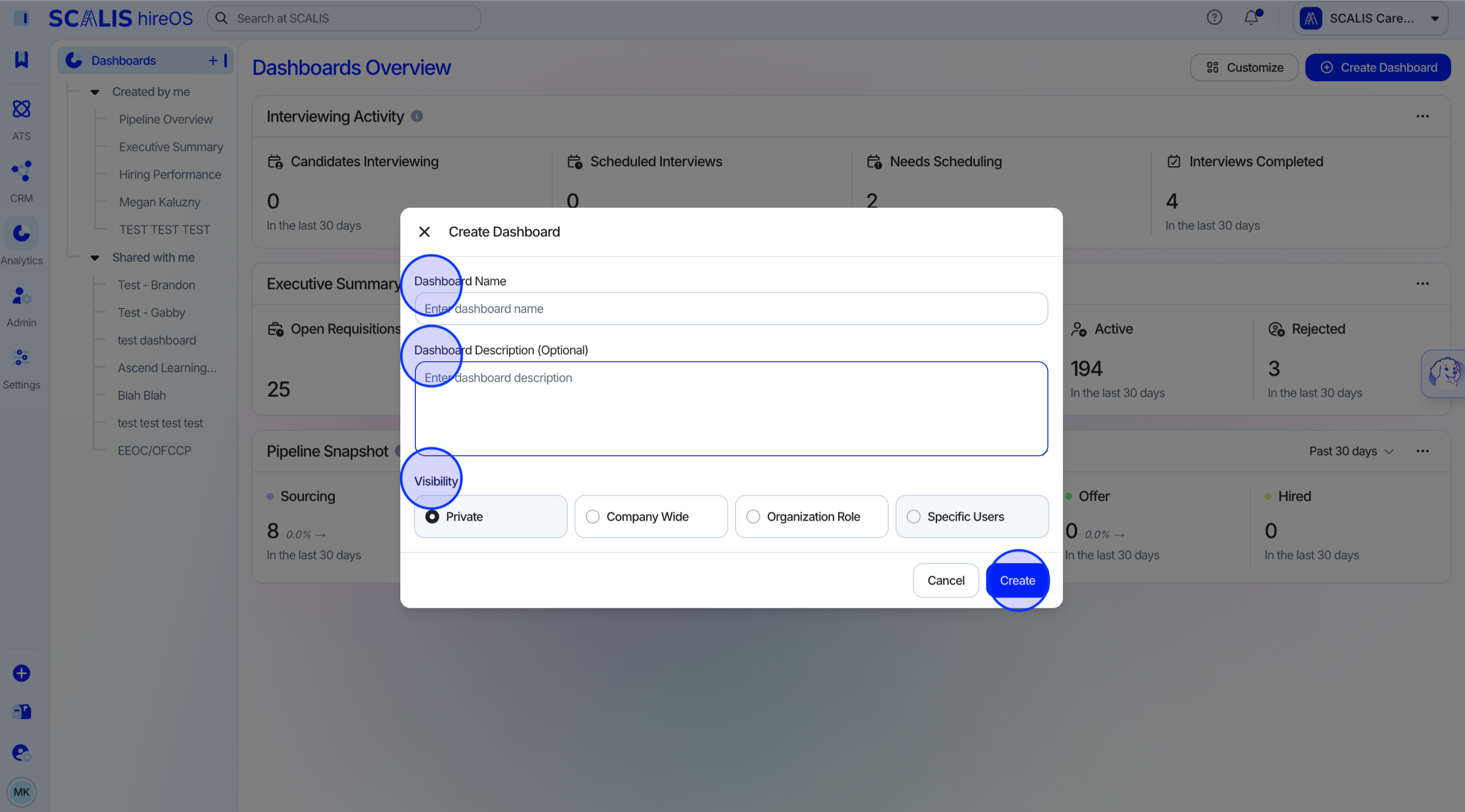
Name your dashboard and set visibility
A clear name and description make it easy for you and your team to find the right dashboard later.
Enter a Dashboard Name.
Add a Description (optional) to explain what the dashboard tracks.
Choose the dashboard's Visibility to control who can see it.
3
Step 3
Add widgets
You have two ways to build out your dashboard: drop in premade widgets right away, or customize it in more detail.
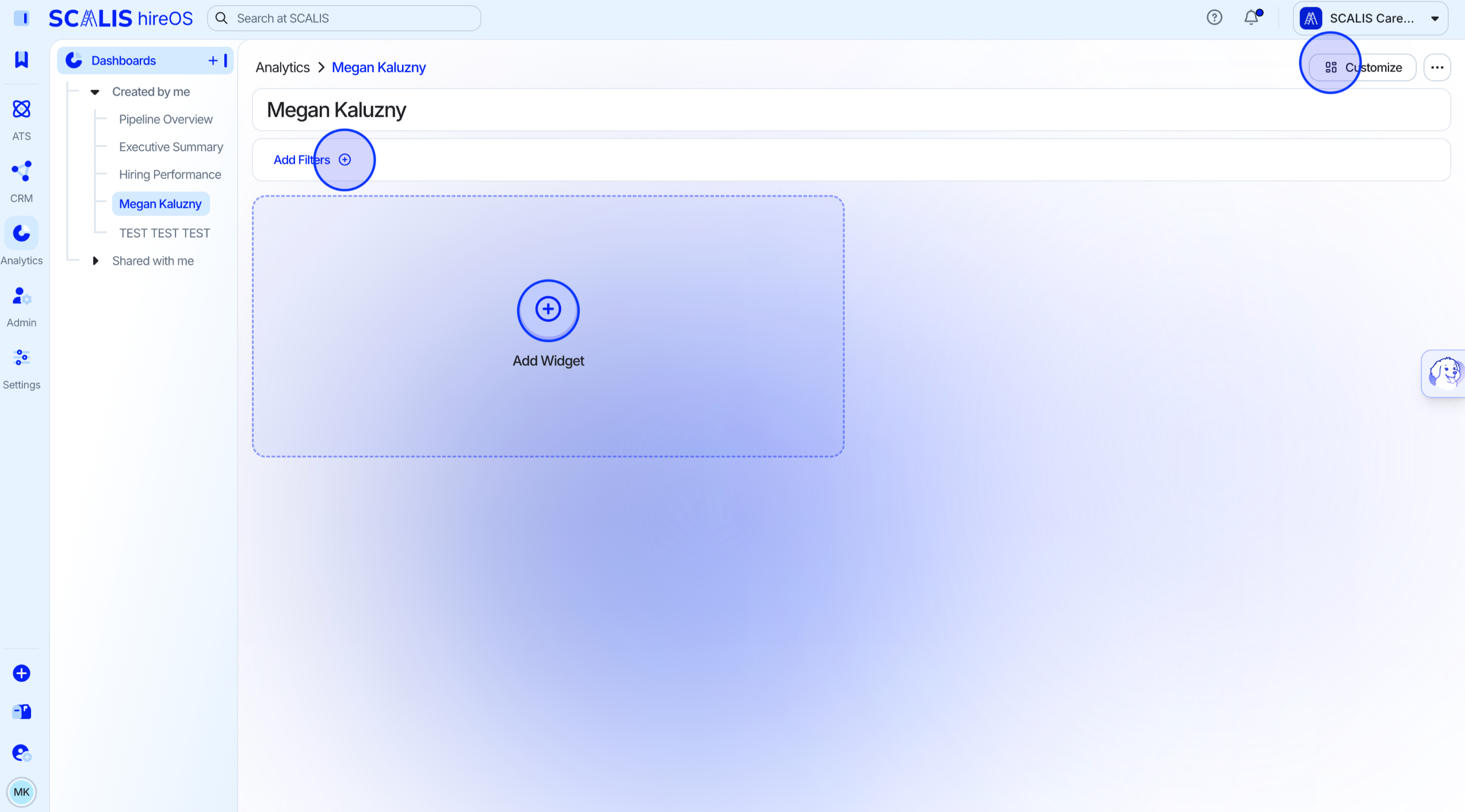
3aAdd premade widgets
Select from the available premade widgets to add them directly to your dashboard.
3bCustomize your dashboard
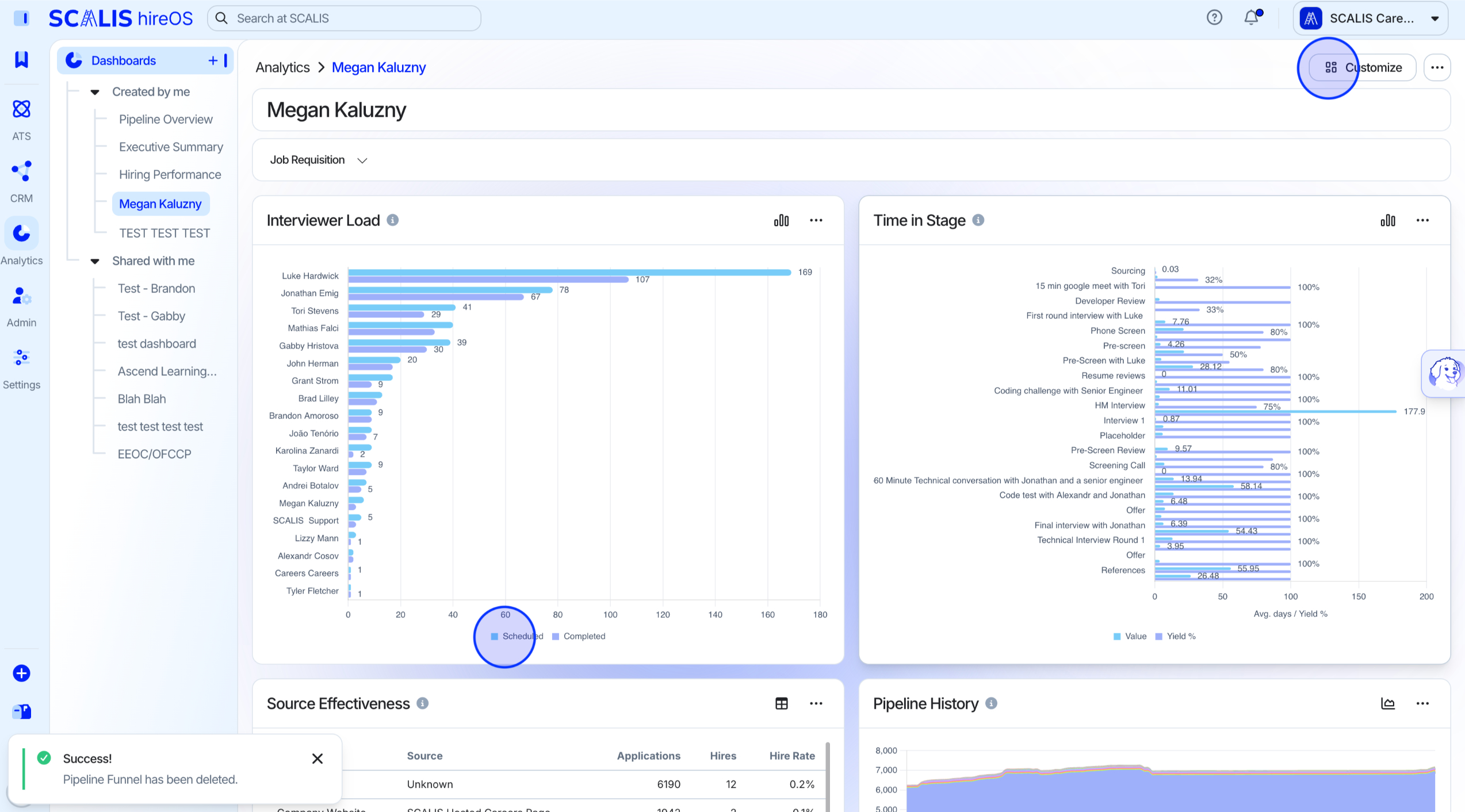
Select Customize to open the full set of options.
From here you can:
Add filters to the dashboard.
Set background colors.
Add specific widgets.
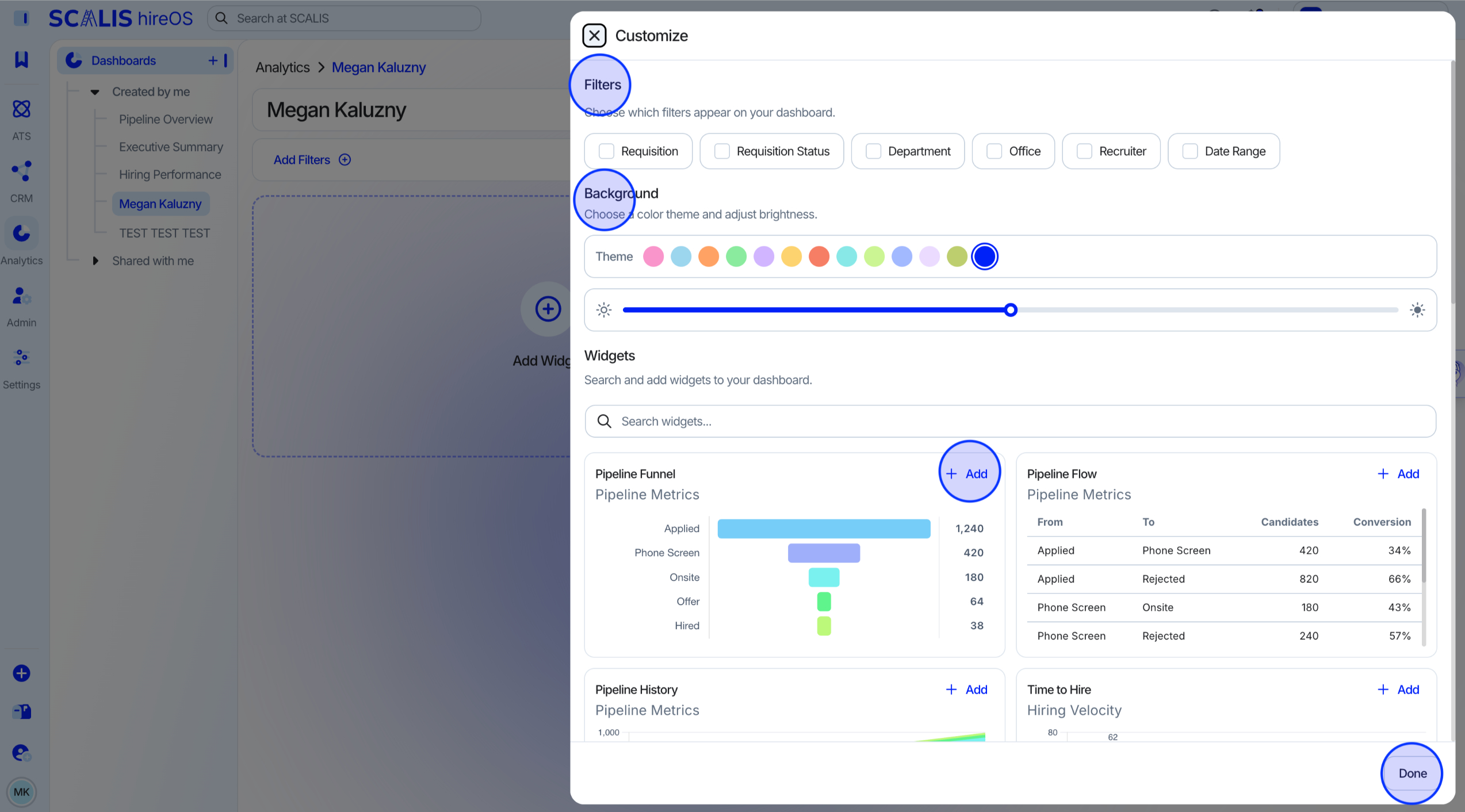
💡 Note: Some widgets require a requisition to be selected before they display data.
✓
Final Step
View and refine your data
Once your dashboard is created, you can adjust what each view shows without rebuilding it.
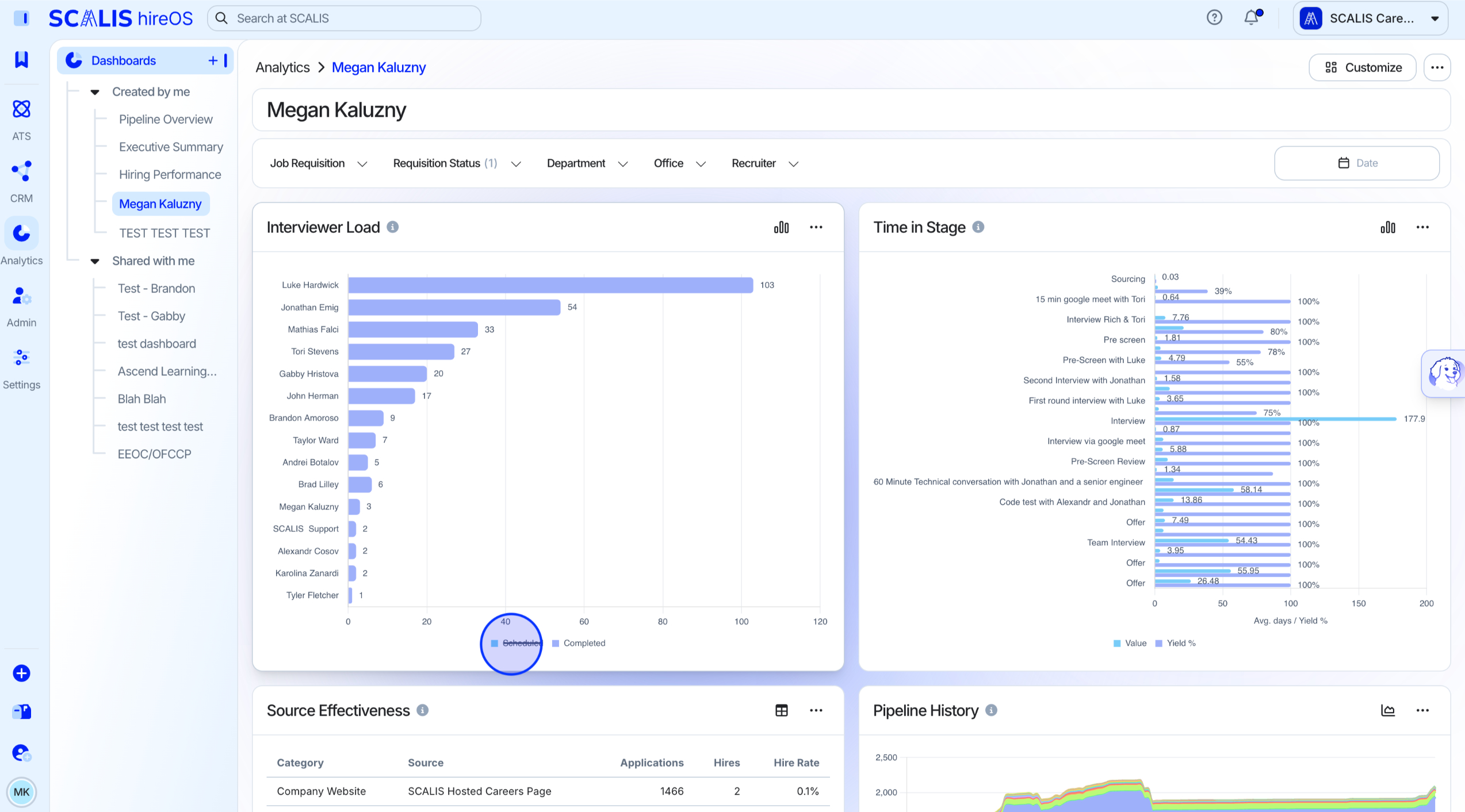
Open your dashboard to view it.
Select the associated fields to include or exclude data from the view.
Frequently Asked Questions
Why isn't a widget showing any data?
Some widgets require a requisition to be selected. Select a requisition for that widget and the data will appear.
Who can see my dashboard?
That depends on the Visibility you chose when creating the dashboard.
Can I focus on just part of my data?
Yes. While viewing your dashboard, select the associated fields to include or exclude data.
You're all set to track the metrics that matter most to your team. If you have questions about building your dashboard, reach out to your SCALIS Customer Success Manager.